
Appearance
LLM configuration
Map a model provider to a default model and a vault key, so agents and the Playground know which key to use for that provider.
At a glance
| Where | Sidebar → Organisation → LLM Config (also Settings → LLM Configuration) |
| Who | Anyone who builds agents |
| Before you begin | The provider's API key is in the Vault |
Important, saved in this browser. LLM configurations are currently stored in your browser only. They are not shared with colleagues and do not follow you to another computer or browser. Each person sets up their own. Agents themselves always name their key in their Credentials step, which is saved with the agent.
1. What it is and why it matters
When you build an agent you choose a provider, a model and a key. A configuration remembers "for OpenAI, use GPT-4.1 mini with openai_key", so that choice is filled in for you. Keys stay in the Vault, this page stores only which secret each provider should use.
2. Add a configuration
- Open LLM Config and click New configuration.
- Choose the AI Provider: AWS Bedrock, Anthropic, OpenAI, Azure OpenAI, Google Gemini, LiteLLM, Mistral, Ollama (local), llama.cpp (local), Llama API, Amazon SageMaker or Writer.
- Choose the Model. Where the provider has no preset list, type the model's identifier.
- Choose the API Key (from Vault), or Create new to add one.
- Click Save configuration.
Screenshot: LLM Configuration
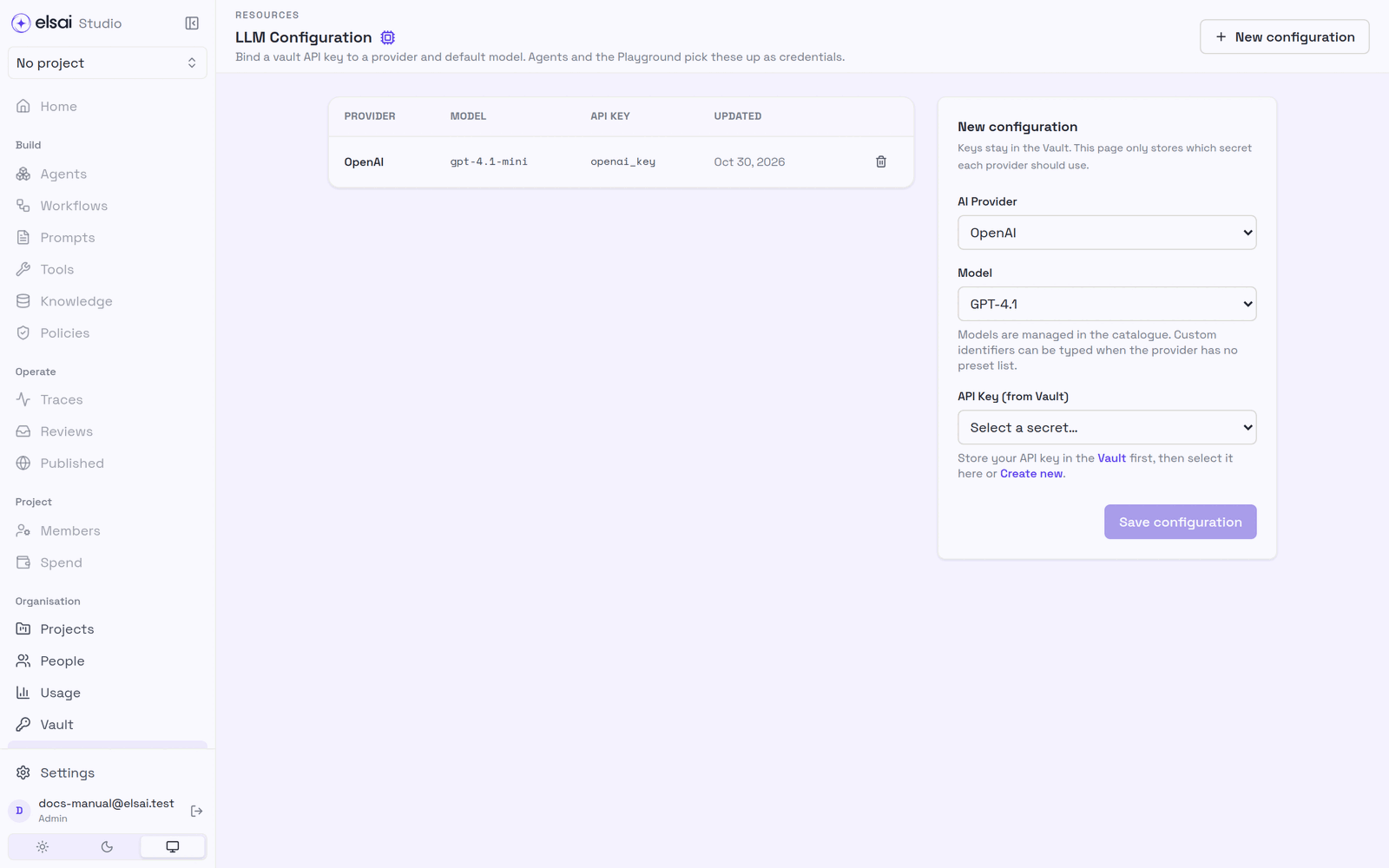
One configuration per provider: saving another for the same provider replaces it. Remove one with the bin icon on its row.
3. Troubleshooting
| Symptom | Likely cause | Fix |
|---|---|---|
| No LLM configurations although a colleague made some | Configurations live in each person's browser | Add your own |
| The key you want is not listed | It is not in the Vault | Ask an Admin to add it, or Create new |
| Save configuration is greyed | No key chosen | Choose a key |