
Appearance
Organising and moving work
Keep a growing project tidy with folders, and reuse work by duplicating it, downloading it, importing it from a file, or copying an agent to another project.
At a glance
| Where | The Agents, Workflows and Tools lists |
| Who | Everyone can download. Authors and above can create folders, move, duplicate, import and copy |
| Before you begin | To copy to another project, you must be a member of it |
| Action | Agents | Workflows | Tools |
|---|---|---|---|
| Folders | ✅ | ✅ | ✅ |
| Duplicate… | ✅ | ✅ | |
| Download YAML | ✅ | ✅ | ✅ |
| Download with its tools | ✅ | ||
| Import from a file… | ✅ | ✅ | ✅ |
| Copy to project… | ✅ |
1. Folders
Folders group related work, e.g. Prior auth and Member support. They also do one useful thing for tools: an agent in a folder is offered that folder's tools first.
Create a folder
- Click the ▾ beside New agent, New workflow or Register a tool.
- Choose Folder, give it a Folder name and a Folder colour.
Move things into a folder
- Drag a card onto the folder (Drop to move here), or
- Click Select, tick several items, then Move to folder in the bar that appears (Esc to finish selecting), or
- For a new agent: choose the Folder in its Identity step. Creating an agent from inside a folder files it there.
Rename or delete a folder
Open the folder's actions menu: Rename, change the colour, or Delete folder. Deleting a folder does not delete what is in it; the items return to No folder.
2. Duplicate
Makes a copy in the same project under a new name and key, handy for a variant ("Card checker (copy)").
- In the list, open the item's ⋯ menu → Duplicate….
- Enter the new Name and Key. The key is how workflows and the API refer to it, and it cannot be changed later.
- Confirm. The copy is a draft: test and publish it like any new work.
3. Download
From the ⋯ menu:
| Choice | You get |
|---|---|
| Download YAML | The latest version's document (.yml) |
| Download with its tools (agents) | A bundle: the agent plus the tools and other things it needs (.bundle.yml) |
Downloads never contain secrets, only the names of the vault keys they use.
4. Import from a file
Click the ▾ beside New agent (or New workflow / Register a tool) → Import from a file….
Drop an agent's
.ymlor a bundle, or choose the file.Studio reads it and shows What the file brings, and what it refers to, grouped:
Group What you decide Agents and tools Each is Already here, Will be created, or Built in. For one that already exists: Use the one here, Add as a new version of the one here, or Import it under another key Credentials Only names travel. Point each at a key in this vault: Use the one with this name here, Add a new key to the vault…, or Keep it, I'll add it to the vault later Knowledge bases Documents don't travel. Pick one here, or Detach it, answer without a knowledge base App accounts Keep the same account, choose one this project may use, or Keep it, I'll connect one later Prompts in Instruction Manager Keep the link to Instruction Manager (it won't publish until it is readable here) or Write the words into the agent Click Import as draft.
Screenshot: Import from a file
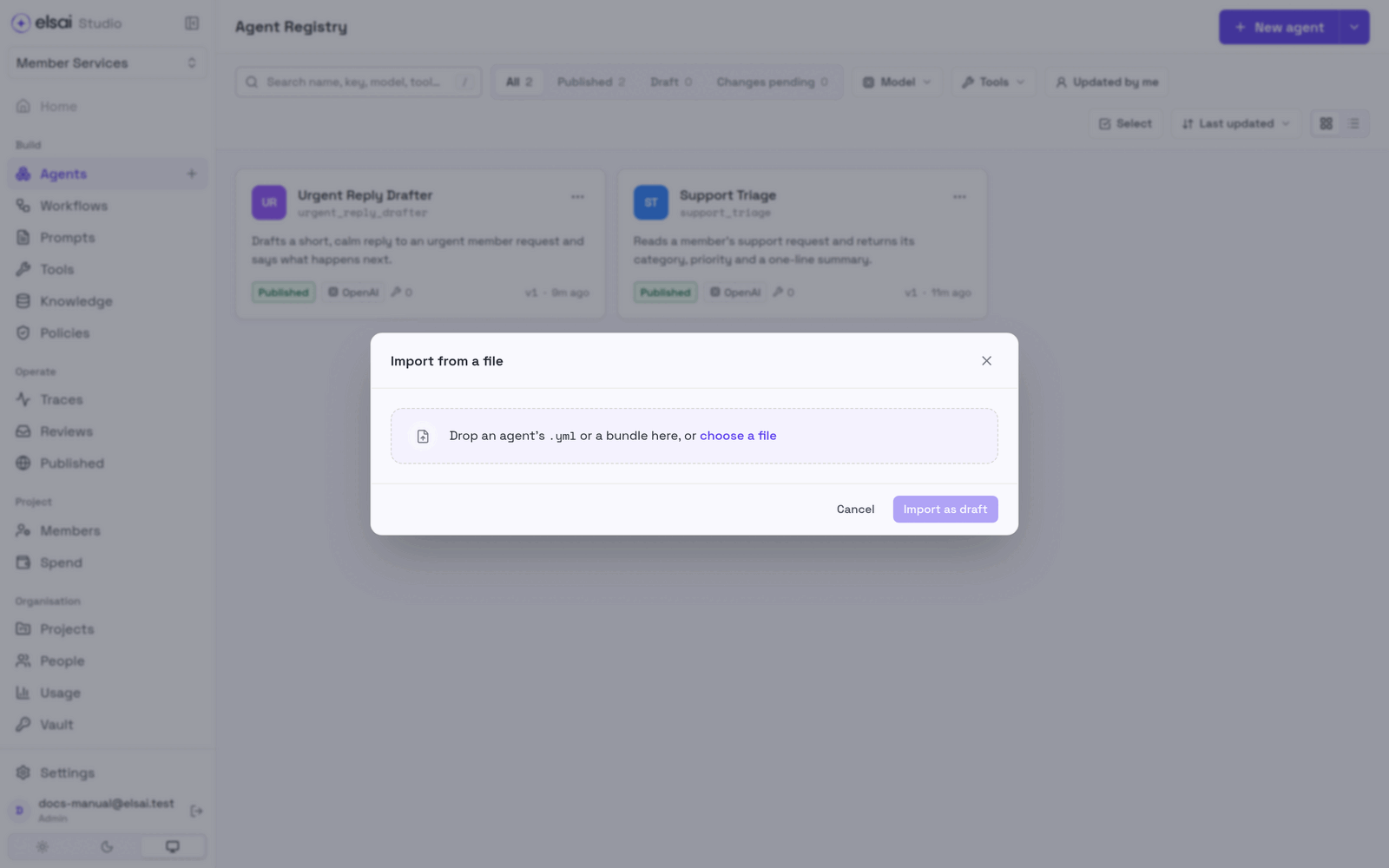
Everything arrives as a draft. Nothing is published by importing.
5. Copy an agent to another project
- In Agents, open the agent's ⋯ menu → Copy to project….
- Choose the Project (only projects you belong to are listed).
- Make the same choices as for an import (credentials, knowledge bases, app accounts, prompts).
- Confirm. Studio says, for example, Imported into Claims as a draft.
The copy is independent: changing it never changes the original.
6. Troubleshooting
| Symptom | Likely cause | Fix |
|---|---|---|
| You're not a member of any other project | Copy needs a destination you belong to | Ask an Admin for access |
| Not in this vault beside a credential | The key's name does not exist here | Pick another key, add one, or keep it for later |
| An imported agent will not publish | A credential, tool, knowledge base or prompt is still unresolved | Open the agent; the YAML step lists what to fix |
| No Duplicate for a tool | Tools are not duplicated | Register a new tool, or import a downloaded one under another key |
| Menus show only Download | You are a Viewer | Ask an Admin for Author |