
Appearance
Projects
A project is the workspace every agent, workflow, prompt and run belongs to. Administrators create projects, rename them, set how their prompts are published, and archive them when they are no longer needed.
At a glance
| Where | Sidebar → Organisation → Projects |
| Who | Admins only. Everyone else switches between their projects with the picker at the top of the sidebar |
| Before you begin | Nothing |
1. What it is and why it matters
Projects keep work apart: the Prior Authorization team's agents, keys, budgets and runs are not mixed with Member Services'. Each project has its own members, vault secrets (project-scoped), budgets, traces and published agents.
Projects created in Studio are mirrored to Instruction Manager and ARMS, and stay mirrored - a rename, a change of membership or an archive is carried onward. A project created inside one of those products is not listed here and is never touched.
2. See the projects
Screenshot: Organisation → Projects
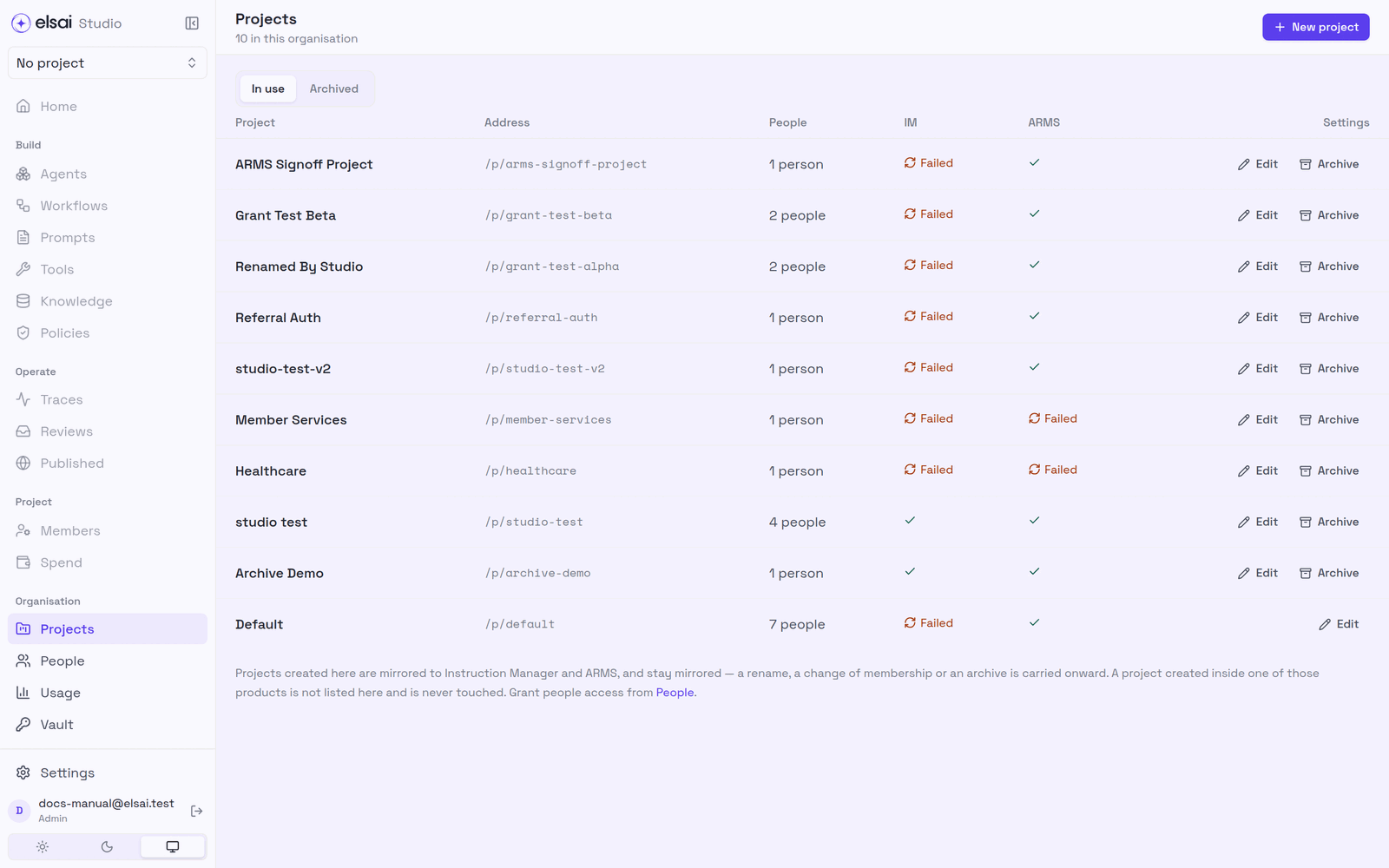
| Column | Shows |
|---|---|
| Project | Its name |
| Address | Its link, e.g. /p/member-services |
| People | How many members |
| IM / ARMS | Whether the project has reached Instruction Manager and ARMS: provisioned, or Failed with the reason |
| Settings | Edit, Archive |
Tabs: In use and Archived.
3. Create a project
- Click New project.
- Enter a Name (letters, digits and spaces).
- Choose the Publishing flow for its prompts (below). You can change it later.
- Click Create project.
- Add people: open the project → Members → Add people. Until somebody is a member, nobody but Administrators can see it.
Screenshot: New project
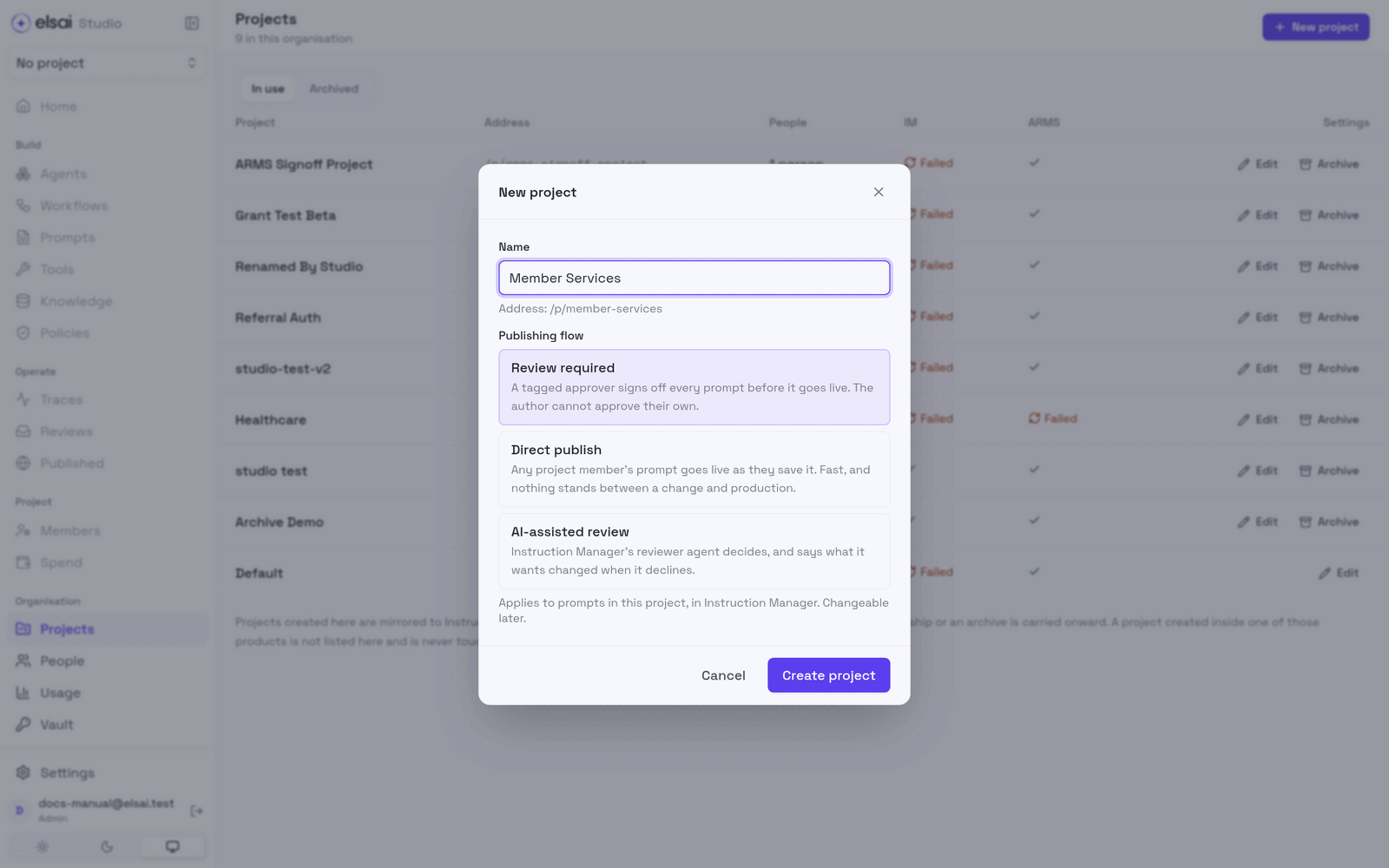
Publishing flow for prompts
How a prompt in this project goes live in Instruction Manager:
| Flow | What happens |
|---|---|
| Review required | A tagged approver signs off every prompt before it goes live. The author cannot approve their own |
| Direct publish | Any project member's prompt goes live as they save it. Fast, and nothing stands between a change and production |
| AI-assisted review | Instruction Manager's reviewer agent decides, and says what it wants changed when it declines |
4. Edit a project
Click Edit on its row (Project settings):
| Setting | Notes |
|---|---|
| Name | Shown everywhere |
| Address | The /p/<address> in links. Every existing link to this project stops working when you change it |
| Publishing flow | As above |
| Price list | How runs are costed. Normally the project's prices in Observe (Runs in this project are costed from its prices in Observe). Use a different price list takes a Pricing URL. Until ARMS connects the project, runs are costed from the standard price list |
Click Save changes.
5. Archive and restore a project
Archiving hides a project here, in Instruction Manager and in Observe. Nothing is deleted: its agents, workflows, runs, history and spend are kept, and Instruction Manager keeps its prompts.
Click Archive on its row. Studio checks the project first.
If it says It can't be archived yet. First:, deal with each item:
Blocker Do This is the main project of this deployment It is always kept in use The workflow "…" is published Unpublish it first "…" is live as an API endpoint Disable the endpoint first N workflow runs are still in progress Let them finish, or cancel them N Playground runs are still working Wait for them, or stop them Confirm Archive project.
To bring it back, open the Archived tab and restore it.
6. Troubleshooting
| Symptom | Likely cause | Fix |
|---|---|---|
| No Projects in the sidebar | You are not an Admin | Ask an Admin |
| IM: Failed / ARMS: Failed | The sibling product was unreachable or refused | It retries automatically; check People → Provision all, or ask your platform team |
| Links to the project stopped working | Its address was changed | Share the new link |
| Cannot archive | A blocker is listed | Clear each blocker |