
Appearance
Knowledge: skills and knowledge bases
Two ways to give an agent what your organisation knows. A skill is guidance the agent always follows. A knowledge base is a set of documents the agent searches for the passages it needs.
At a glance
| Where | Sidebar → Build → Knowledge, tabs Skills and Knowledge bases |
| Who | Viewer: look at everything, including document text and chunks. Author and above: create, upload, change, delete, and search |
| Before you begin | For knowledge bases: an embedding model key in the Vault (Azure OpenAI or Amazon Bedrock). For PDFs: a Docloom key |
Which one do I need?
| You want the agent to… | Use |
|---|---|
| Always follow a style guide, checklist or procedure | A skill, its text is added to the instructions on every run |
| Answer from manuals, policies or spreadsheets too large to paste into instructions | A knowledge base, the agent searches it and is handed only the relevant passages |
Part A: Skills
A1. What a skill is
A skill is a reusable package of guidance, written in Markdown (a SKILL.md file, with optional YAML front matter). Attach it to any number of agents; update it once and every agent that uses it gets the new version when re-published.
Screenshot: Knowledge → Skills
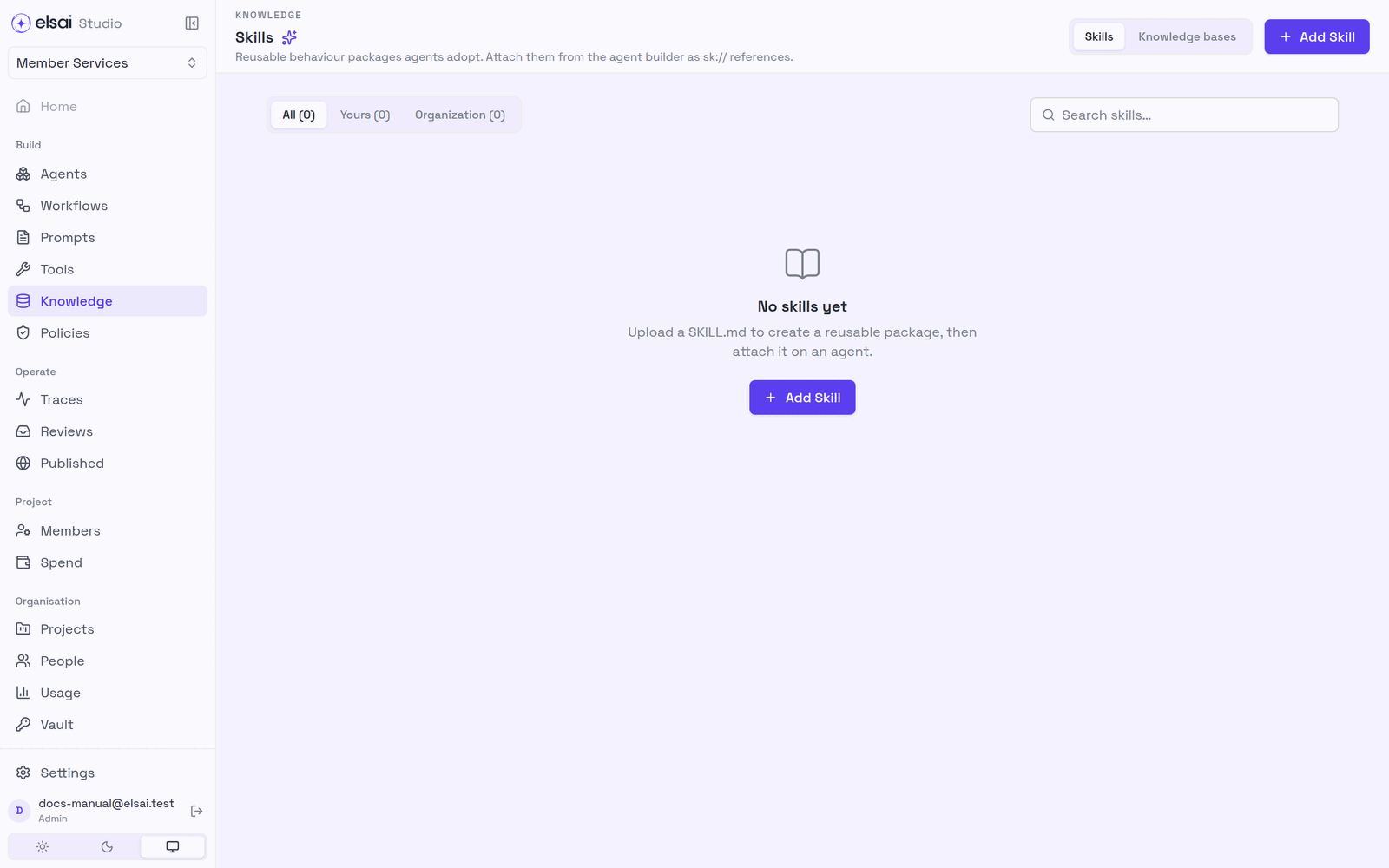
The list can show All, Yours or Organization skills.
A2. Add a skill
- In Knowledge → Skills, click Add Skill.
- Under Upload SKILL.md, choose Paste (type or paste the Markdown) or File (upload it).
- Enter a Key (snake_case, the registry id), a Name and a Description.
- Click Create & publish.
Screenshot: Add Skill
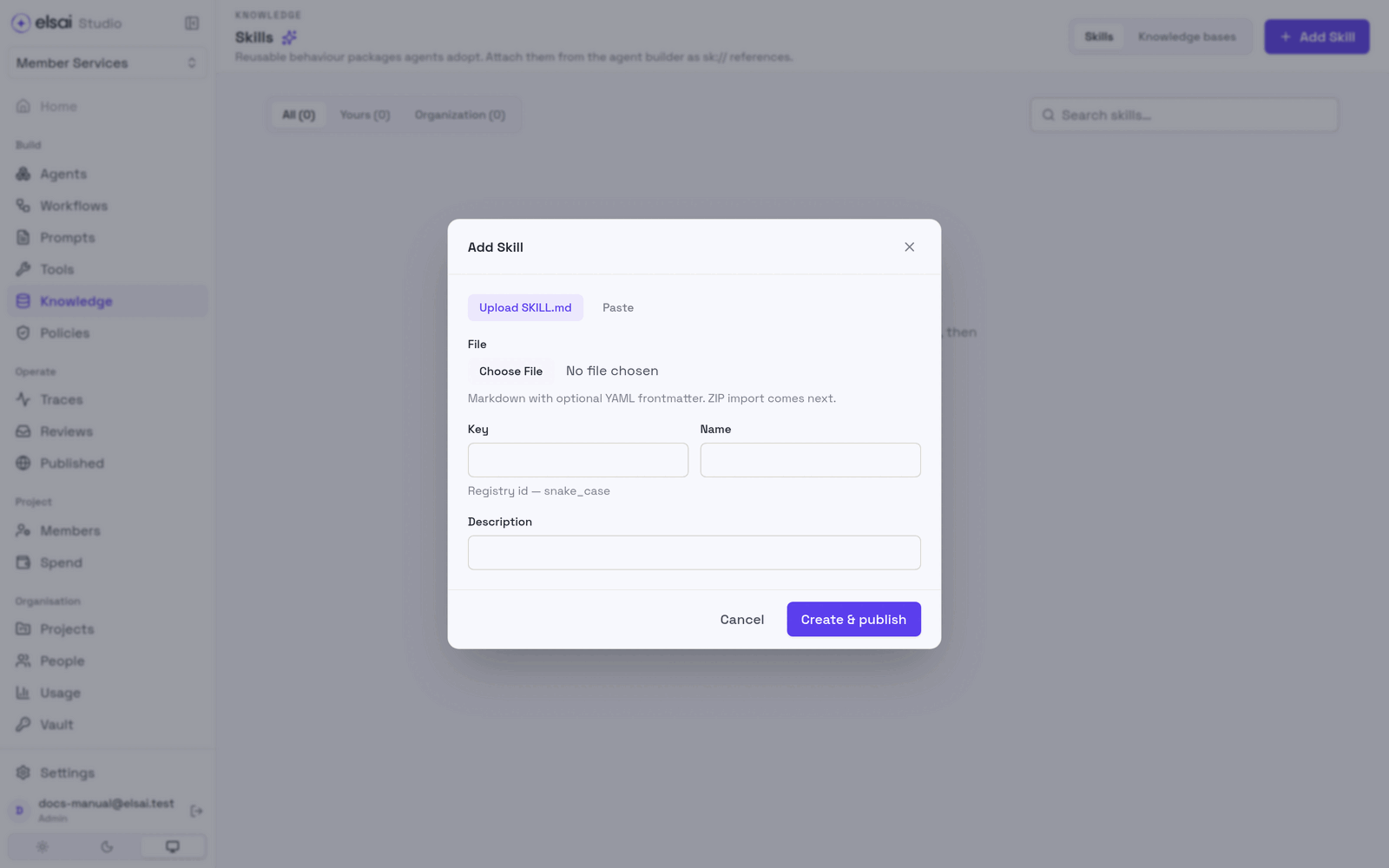
ZIP import is not available yet.
A3. Use a skill
Open an agent → Skills → tick the skill → save, test and publish the agent.
Part B: Knowledge bases
B1. What a knowledge base is
A knowledge base holds the policies, manuals and spreadsheets an agent should answer from. You upload them once. Studio reads them, splits them into short passages (chunks), and embeds each passage, turns it into numbers that capture its meaning, so it can be found by meaning, not just by keyword. When an agent with the knowledge base gets a question, it searches first and is handed the best passages, each with its file and page.
| Stage | What happens | Where |
|---|---|---|
| Read | PDFs become text through Docloom (scanned pages too). Word, CSV and Excel are read inside Studio | PDFs leave the network to Docloom's hosted service; other files never leave Studio |
| Split | The text is cut into chunks of a set size, with some overlap | Every cut is shown over the original text |
| Embed | Each chunk is embedded with the project's own model and key | Azure OpenAI or Amazon Bedrock |
B2. Create a knowledge base
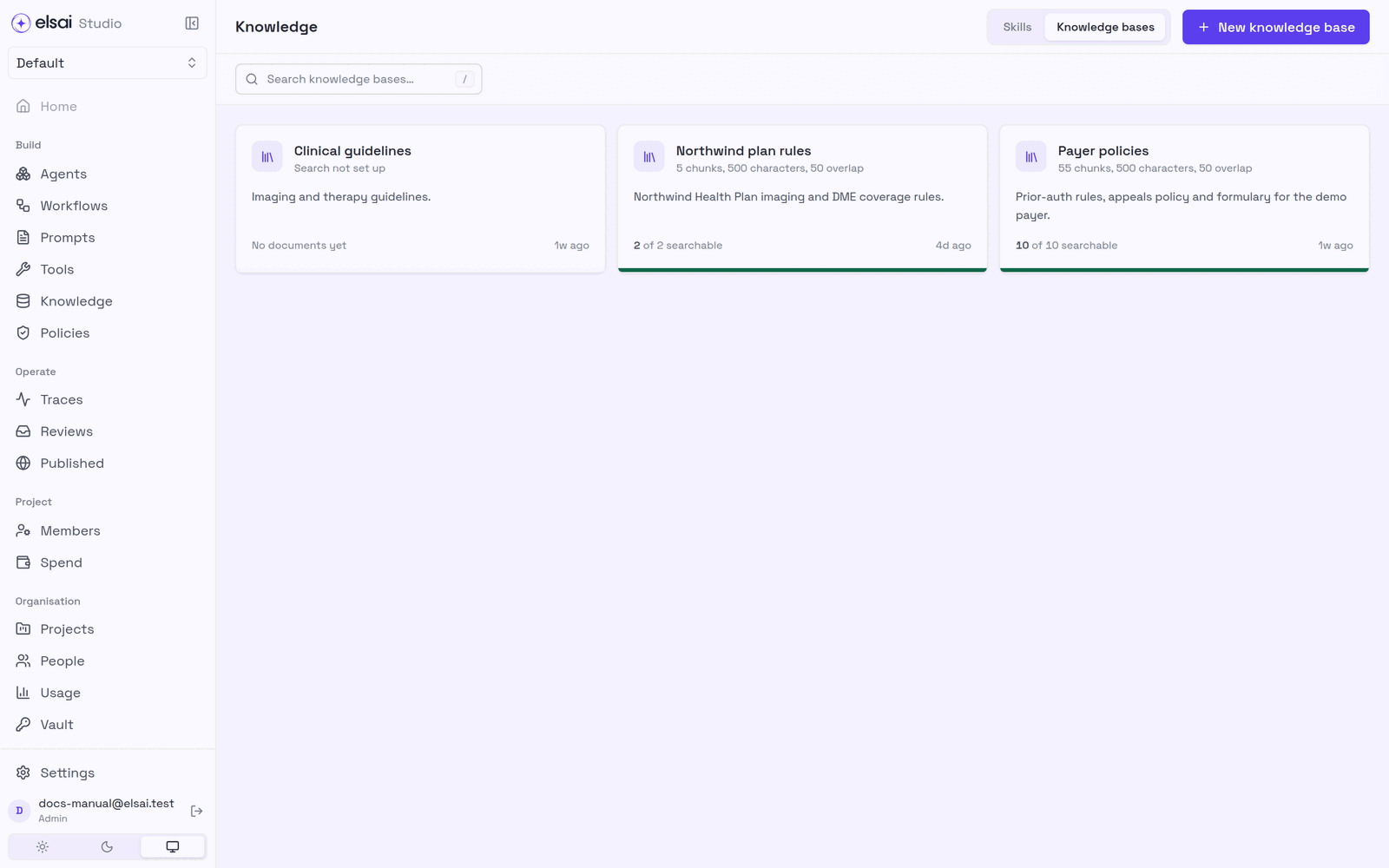
The list shows each knowledge base with how it is split and how many documents are searchable.
Screenshot: Knowledge → Knowledge bases
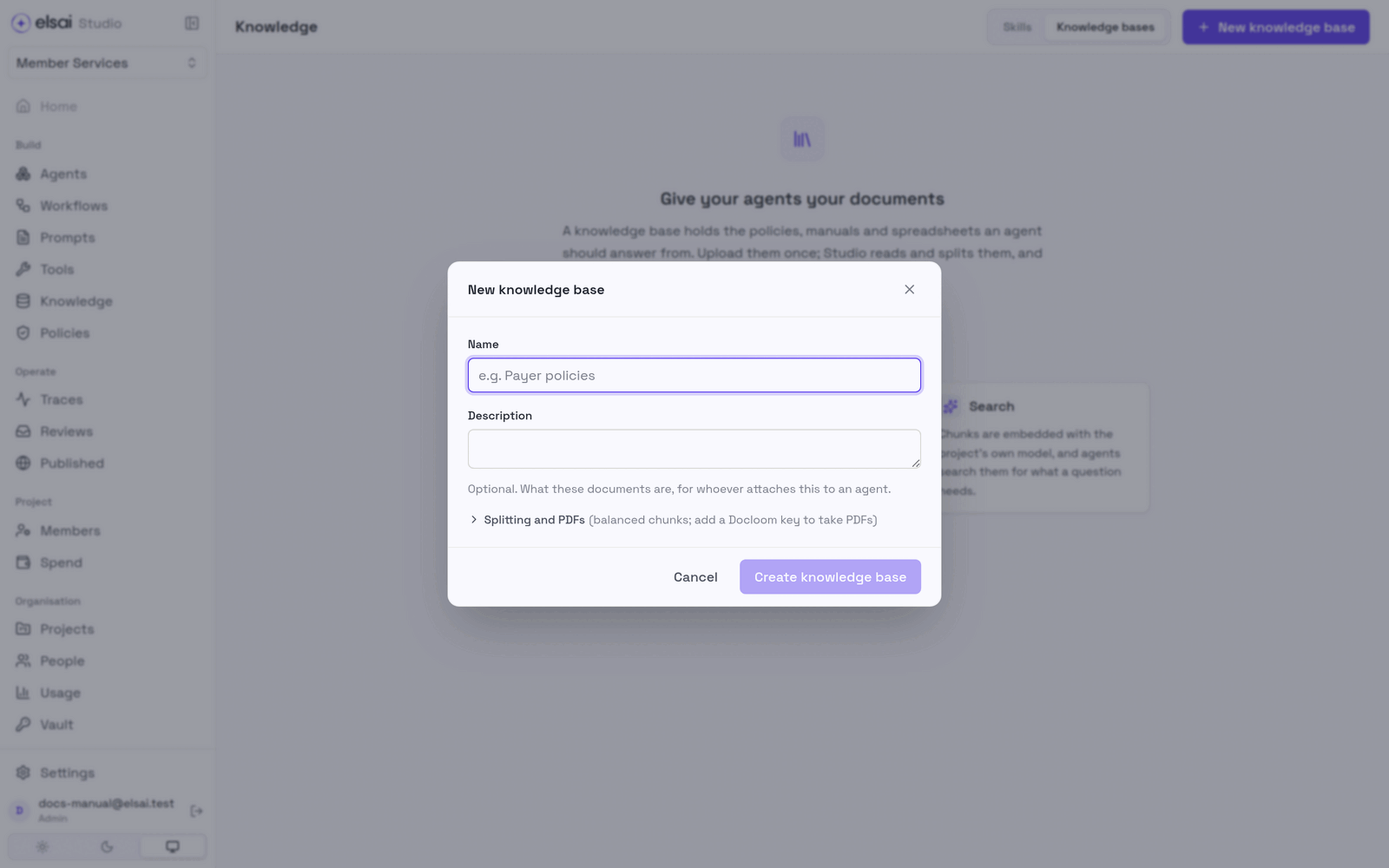
- In Knowledge → Knowledge bases, click New knowledge base.
- Enter a Name and, optionally, a Description (what these documents are, for whoever attaches it to an agent).
- Optional: open Splitting and PDFs to choose the chunk size and add a Docloom key.
- Click Create knowledge base.
Screenshot: New knowledge base
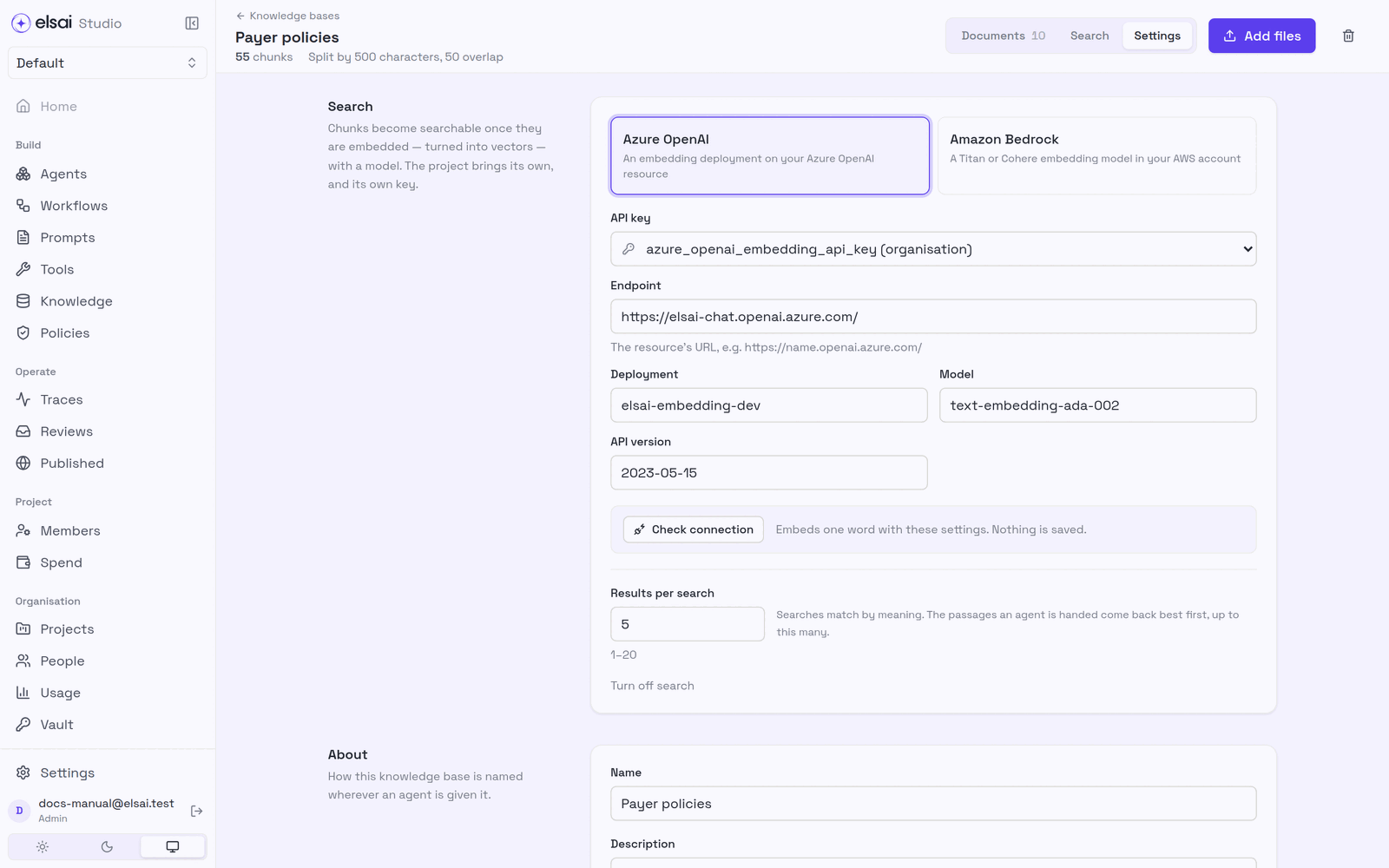
B3. Set up search
Documents are read and split straight away, but they become searchable only once the knowledge base has an embedding model.
- Open the knowledge base → Settings → Search.
- Choose Azure OpenAI (an embedding deployment on your Azure resource) or Amazon Bedrock (a Titan or Cohere embedding model).
- Choose the API key from the vault, and fill in Endpoint, Deployment, Model and API version as your provider needs.
- Click Check connection, it embeds one word with these settings and saves nothing.
- Set Results per search (1–20): how many passages an agent is handed, best first.
- Save.
Screenshot: Knowledge base settings
B4. Add documents
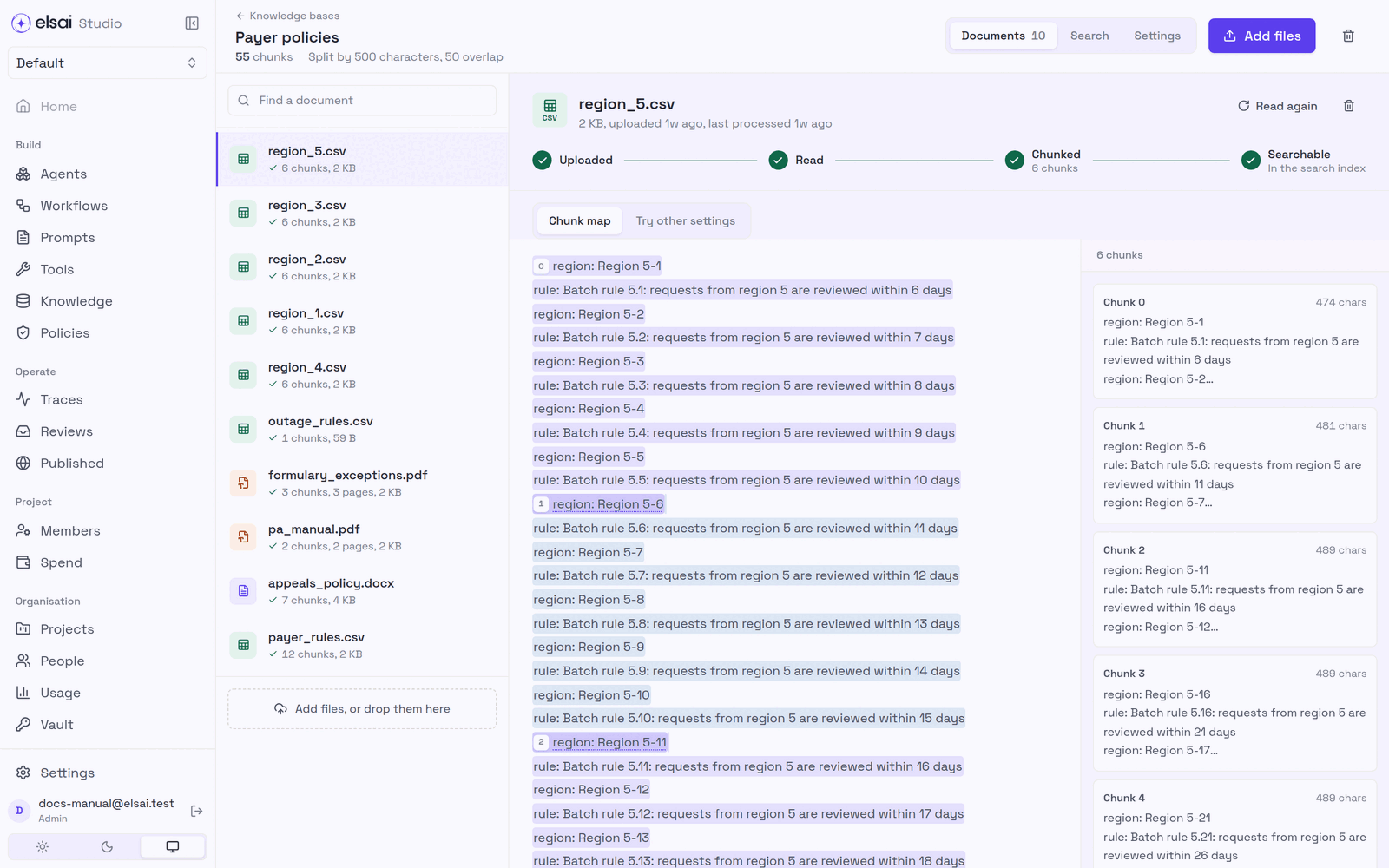
- Open the knowledge base and click Add files, or drop files on the page.
- Watch each file move through Uploaded → Read → Chunked → Searchable.
Screenshot: Documents, with the chunk map
| Types | PDF, Word (DOCX), CSV, Excel (XLSX) |
| Size | Up to 25 MB per file |
| Same name again | Replaces that document in place, including its search entries. Identical content is refused |
Click a document to see its steps, and its chunk map: the document's text with every chunk drawn over it. Try other settings re-splits that one document with different settings, without saving, so you can compare before changing the knowledge base. Read again re-reads a document (for example after changing PDF settings).
If a step fails, the document says why. Busy or unreachable services are retried automatically for about 13 minutes. A problem with the file itself fails at that stage; Try again resumes from there, so a PDF is not sent to Docloom twice.
B5. Test the search
- Open the Search tab.
- Type what an agent would ask, and choose how many results.
- Read the ranked passages: a relevance bar, the source file, page and chunk, and the query's words highlighted. Open in document jumps to that chunk in the chunk map.
Screenshot: Search
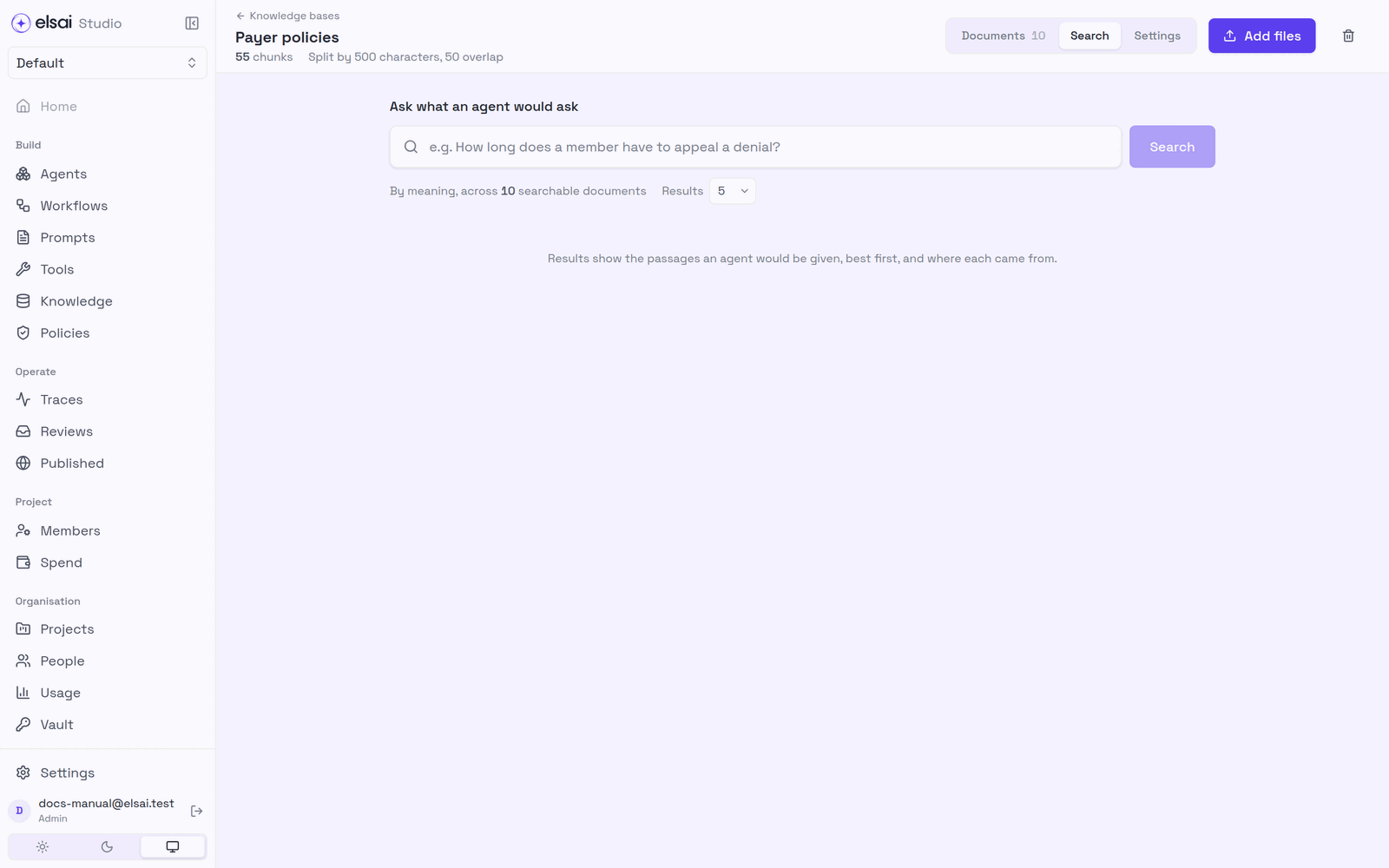
Search matches by meaning. The passages shown are exactly what an agent would be handed.
B6. Attach it to an agent
Open an agent → Knowledge → choose the knowledge base and How it searches:
| Choice | Behaviour |
|---|---|
| Searches it once | Searches with the question as asked. Fast; enough when questions use the documents' words |
| Search until it has enough | The model rewrites the question and searches again when the first passages fall short. Slower; costs a model call per round |
The passages it was given are shown with each run, with their file and page.
B7. Change settings safely
| You change | What happens |
|---|---|
| How documents are split (Precise 300 · Balanced 500 · Contextual 1200 characters · Custom) | Every document is split again and re-embedded. Nothing is re-read |
| The embedding model (provider, endpoint, deployment, model) | Studio asks first, empties the search index and re-embeds every document |
| Only the key or API version | Nothing is rebuilt; documents that failed or were waiting are tried again |
| Turn off search | Studio asks first. Search entries are removed; documents wait, read and split |
| Reading PDFs (Docloom key, OCR engine) | Nothing is re-read automatically (reading is paid for). Use Read again per document |
B8. Delete
Deleting a document or a whole knowledge base removes its search entries first. If the search service cannot be reached, the delete is refused and nothing is removed, Studio never says a document is gone while an agent could still find it.
B9. Good to know
- Spreadsheets lose their rows. CSV and Excel files are flattened into
column: valuelines before splitting. Small, tidy tables work best. - Search is by meaning only for now; exact-keyword search is not offered yet.
Troubleshooting
| Symptom | Likely cause | Fix |
|---|---|---|
| Search not set up on a knowledge base | No embedding model | Settings → Search |
| A knowledge base cannot be chosen in an agent | Its search is not set up | Set up search first |
| PDFs are refused | No Docloom key | Settings → Reading PDFs → choose a key |
| Documents stay at Chunked | Search is off or not set up | Set up search; they embed automatically |
| A document is Retrying | Docloom, the model provider or the search service is busy | Wait; it retries for about 13 minutes |
| Check connection fails | Wrong endpoint, deployment or key | Compare with your Azure/AWS console |
| Delete refused | The search service is unreachable | Try again later |
| The agent's answers ignore the documents | Passages too small or too large, or too few results | Try other settings; raise Results per search; try Search until it has enough |