
Appearance
Tutorial: your first workflow
In about 20 minutes you will build two agents, connect them into a workflow that routes urgent member requests, run it on a real case, and publish it. Every screenshot below was taken while building exactly this.
At a glance
| You will build | Support Triage (an agent that classifies a request), Urgent Reply Drafter (an agent that writes a reply), and Support request routing (a workflow that sends urgent cases to the drafter) |
| Who | Author to build and run. Approver or Admin to publish |
| Before you begin | Access to a project; an LLM key in the Vault (ask an Admin) |
What you will end up with:
Part 1: Build the triage agent
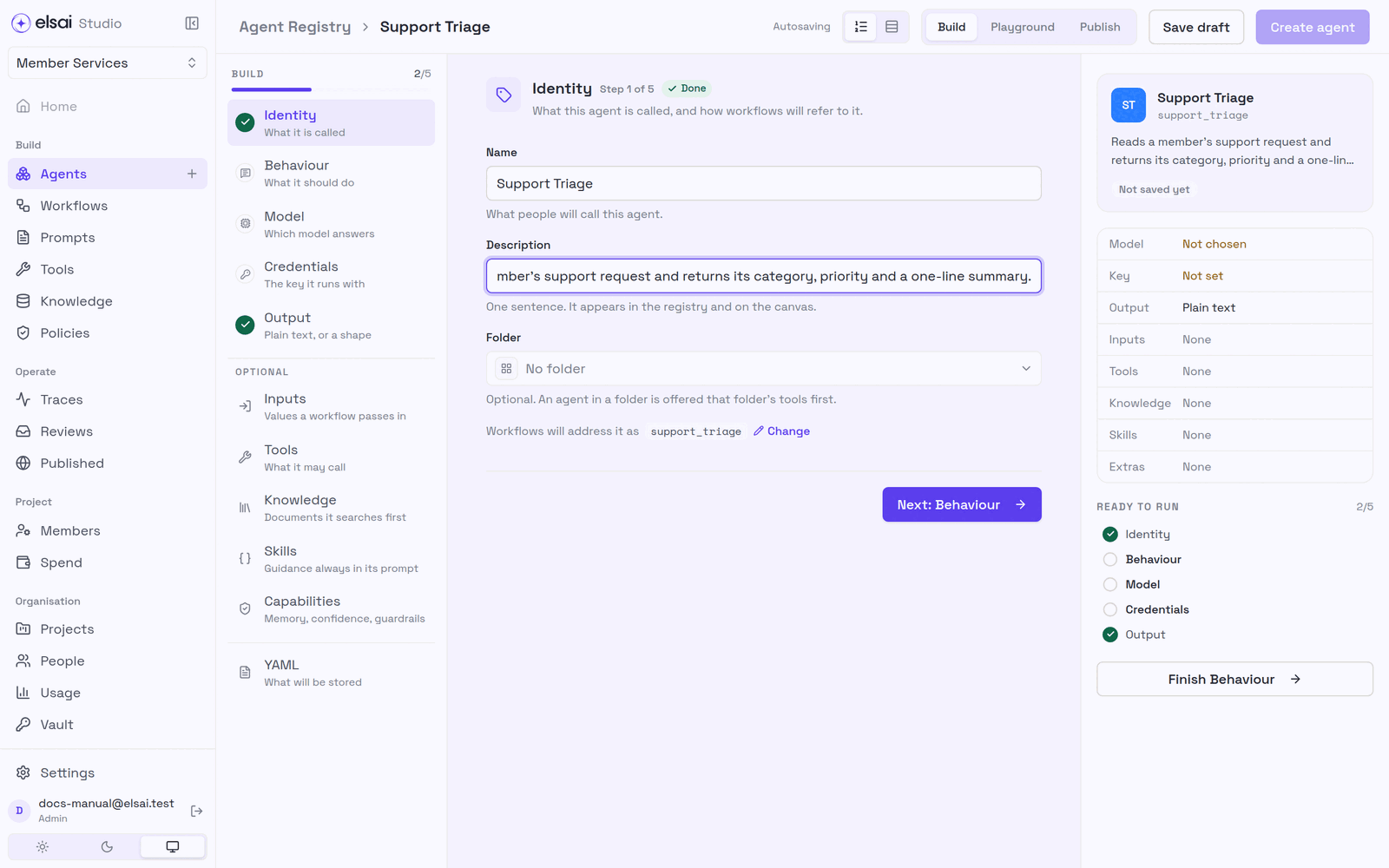
Step 1: Name it
- In the sidebar, click Agents, then New agent.
- Under Name, type
Support Triage. - Under Description, type: Reads a member's support request and returns its category, priority and a one-line summary.
- Click Next: Behaviour.
The Reference (support_triage) is filled in from the name. Workflows use it to find the agent, so it can never change after the agent is created.
Screenshot: Identity
Step 2: Tell it what to do
In System, paste:
text
You triage support requests from health-plan members.

Read the request and decide:
- category: one of billing, claims, eligibility, pharmacy, other
- priority: P1 if the member cannot get care today, P2 if it needs an answer this week, otherwise P3
- summary: one sentence a coordinator can read at a glance

Use only what the member wrote. If the request is not a support request, use category "other" and priority P3.
Step 3: Choose a model and its key
- Click Model. Choose Provider: OpenAI and Model: GPT-4.1 mini.
- Click Credentials. Under API key, choose your organisation's OpenAI key (for example
org/openai_key).
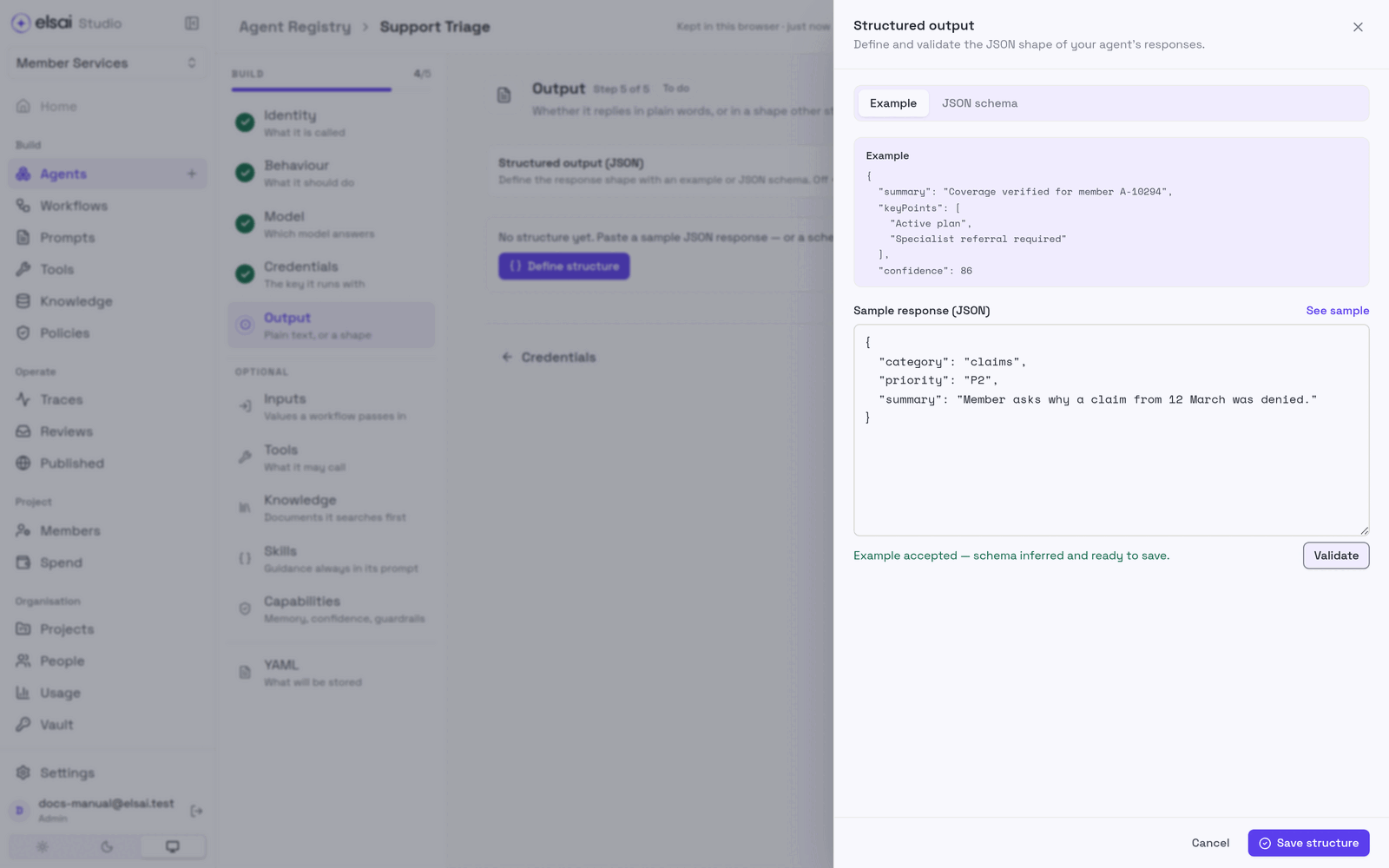
Step 4: Ask for a structured answer
Other steps will route on the priority, so the agent must reply in a fixed shape, not prose.
- Click Output and switch Structured output (JSON) on. A drawer opens.
- Leave Example selected and paste a sample answer:json
{ "category": "claims", "priority": "P2", "summary": "Member asks why a claim from 12 March was denied." } - Click Validate, then Save structure.
Screenshot: Defining the answer's shape from an example
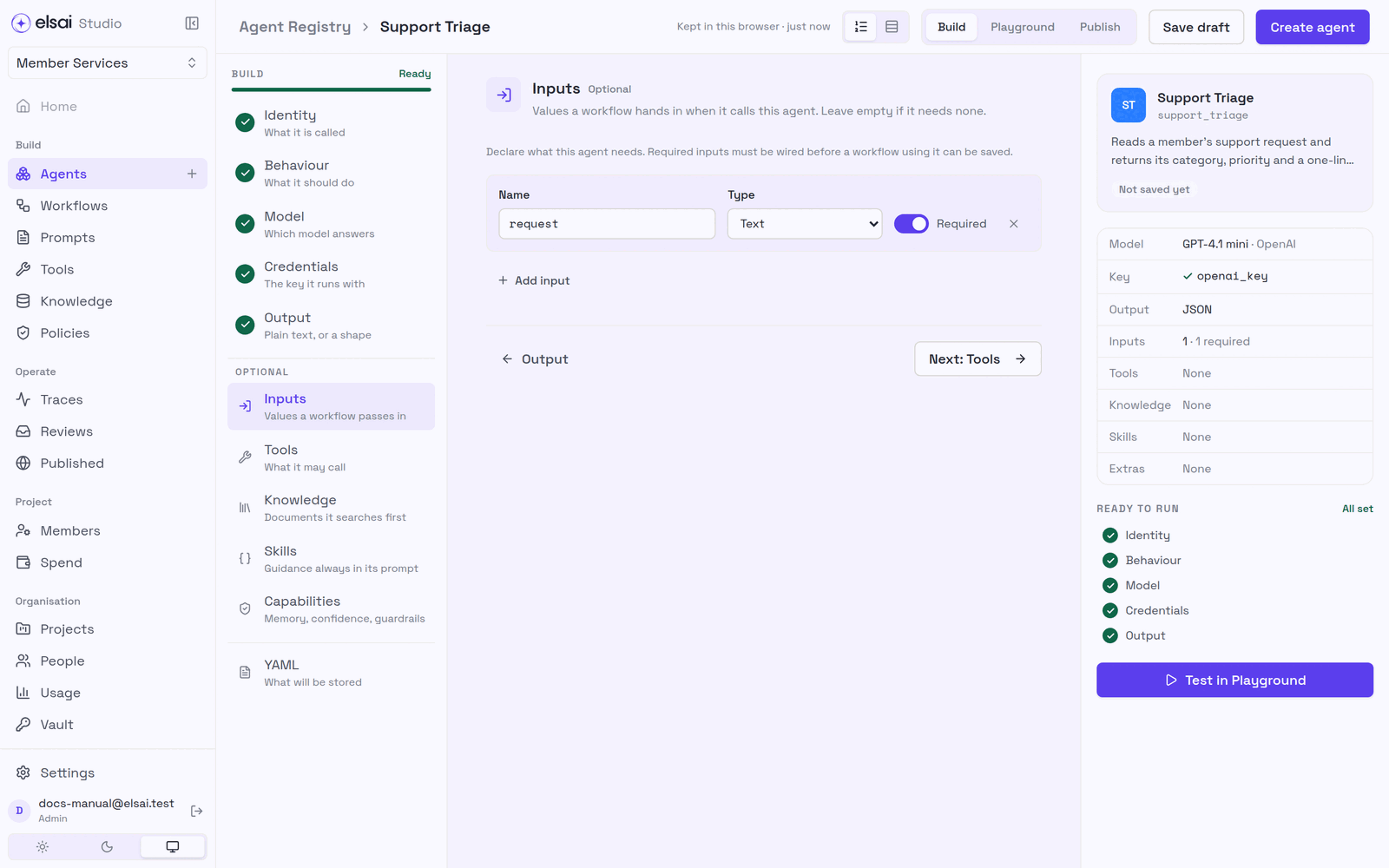
Step 5: Declare its input
- Click Inputs, then Add input.
- Name:
request· Type: Text · switch Required on.
Screenshot: The request input
Step 6: Create, test and publish
Click Create agent (top right).
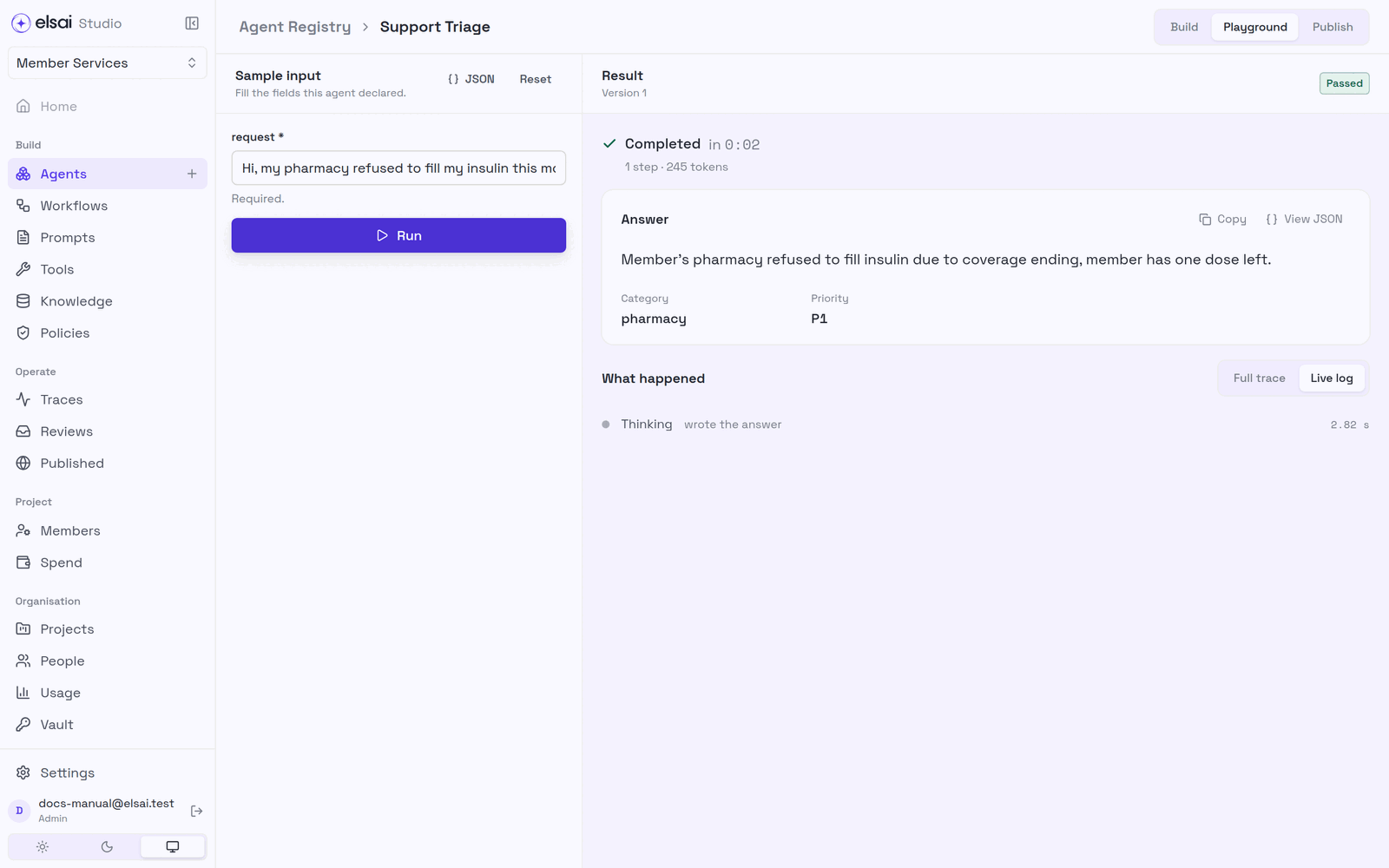
Click the Playground tab. In request, type: Hi, my pharmacy refused to fill my insulin this morning, they said my coverage ended. I only have one dose left. Member ID HP-448120.
Click Run. After a few seconds the result shows Passed, with Category: pharmacy and Priority: P1.
Screenshot: A passing Playground run
Click the Publish tab, then Publish v1. (Approver or Admin. If you are an Author, ask one to do this step.)
Why test first? Publishing needs a passing Playground run of exactly this version. It is the proof that what you release works.
Part 2: Build the reply agent
Repeat Part 1 with these values. Skip Step 4: this agent replies in plain text.
| Field | Value |
|---|---|
| Name | Urgent Reply Drafter |
| Description | Drafts a short, calm reply to an urgent member request and says what happens next. |
| System | You write replies to urgent requests from health-plan members. Write three or four sentences. Acknowledge the problem in the member's own terms, say that a coordinator will call them within two hours, and give one thing they can do right now. Never promise coverage or a decision. |
| Model / key | OpenAI · GPT-4.1 mini · your OpenAI key |
| Input | request, Text, Required |
Create it, run it once in the Playground, and Publish v1.
Part 3: Draw the workflow
Step 1: Start from a template
- Click Workflows, then New workflow.
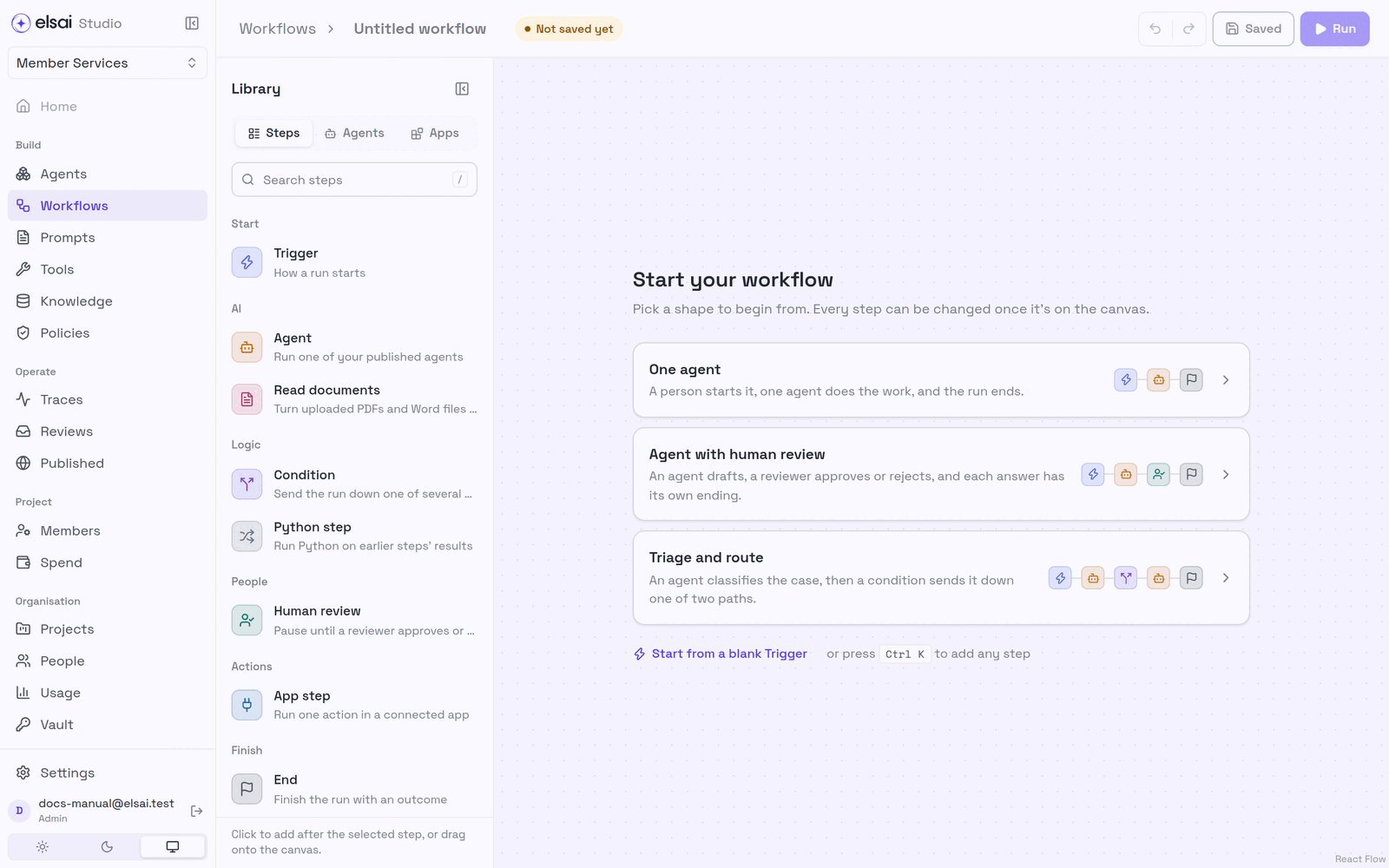
- Click Triage and route.
- At the top, type the name
Support request routing.
Screenshot: The starting shapes
Step 2: Set the Classify step
- Click the Classify step. Its settings open on the right.
- Click Choose an agent and pick Support Triage. The step takes the agent's name.
- Under Inputs, for request, choose From the case. The case field is filled in as
request.
Screenshot: The agent step's settings
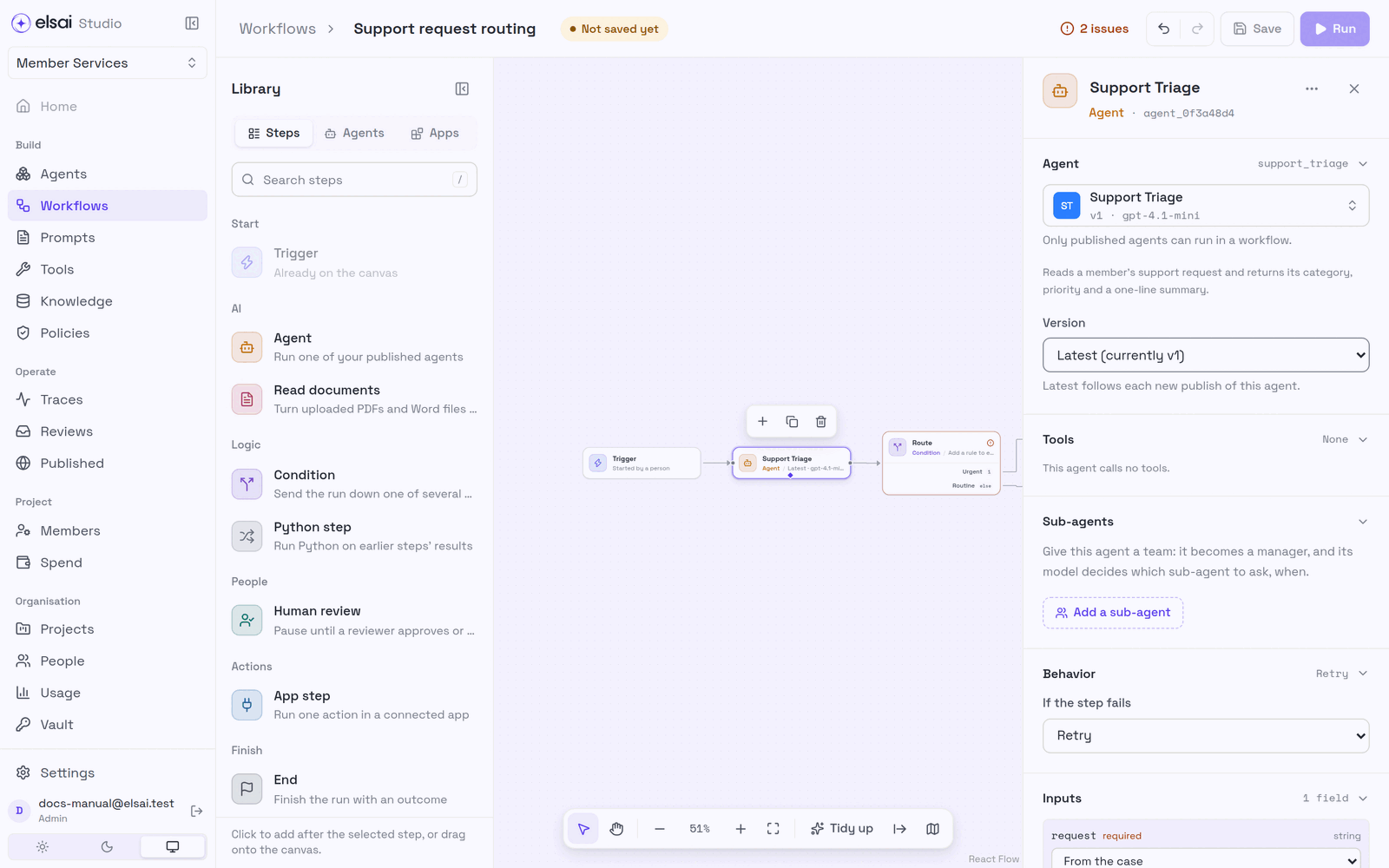
"From the case" means: ask whoever starts the run for this value.
Step 3: Set the routing rule
- Click the Route step.
- On the Urgent path, click Add a rule to say when this path is taken.
- Click Field and choose Support Triage → priority.
- Leave the operator as is and type
P1as the value.
Screenshot: Choosing the field to route on
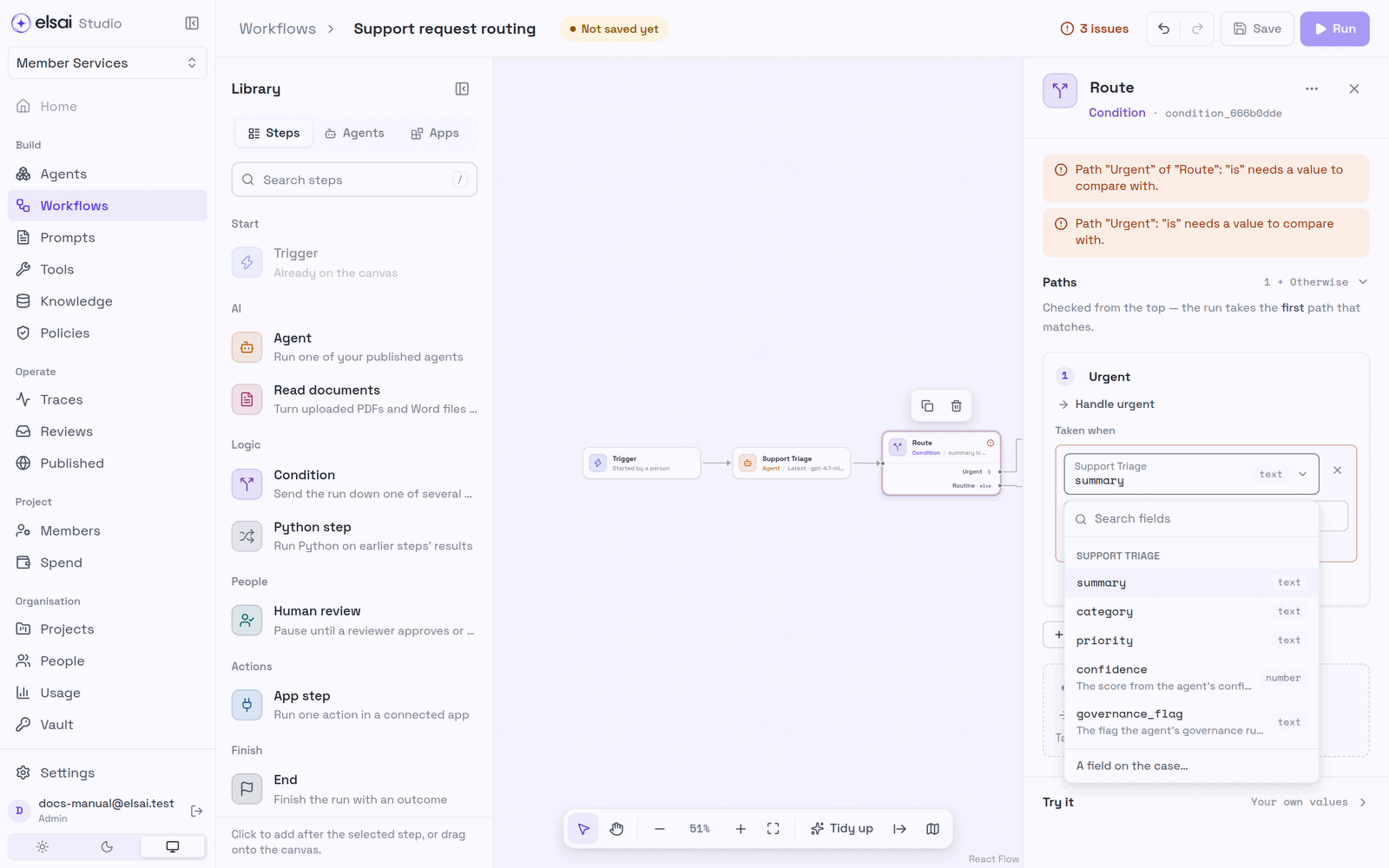
Anything that is not P1 takes the Routine path (the Otherwise path).
Step 4: Set the urgent agent
- Click Handle urgent, then Choose an agent → Urgent Reply Drafter.
- Under Inputs → request, choose From the case.
Step 5: Save
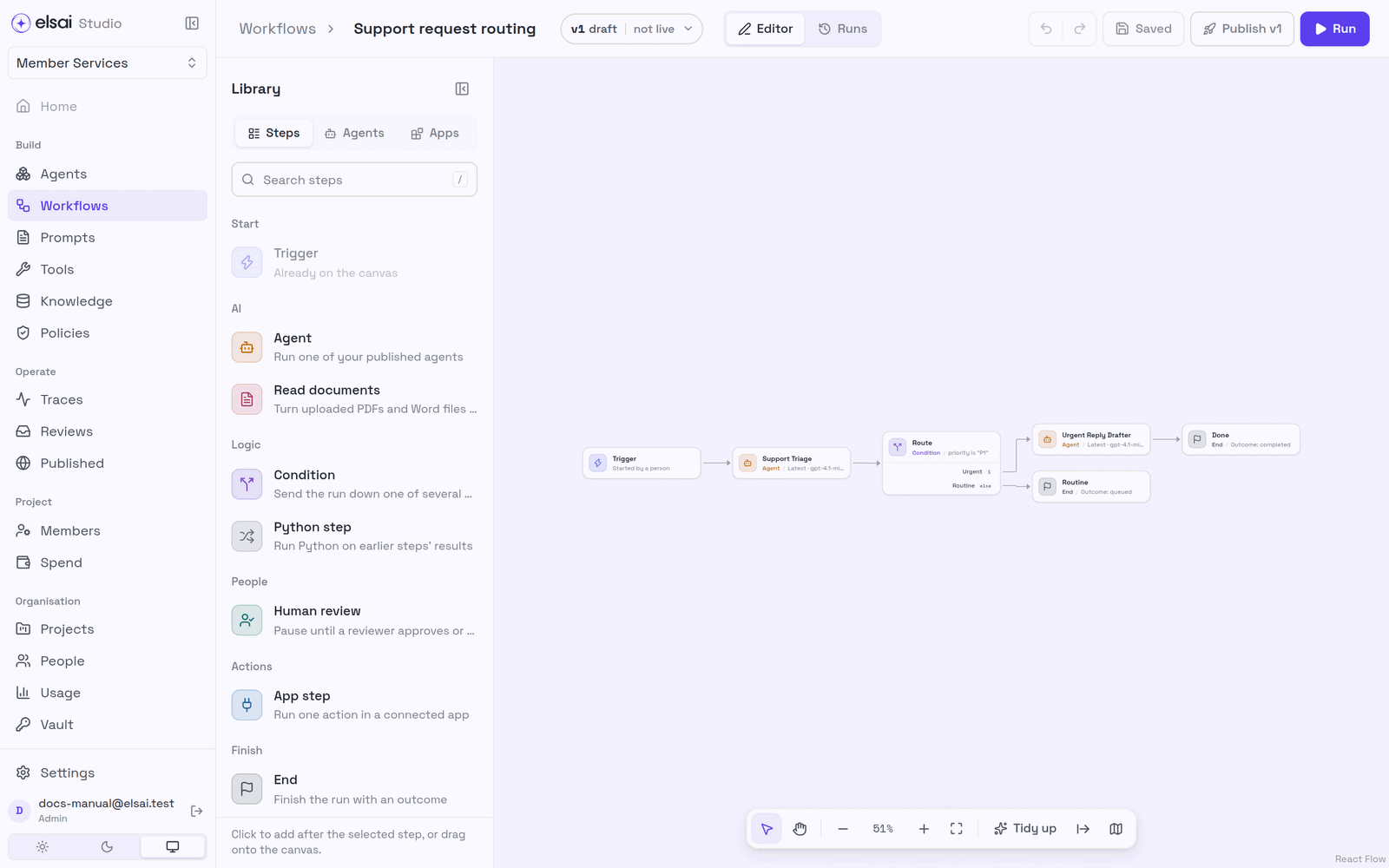
Click Save. The badge beside the name reads v1 draft · not live.
Screenshot: The finished map
Part 4: Run it
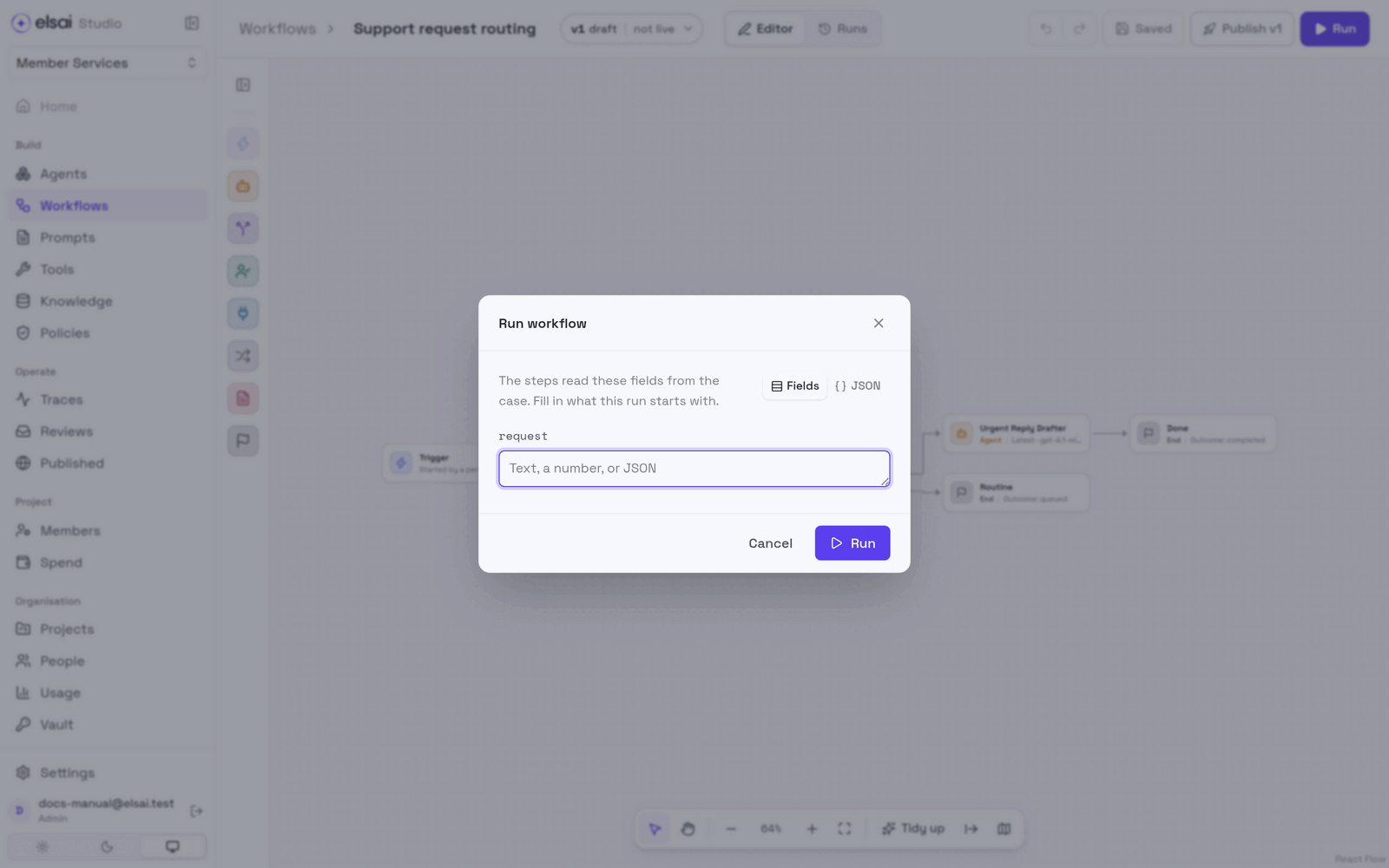
- Click Run. A window asks for the fields the steps read from the case.
- Paste the insulin request into request and click Run.
Screenshot: Starting a run
Watch the steps light up. The run takes the Urgent path; Routine is greyed as Skipped. The bar reads Completed · Ended at Done · completed · 6/6 steps.
Screenshot: The finished run
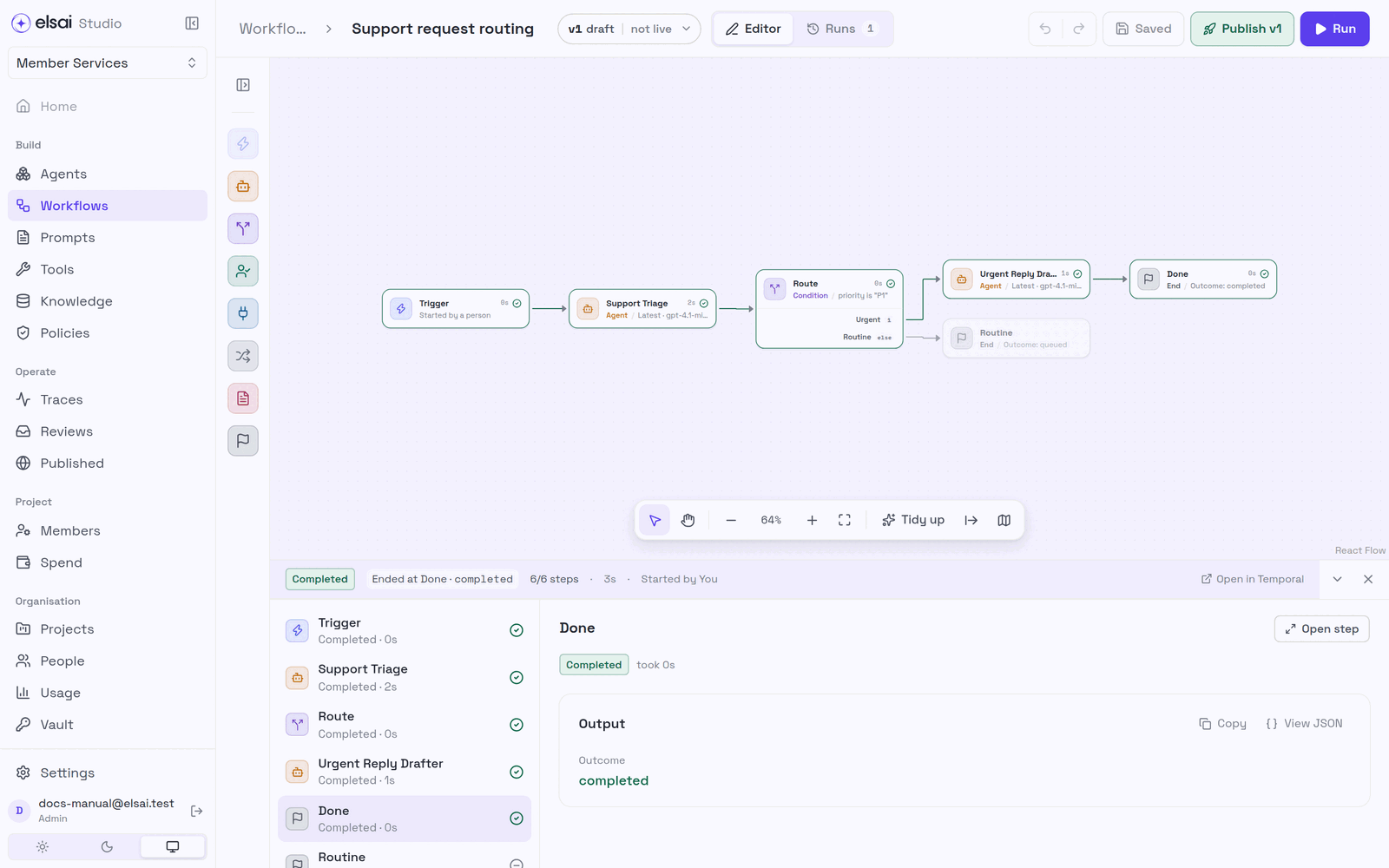
Click any step in the run panel to see what it received and returned.
Part 5: Publish it
- Click Publish v1. The dialog confirms "A test run of exactly this version finished."
- Click Publish v1.
Screenshot: Publishing the workflow
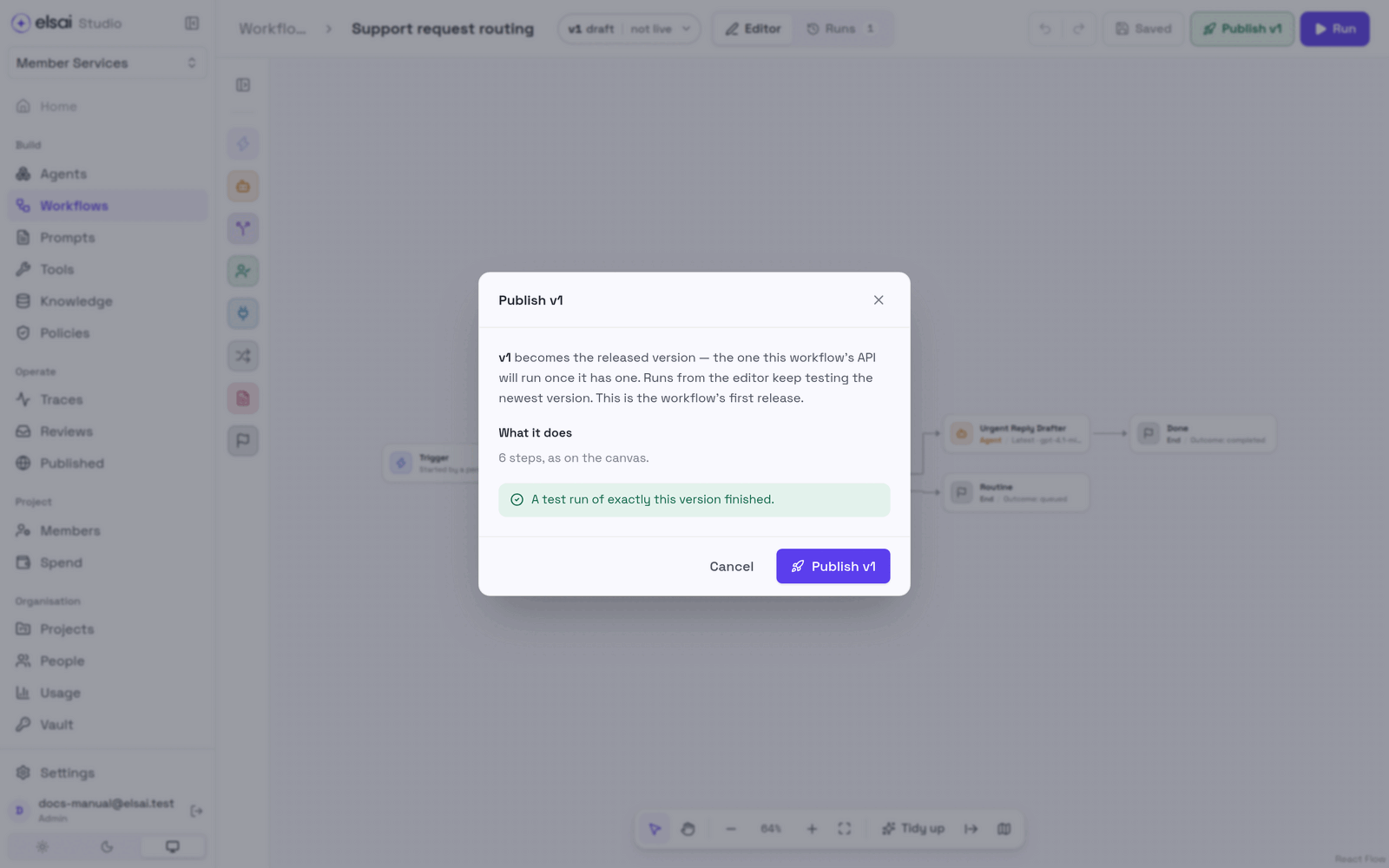
The badge now reads v1 live.
What you learned
| You did | The idea behind it |
|---|---|
| Wrote instructions and chose a model | An agent is a declaration, not code |
| Asked for a structured answer | Later steps can read named fields like priority |
| Tested before publishing | Only tested versions can be released |
| Mapped inputs "From the case" | Each step says where every value comes from |
| Routed on a field | A Condition chooses one path; the others are skipped |
| Published | Released versions are fixed; editing makes a new draft |
Next steps
- Give an agent a tool → Tools
- Let it answer from your documents → Knowledge
- See the run's full record → Traces
- Let another system call an agent → Published agents