
Appearance
Workflows
A workflow is a map you draw: which agent works first, what decides the next step, where fixed logic runs, and how the work ends. This page covers the canvas, feeding data between steps, running, versions and publishing. Each step kind is explained in Workflow steps.
At a glance
| Where | Sidebar → Build → Workflows |
| Who | Viewer: look (read-only canvas). Author: build, save, run. Approver/Admin: also publish |
| Before you begin | At least one published agent. The canvas offers only published agents, or create one from a step |
1. What it is and why it matters
One agent does one job. Real work is several jobs in order, with decisions in between: classify the request, then, only if it is urgent, draft a reply; read the documents, then check coverage, then decide. A workflow puts those jobs on a map so that:
- the order and the decisions are visible, not buried in code;
- every run follows the same path for the same facts;
- each run is recorded step by step, so you can see exactly why it ended where it did.
2. Key ideas
| Idea | Meaning |
|---|---|
| Step | One box on the canvas. Kinds: Trigger, Agent, Read documents, Condition, Python step, App step, End |
| Arrow | "When this step finishes, go there." A run follows arrows from the Trigger to an End |
| Case | The input of one run, what the person starting it types or uploads |
| Input mapping | For each value a step needs, where it comes from: the case, an earlier step, a fixed value, or a secret |
| Run | One pass through the workflow for one case |
| Draft / Live | Runs from the editor always test the newest draft. Publishing marks one version as the released (live) one |
3. Create a workflow
- Click Workflows, then New workflow.
- Type a name over Untitled workflow at the top.
- Pick a starting shape:
| Template | Shape | Good for |
|---|---|---|
| One agent | Trigger → Agent → End | The simplest case |
| Triage and route | Trigger → Agent → Condition → Agent → End, plus a second End | Classify, then handle each kind differently |
| Start from a blank Trigger | Just the Trigger | You know what you want |
Screenshot: Starting shapes
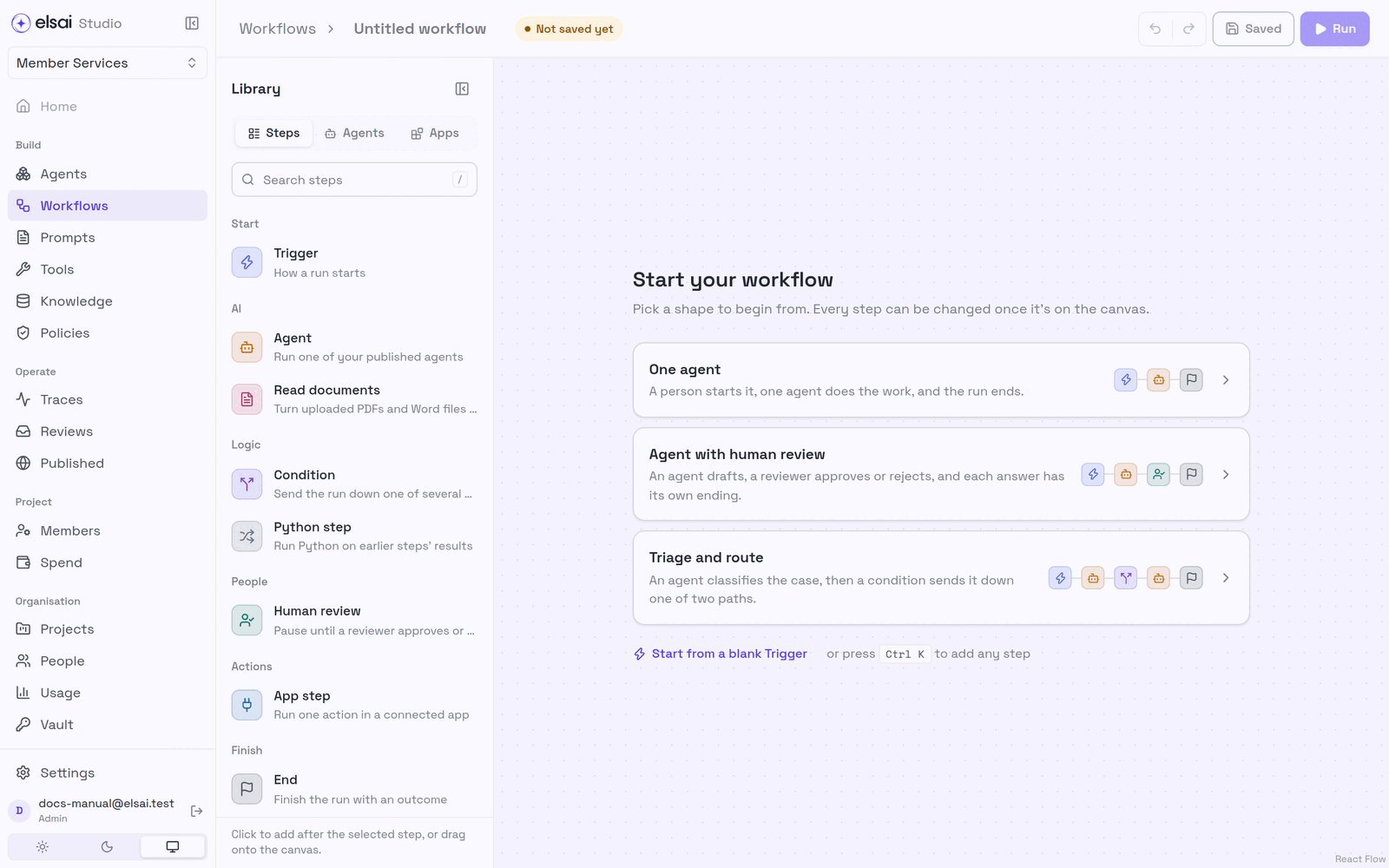
Every step can be changed once it is on the canvas.
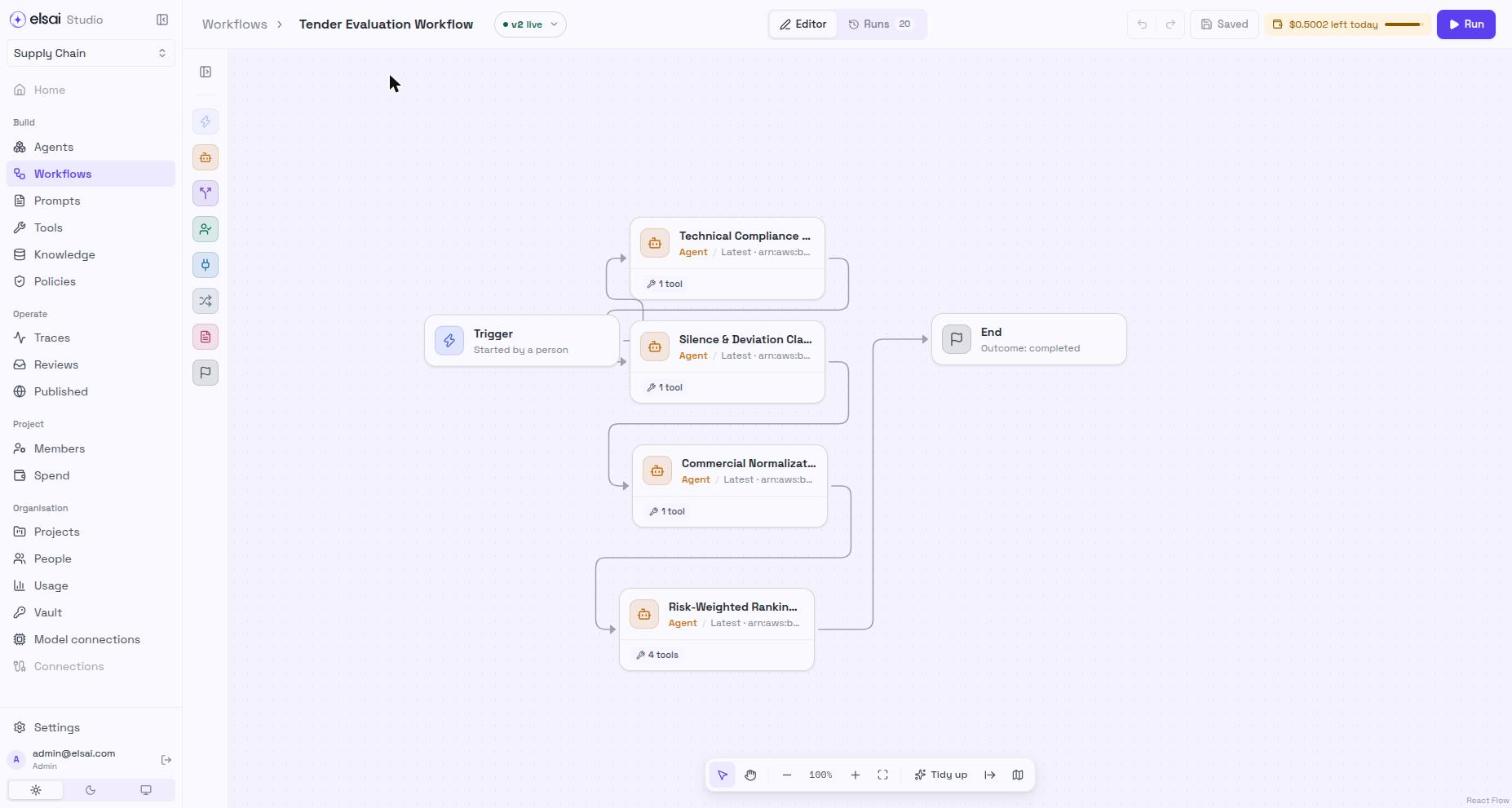
4. Know the canvas
Screenshot: A workflow on the canvas
Screenshot: The canvas with a step selected
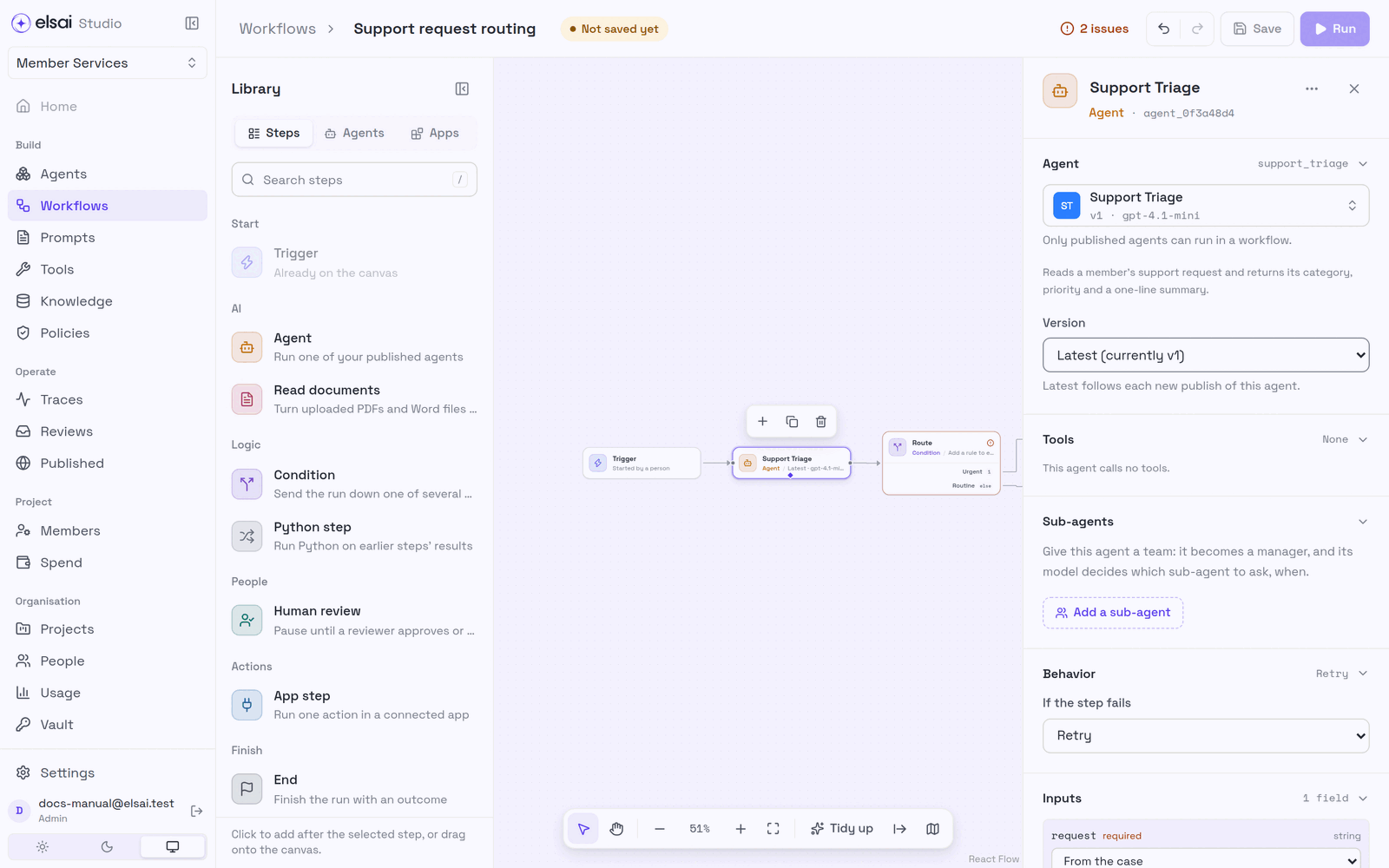
| Area | Use |
|---|---|
| Library → Steps | Every step kind, grouped Start · AI · Logic · People · Actions · Finish |
| Library → Agents | The project's published agents; picking one adds a step with it already chosen |
| Library → Apps | Connected app actions, for App steps |
| Canvas toolbar | Select (V), Pan (H or hold Space), zoom, Fit to screen (F), Tidy up (L), flow direction (left→right or top→bottom), map |
| Step settings | Click a step. Rename it at the top; ⋯ for Duplicate / Delete; Esc to close |
| Issues (top bar) | The count of problems; each is also shown on its step |
Add, connect and remove steps
| To | Do |
|---|---|
| Add a step after the selected one | Click it in the Library |
| Add a step anywhere | Drag it from the Library onto the canvas |
| Add any step by name | Ctrl K / ⌘K |
| Add a step between two others | Click the + on the arrow (Add a step here) |
| Connect two steps | Drag from the edge of one step to the next |
| Duplicate / delete | Hover the step and use the small toolbar, or ⋯ in its settings. Ctrl/⌘ D duplicates |
| Undo / redo | Ctrl/⌘ Z / Ctrl/⌘ Shift Z |
The canvas refuses arrows that make no sense, an arrow out of an End, or a loop back to an earlier step, and says why.
5. Feed each step its data (input mapping)
An agent declares the inputs it needs (for example request). In the step's settings, under Inputs, you say where each value comes from.
| Source | Choose when | Example |
|---|---|---|
| From the case | The person starting the run provides it | case field request |
| Output of a step | An earlier step produced it | Support Triage → priority |
| A fixed value | It is the same on every run | en-GB |
| A stored secret | It is a credential from the Vault | secret://project/payer_key |
- Only steps before this one can supply values. If a list says "No steps before this one", connect the arrows first.
- A required input with no source is an issue that blocks running: "Support Triage" needs "request", and nothing supplies it.
- Some text fields accept a template mixing words and fields, e.g.
Please review {{ $.case.member_id }}. Use Insert field to add a reference. Secrets are never allowed inside a template, because templates can appear in logs.
6. Check the workflow is healthy
Studio checks the map as you build. Problems are counted in the top bar and shown on the step. You can save with issues, but you cannot run or publish until they are fixed.
| Message | Fix |
|---|---|
| Every workflow needs exactly one Trigger step | Keep one Trigger |
| Every workflow needs at least one End step | Add an End |
| "X" is never reached. Connect it, or remove it | Draw an arrow into it |
| "X" has no next step. Every path must reach an End step | Draw an arrow out of it |
| "X" has no agent selected | Choose an agent |
| "X" needs "input", and nothing supplies it | Map the input |
| Path "P" of "X" has no rules | Add a rule, or remove the path |
| "X" declares no outputs, so later steps cannot map from it | Declare the Python step's outputs |
| "X" has no app chosen | Complete the App step |
| …fixed to vN, which is deprecated | Choose Latest or another version |
7. Run a workflow
Run saves your changes, then tests the newest draft. Nothing is published by running.
- Click Run.
- If any step reads from the case, the Run workflow window asks for those fields:
- Fields, one box per field. Text, a number, or JSON all work.
- JSON, the whole case at once.
- A Read documents step adds a place to drop files.
- Click Run. Your last answers are remembered for next time.
Screenshot: Starting a run
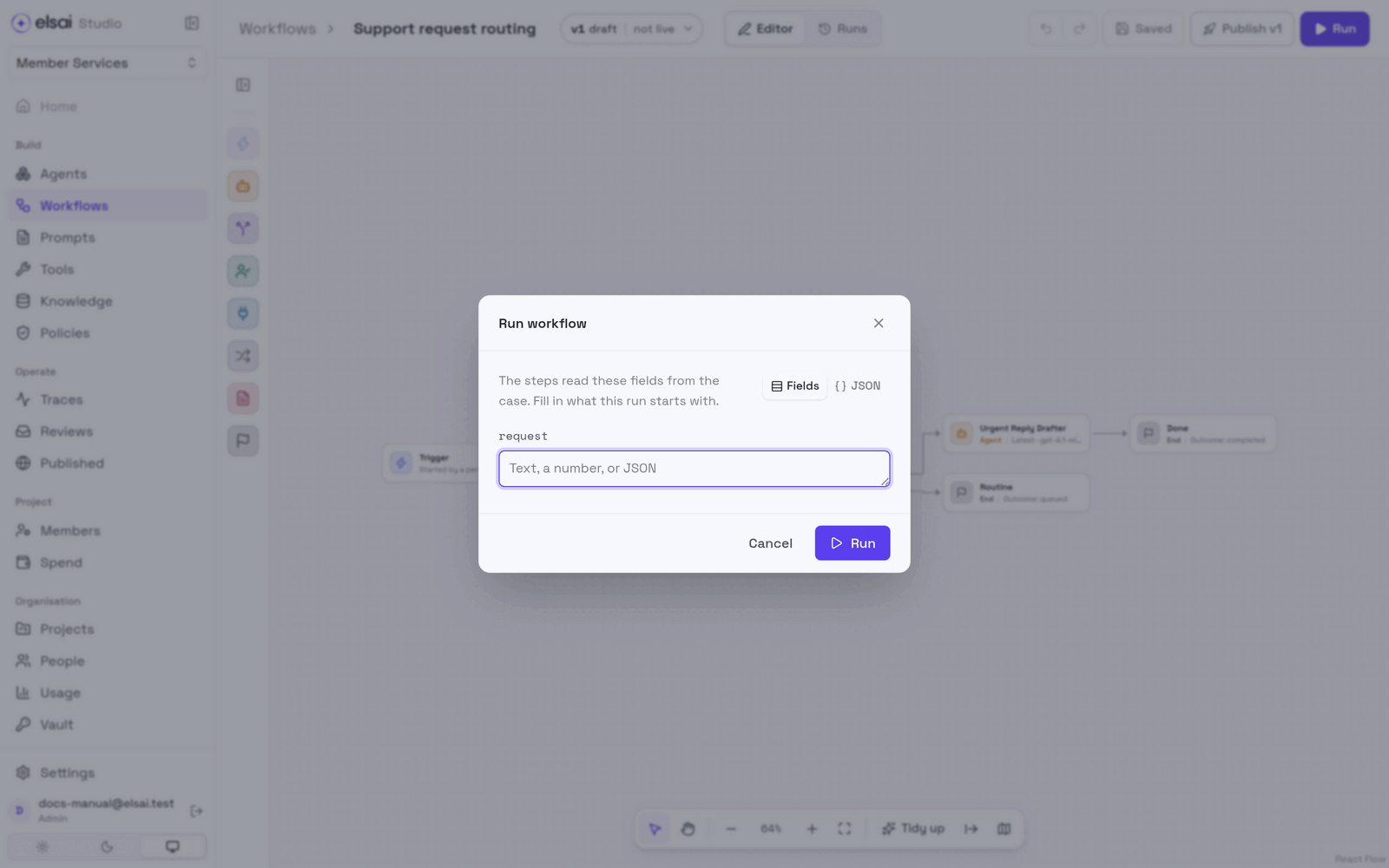
The canvas shows each step's progress, and the run bar and run panel open below.
Screenshot: A finished run
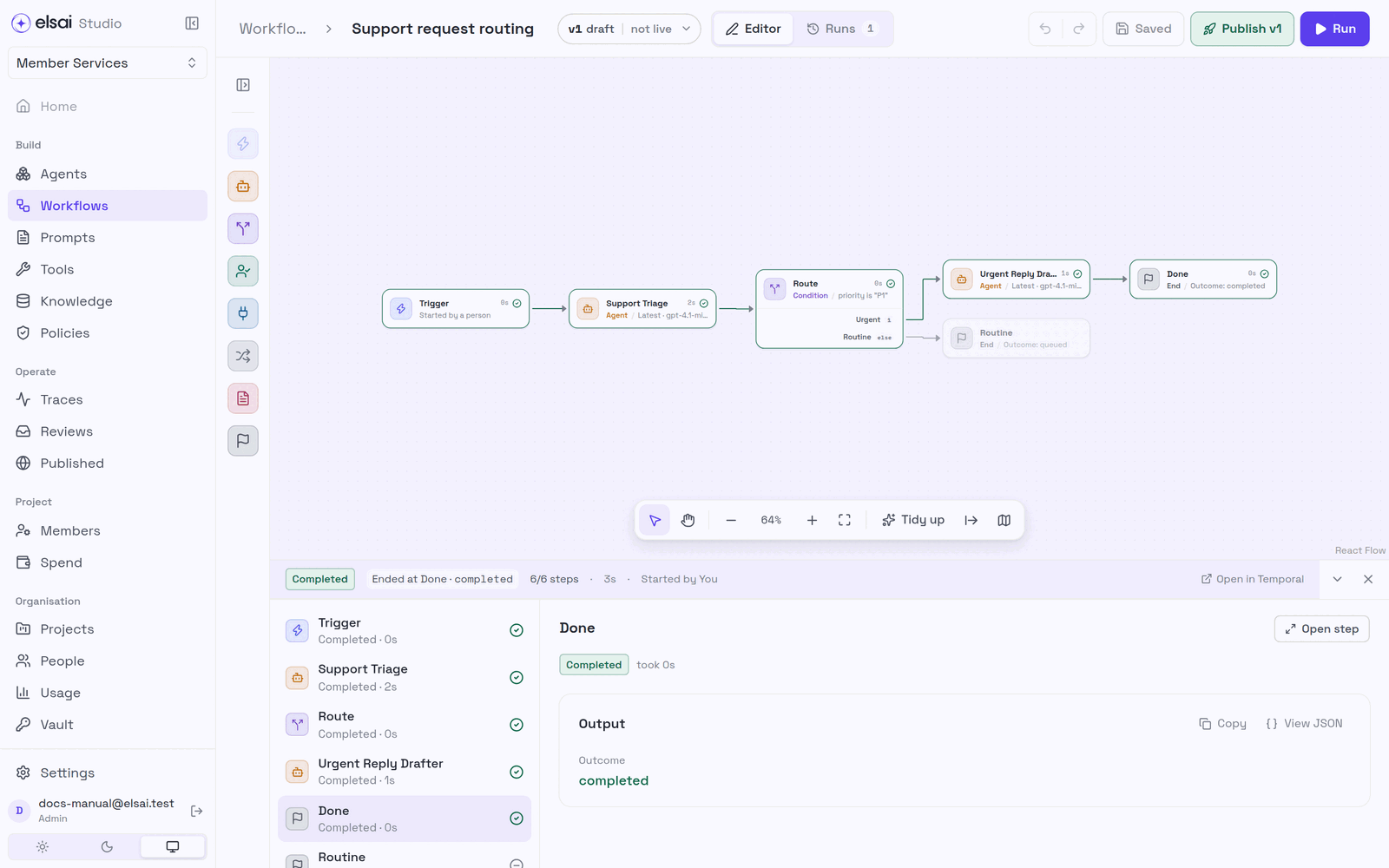
The run bar
| Shows | Meaning |
|---|---|
| Status | Queued · Running · Waiting for review · Completed · Failed · Cancelled |
| Ended at Done · completed | Which End the run reached, and its outcome |
6/6 steps · time | Progress and elapsed time |
| Started by… | Who ran it |
| Open the review | When the run is waiting for a person |
| Cancel | While the run is going |
| Open in Temporal | Admins only; an engineering link |
The run panel
The left list shows each step in the order it ran: Completed, Failed, Skipped (with why, for example Not on the chosen path), or still running. Click a step to see what it received and returned. For an agent step you also see its answer, the tool calls it made and, under What happened, its live log or full trace.
8. Publish a workflow
- Save your changes.
- Run the workflow and let the run finish.
- Click Publish vN. The dialog shows what changes from the live version (or, for a first release, the number of steps) and confirms that a test run of exactly this version finished.
- Click Publish vN.
Screenshot: Publishing
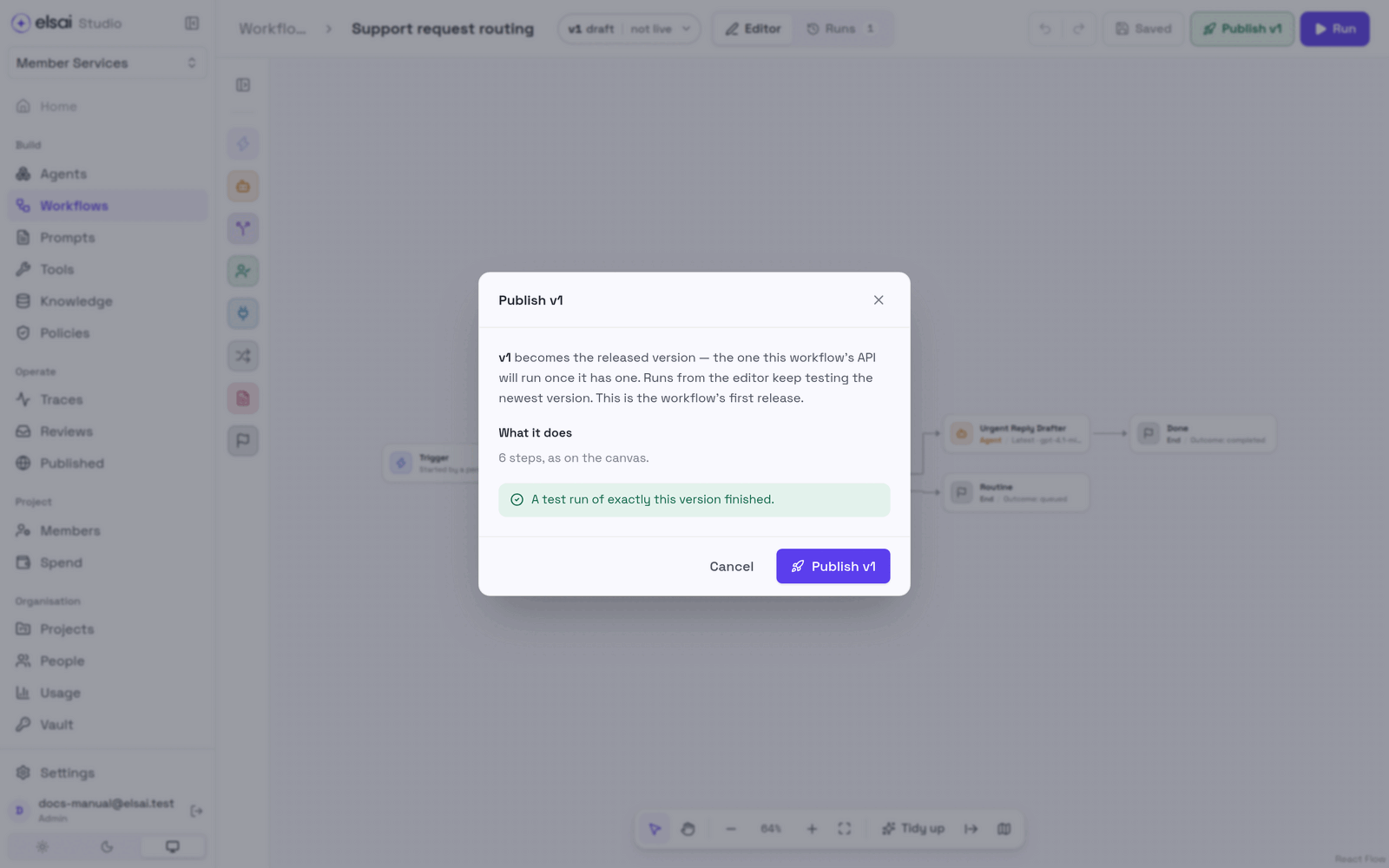
The Publish button is blocked, with the reason on hover, until all of these are true:
| Reason you may see | Meaning |
|---|---|
| Save and run your changes before publishing them | There are unsaved changes |
| Fix the issues on the canvas first | §6 is not clean |
| Run this version and let it finish before publishing it | A finished test run of exactly this version is required |
| An approver or admin publishes workflows | Your role cannot publish |
| Nothing new to publish | No new draft |
As for agents, the person who saved a version cannot publish it unless the installation allows self-approval.
Moving steps only. If you only rearranged the layout, the publish dialog says "Nothing about how it runs, only its layout moved.", and the version number does not change.
9. Versions
Click the version badge (e.g. v1 live ▾) beside the name.
Screenshot: The Versions list
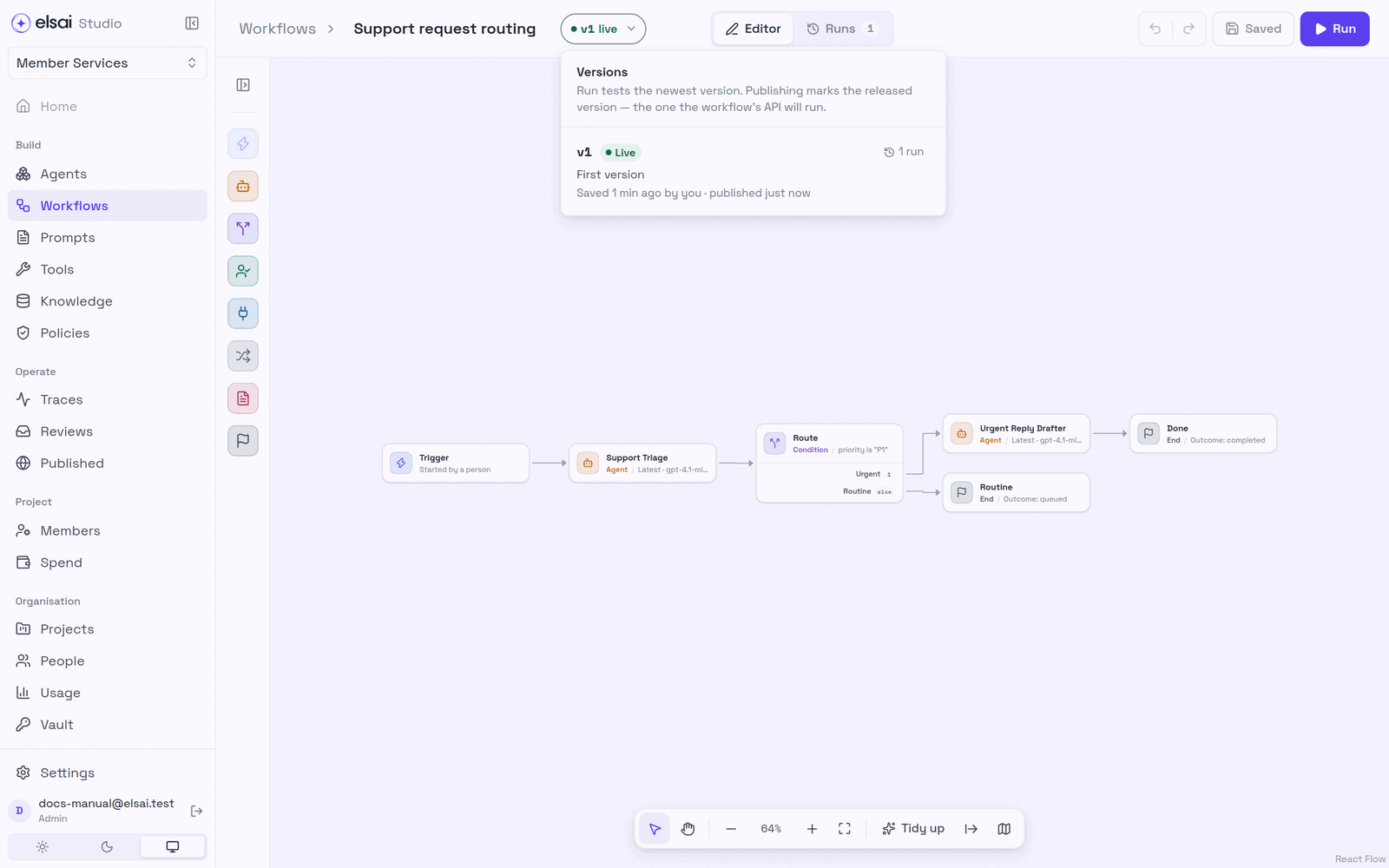
- Each version shows when it was saved, by whom, whether a test run finished, and how many runs it has (click to see them).
- Restore puts an older version back on the canvas, to save as the next draft.
- A published version is never edited. Changing a live workflow creates a new draft; the live one keeps its place until the new one is published.
10. Review past runs (the Runs view)
Click Runs (beside Editor) to see every run of this workflow.
Screenshot: The Runs view, with one step open
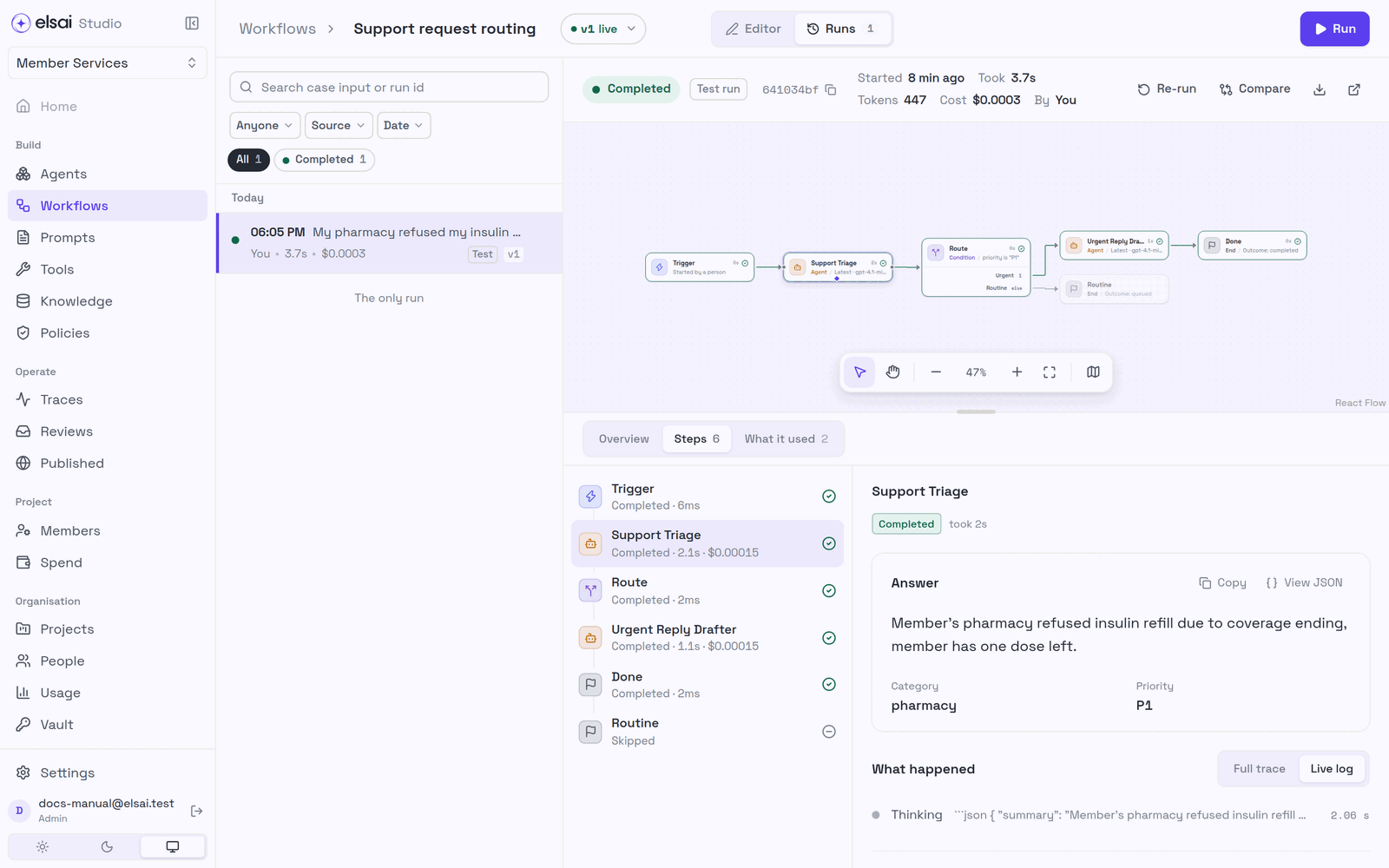
| Control | Does |
|---|---|
| Search | Case input or run id |
| Anyone · Source · Date, status chips | Filter runs |
| Overview · Steps · What it used | A run's summary; each step's result; the agents and tools it used |
| Re-run | Start a new run with the same input |
| Compare | Put two runs side by side |
| Download | The run as JSON |
| Open | The full trace in Traces |
Runs started from the editor are labelled Test.
11. Organise workflows
Screenshot: Build → Workflows
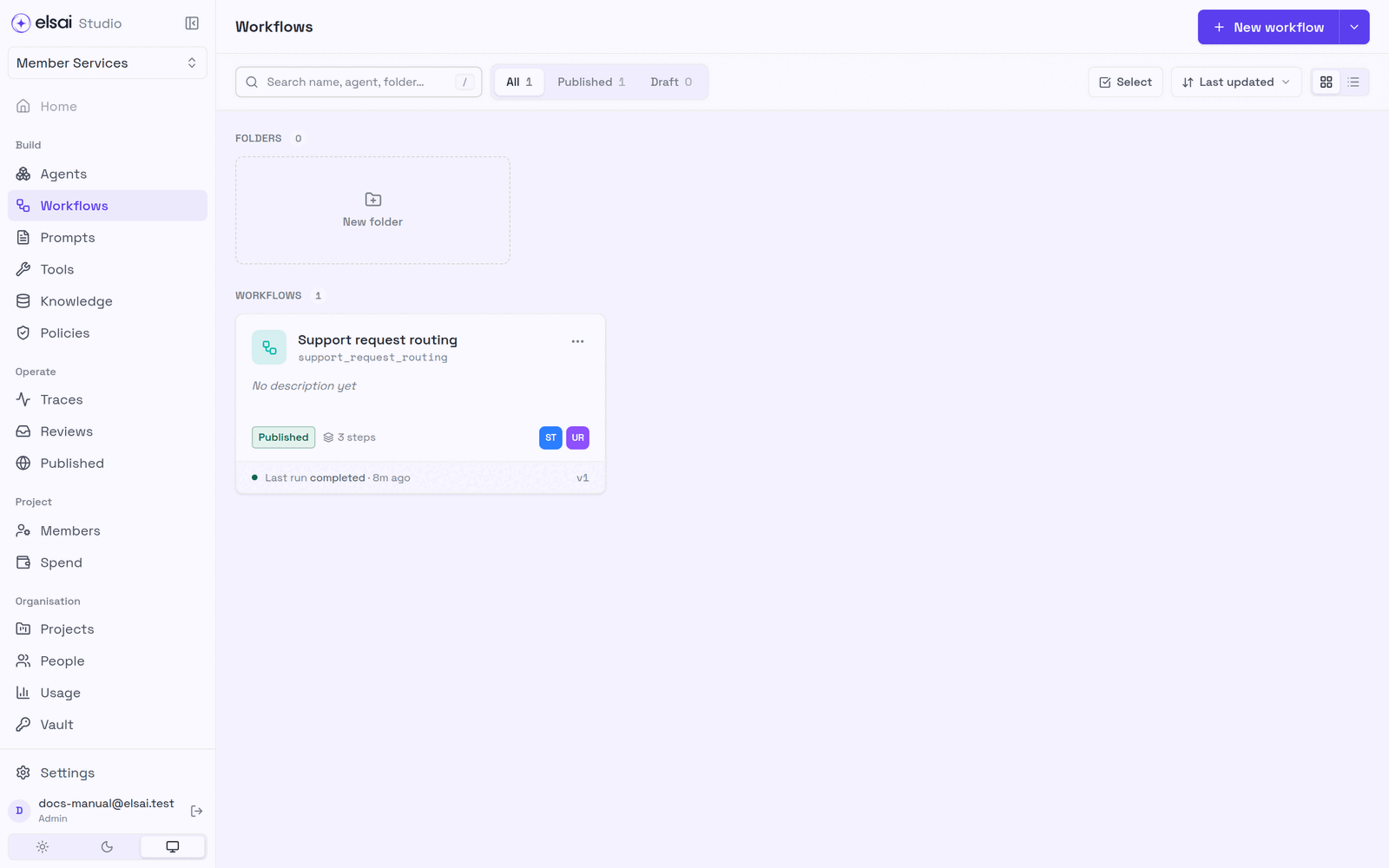
The Workflows list has folders, search, filters and a card or table view. Each workflow's ⋯ menu offers Duplicate… and Download YAML; Import from a file… is under the ▾ beside New workflow. See Organising and moving work.
12. Troubleshooting
| Symptom | Likely cause | Fix |
|---|---|---|
| Library → Agents is empty | No agent is published | Publish one, or create one from a step |
| The step's card says Draft · not published | Its agent is saved but not published | Open the step → Test & publish, then publish |
| Publish v1 & use is missing after a passing test | You are an Author, the model has no price, or you wrote this version and the installation needs a second person | Ask an Approver to publish it from the agent's Publish tab |
| Fill from the workflow says there is no finished run | The workflow has not been saved and run | Save it and run it once |
| Run is greyed | Issues on the canvas, or you are a Viewer | Fix the issues; ask an Admin for Author |
| A run is refused at once with a reason | Budget used up, an agent's model unpriced, an MCP server not allowed, or Temporal not configured | Read the message; see Spend or ask an Admin |
| Input list says No steps before this one | Nothing is connected upstream | Draw the arrows first |
| A step failed | Bad data, a tool error, an unpublished agent | Click the step in the run panel and read its error |
| A run sits at Waiting for review | An agent asked for a person | Answer it in Reviews |
| The run used an old agent version | The step is fixed to a version | Choose Latest in the step |
| The Run window does not ask for a field your Python code reads | It asks only for fields that an input mapping reads | Use the JSON tab to include it |
| Publish refused although you ran it | The run did not finish, or you changed something after it | Run again and let it finish |