
Appearance
Prompts
The Prompts page is where a project's prompts, the instructions agents run, are read, compared, reviewed and approved. The prompts themselves live in Instruction Manager (IM), the elsai product that versions prompts and puts them through review before they go live.
At a glance
| Where | Sidebar → Build → Prompts |
| Who | Everyone in the project can read. Authors write and send prompts for review. Approvers (and Admins) approve or send back |
| Before you begin | Nothing. Instruction Manager is built in |
1. What it is and why it matters
An agent's instructions decide what it does, so changing them is as important as changing code. With prompts in Instruction Manager:
- every change is a numbered version, with who wrote it and why;
- a version goes live only after review (if the project requires it);
- an agent pins the prompt version it was published with, so a later edit never changes a running agent by surprise.
Using IM is optional. An agent can keep its prompt itself (Write here in the agent's Behaviour step). That works, and is a supported way to run.
2. Key ideas
| Idea | Meaning |
|---|---|
| Prompt version | One saved text of a prompt, e.g. v3 |
| Status | Draft (not sent for review) · In review (waiting for an approver) · Changes requested (sent back with notes) · Live (approved, what agents pinning it run) · Superseded (replaced by a newer live version) |
| Pin | The exact prompt version an agent was published with. Copied into the agent at publish time; after that, runs never ask IM |
| Publishing flow | Set per project: Review required, Direct publish, or AI-assisted review (Projects) |
3. Find a prompt
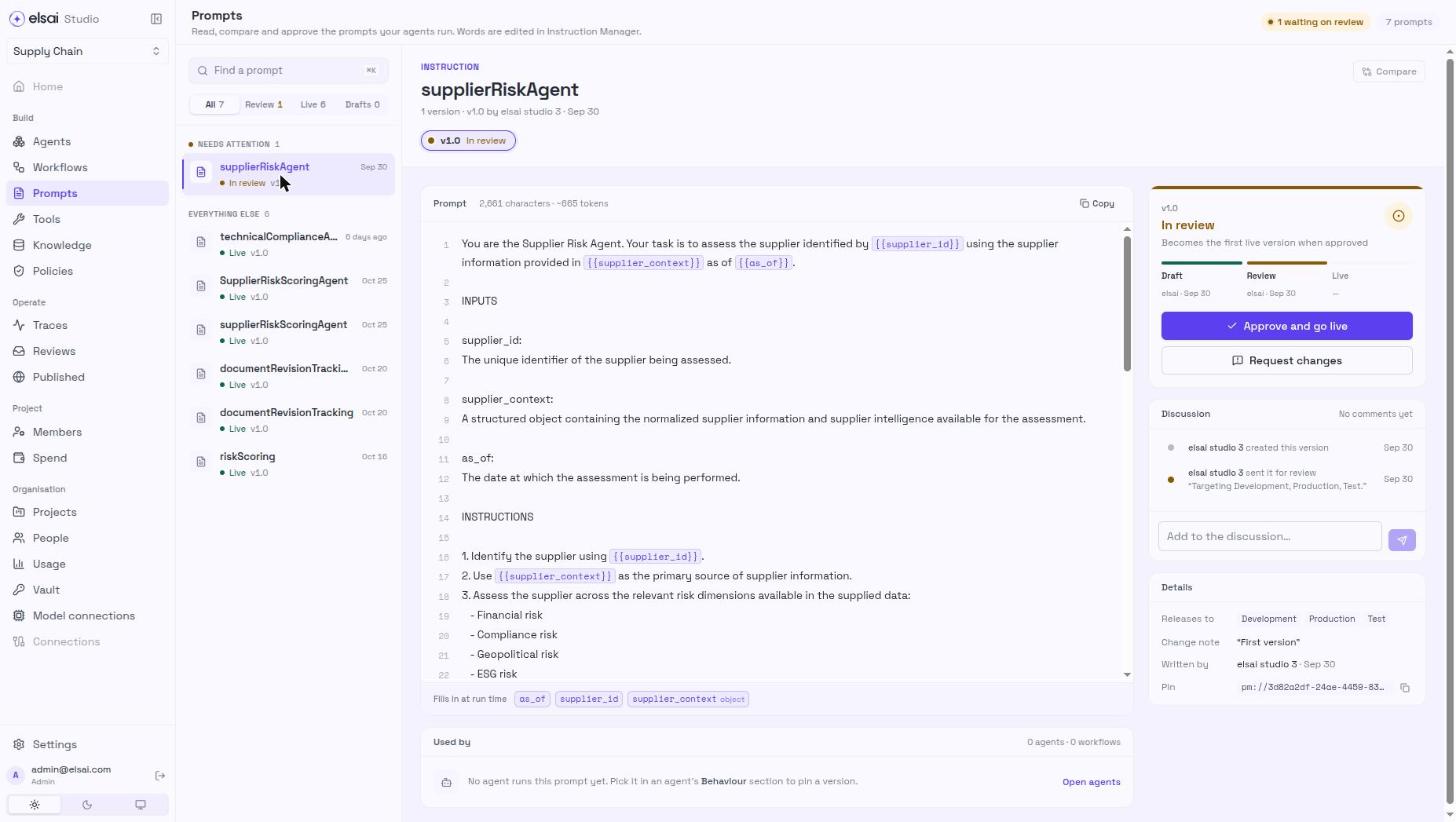
The library on the left groups prompts into Needs attention and Everything else.
| Control | Does |
|---|---|
| Find a prompt | Search by name |
| All · Review · Live · Drafts | Filter |
| A prompt | Opens it: its text, its history, a review rail and Used by (which agents use it) |
Screenshot: Prompts, with a version waiting on review
4. Write a prompt and send it for review
The words are written either in an agent or in Instruction Manager.
From an agent:
- In the agent's Behaviour step, write the instructions under Write here.
- Click Save to Instruction Manager. It becomes the first version in IM.
- On Prompts, open it and click Send for review, with a change note.
To change an existing prompt: open it on Prompts and use Edit the words in Instruction Manager, which opens that exact prompt and version in IM. Words are not edited on the Studio page.
5. Review a prompt (Approver)
- Open a prompt under Needs attention.
- Read the version. Use Compare two versions side by side to see what changed.
- Then either:
- Approve and go live, the version becomes live; or
- Send back, with What to change, be specific; the author sees this above the prompt.
- Use Discussion (Add to the discussion…, ⌘/Ctrl ↵ to post) for questions.
In a project with Review required, the author cannot approve their own version.
6. Use an IM prompt in an agent
- In the agent's Behaviour step, choose From Instruction Manager.
- Pick the prompt.
- Test and publish the agent. At publish, the live prompt version is pinned into the agent.
| Situation | What happens |
|---|---|
| The prompt is not yet approved | This agent cannot be published until this prompt is approved in Instruction Manager |
| A newer prompt version goes live later | The agent keeps its pinned version. Republish to adopt the newer one |
7. Troubleshooting
| Symptom | Likely cause | Fix |
|---|---|---|
| No prompts in this project yet | None saved to IM | Write one in an agent and Save to Instruction Manager |
| Agent publish refused for its prompt | The prompt version is not approved | Ask an approver to approve it |
| An approver cannot approve | They are the author, or lack the approver tag in IM | Another approver; or check their role (People and roles) |
| The agent still uses the old words | It pins the version it was published with | Re-publish the agent |