
Appearance
People and roles
Everyone in the organisation, their role, the projects they can reach, and how all of that carries into Instruction Manager and ARMS.
At a glance
| Where | Sidebar → Organisation → People |
| Who | Admins only |
| Before you begin | The person has registered (Create an account) |
1. The four roles
Each role is a step up from the one before.
| Role | In one line |
|---|---|
| Viewer | Read only. Can look, cannot change or run anything |
| Author | Create and edit. Can build, test and run. Cannot publish |
| Approver | And publish. Everything an Author can, plus publish, deprecate and restore |
| Admin | And manage people. Everything, plus people, projects, the vault and organisation settings |
Two rules sit on top:
- Your role says what you may do; project access says where. A new account is a Viewer in no project and sees nothing until an Admin adds it to a project.
- You sign in once. Your role and project access follow you into Instruction Manager and ARMS; you never create accounts there.
Why publishing is separate from authoring: a version should be approved by someone other than the person who wrote it. Why running is separate from viewing: a run spends model budget and acts on a real case.
2. See everyone
Screenshot: Organisation → People
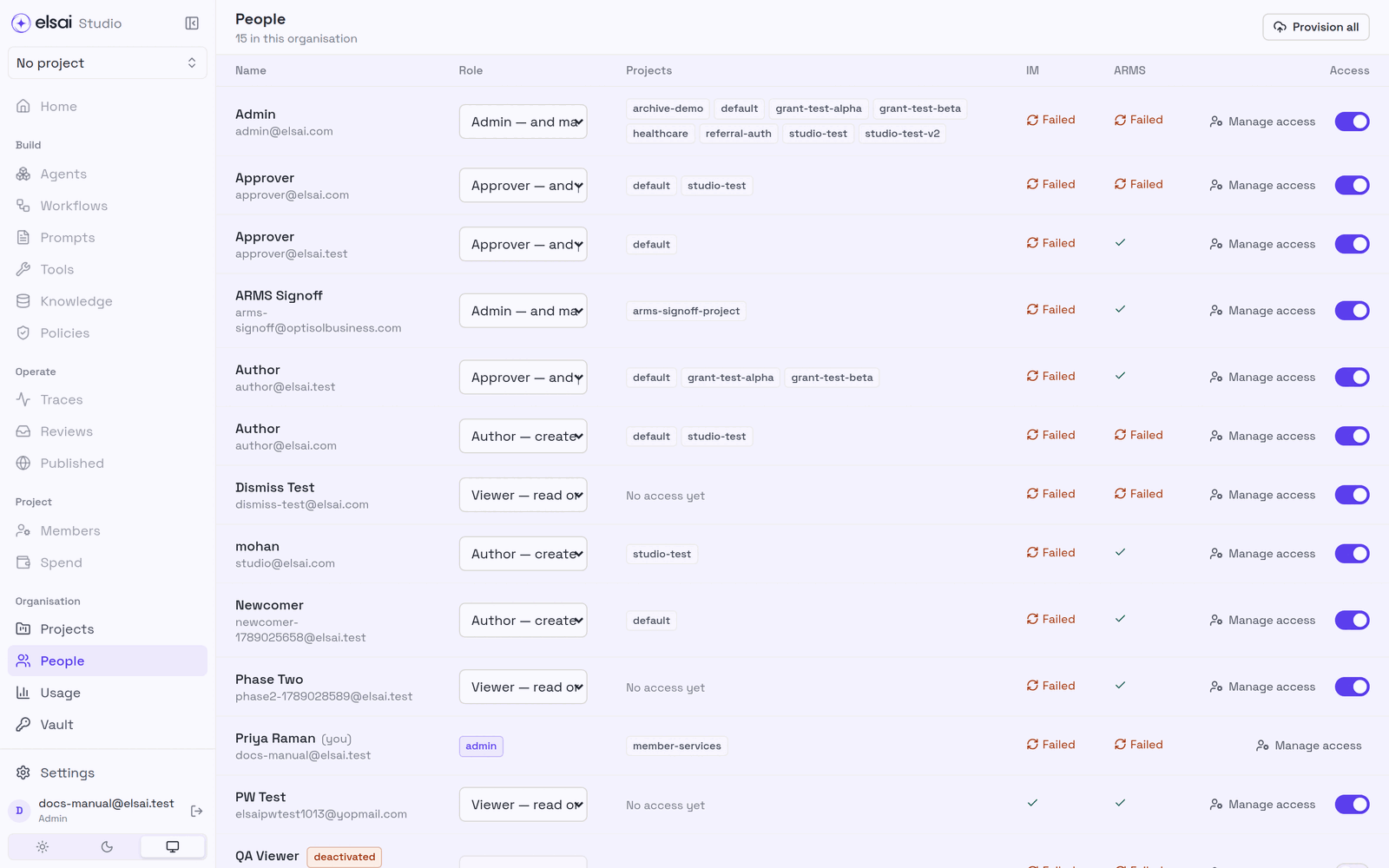
| Column | Shows / does |
|---|---|
| Name | The person and email; deactivated if switched off |
| Role | A dropdown: Viewer, read only, Author, create and edit, Approver, and publish, Admin, and manage people |
| Projects | The projects they can reach |
| IM / ARMS | Whether their account has reached Instruction Manager and ARMS: provisioned, Failed, or a conflict |
| Access | Manage access (projects), and the switch to deactivate or reactivate |
3. Give someone access
- In People, find the person and set their Role.
- Click Manage access and switch on the projects they need. They will see only the projects switched on here.
Role changes take effect when their session refreshes (up to 30 minutes), or when they sign in again.
Which role should I give?
| If the person… | Give |
|---|---|
| Only reviews results and traces | Viewer |
| Builds and tests agents and workflows | Author |
| Signs off and publishes to production | Approver |
| Runs the platform: people, projects, secrets, MCP, apps | Admin |
Give Approver to someone other than the main author, so a second person releases the work.
4. Remove access
| To | Do | Effect |
|---|---|---|
| Remove one project | Manage access → switch the project off (or Project → Members → Remove) | They keep their account, lose that project |
| Switch the account off | The switch in Access → Deactivate | Sign-in is refused and refresh is blocked at once. Their history is kept. One click to Reactivate |
A session already open cannot be recalled; it stays valid until it expires (about 30 minutes). Studio blocks its renewal immediately.
Removing access revokes, never deletes: what they authored and the traces of their runs stay.
5. Resolve account conflicts
If someone with the same email already has an account in Instruction Manager or ARMS, Studio does not link them automatically (that would let one person take over another's account). The IM or ARMS column shows a conflict. Click it and choose:
- Same person, link the accounts, or
- Not the same person.
Other products are not held up while one is in conflict.
Provision all queues everyone and every project that has never reached Instruction Manager or ARMS, useful after connecting them for the first time. Syncing runs in the background with retries; the columns show the status per product.
6. How roles carry into Instruction Manager and ARMS
Studio is the source of truth and pushes changes onward. IM and ARMS have simpler role models, so Studio maps its four roles onto them:
| Studio role | Instruction Manager | ARMS |
|---|---|---|
| Viewer | Member | Member |
| Author | Member | Member |
| Approver | Member + approver tag | Member |
| Admin | Super Admin + approver tag | Admin |
Project access becomes plain membership of the matching project in both.
| What it means | |
|---|---|
| Approving prompts | The IM approver tag lets someone approve a prompt where the project requires review. Approvers and Admins have it |
| Viewer vs Author | IM and ARMS do not distinguish them; Studio enforces the difference on its own screens |
| Traces in ARMS | Project-scoped. Everyone in a project sees the same traces; the role does not narrow it |
| Administering IM / ARMS | Studio Admins only |
| Passwords | Changing your password in Studio also changes it in IM and ARMS (within a minute) |
7. Troubleshooting
| Symptom | Likely cause | Fix |
|---|---|---|
| A new colleague sees nothing | By design: new accounts are in no project | Manage access → add projects |
| I can see a workflow but there's no Run button | They are a Viewer | Raise to Author |
| I built an agent but can't publish it | They are an Author | An Approver publishes it |
| Approver cannot publish a prompt in IM | Not in the project, or IM not provisioned | Check project access and the IM column |
| Role change not visible | Session not refreshed yet | Sign out and in |
| Can someone be Author in one project and Viewer in another? | No, one role per person | Use project access to limit where |