
Appearance
Agents
An agent is an AI that does one job well: it reads what it is given, follows your instructions, may use tools and documents, and returns an answer. This page shows how to create, test, publish and manage one.
At a glance
| Where | Sidebar → Build → Agents |
| Who | Viewer: look. Author: create, edit, test. Approver/Admin: also publish, deprecate, restore |
| Before you begin | A model key in the Vault (Admins add these). For a model to run, it must also have a price, see §8 |
1. What it is and why it matters
An agent in Studio is a declaration, not a program. You fill in a form, what it is called, what it should do, which model, which key, and Studio stores it as a versioned document (agent.yml). The runtime reads that document and runs it. Nothing about the agent is hidden in code, so anyone can read exactly what an agent will do, and every change is a new version that someone reviews.
2. Key ideas
| Idea | What it means for you |
|---|---|
| Reference (key) | The agent's permanent id, e.g. support_triage. Made from the name when you create it. Workflows and the API use it, so it can never change |
| Draft | Saved but not released. Workflows cannot use it |
| Version | Every saved change to a published agent is a new numbered version (v1, v2…). Published versions never change |
| Test run | A run in the Playground. Publishing needs a passing test run of exactly that version |
| Published / Latest | A published version can be used by workflows and the API. Latest is the newest published one |
| Inputs | Named values a workflow hands the agent (e.g. request). Required inputs must be wired in every workflow that uses the agent |
| Structured output | The agent answers in a fixed JSON shape, so later steps can read fields like priority |
3. Find your way around the Agent Registry
Build → Agents lists every agent in the project.
Screenshot: The Agent Registry
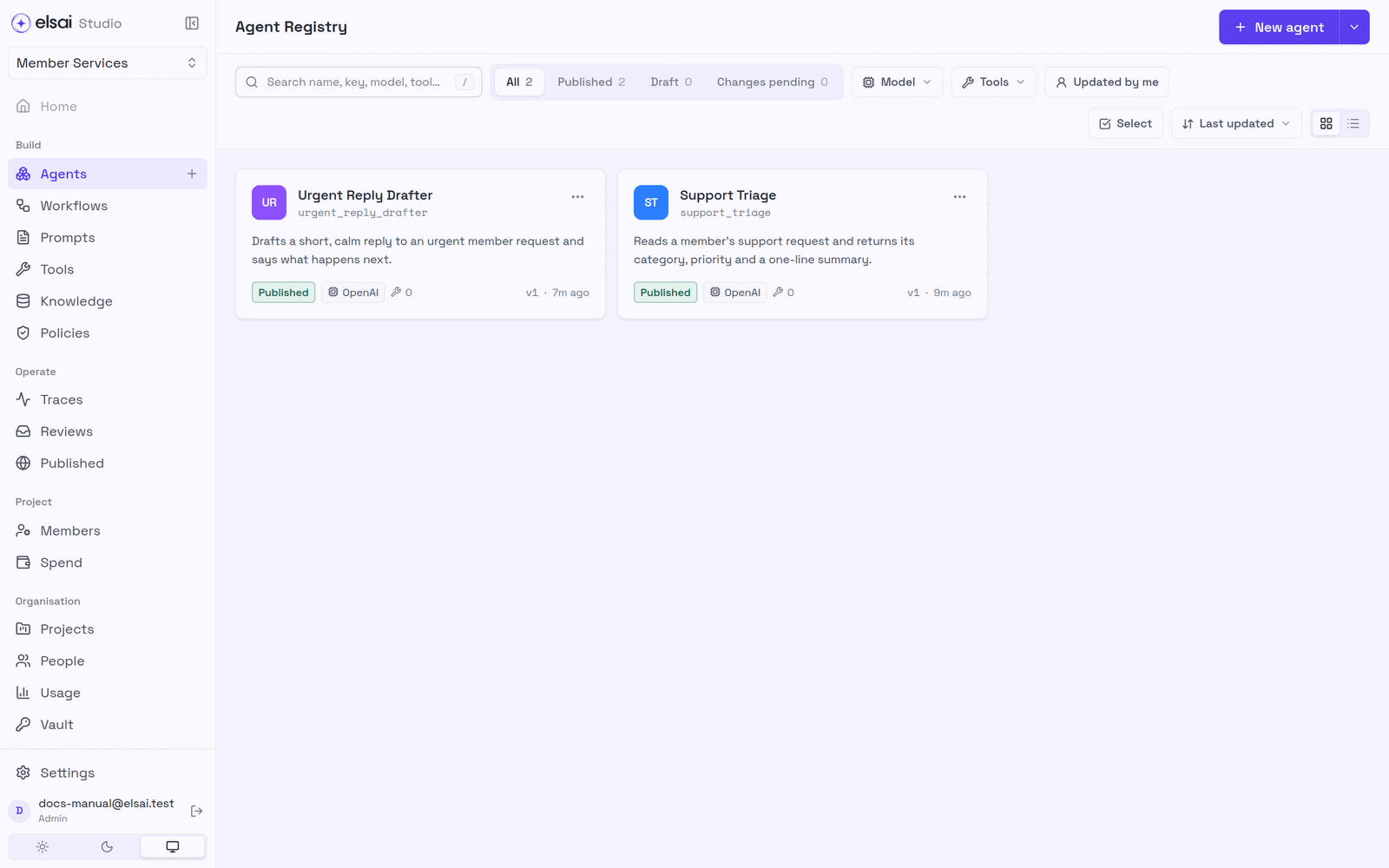
| Control | Does |
|---|---|
| New agent | Start the builder |
| ▾ beside New agent | Agent, Folder, or Import from a file… |
| Search box (press /) | Search name, key, model, tool |
| All · Published · Draft · Changes pending | Filter by status. Changes pending = published, with a newer saved version that is not live yet |
| Model · Tools · Updated by me | Narrow the list |
| Select | Pick several agents to move them into a folder together |
| Last updated | Sort order |
| Continue name banner | An agent you started but never created. It is kept only in this browser, see below |
Unfinished agents. While you build a new agent, your progress is saved in this browser (the header says Kept in this browser). If you close the tab, the registry offers Resume or Discard. Nobody else can see it, and it is not on any other computer, until you click Save draft or Create agent.
4. Create an agent
The builder walks you through five required steps and five optional ones. The right-hand summary shows what you have chosen and a Ready to run checklist.
Screenshot: The agent builder, with a prompt from Instruction Manager
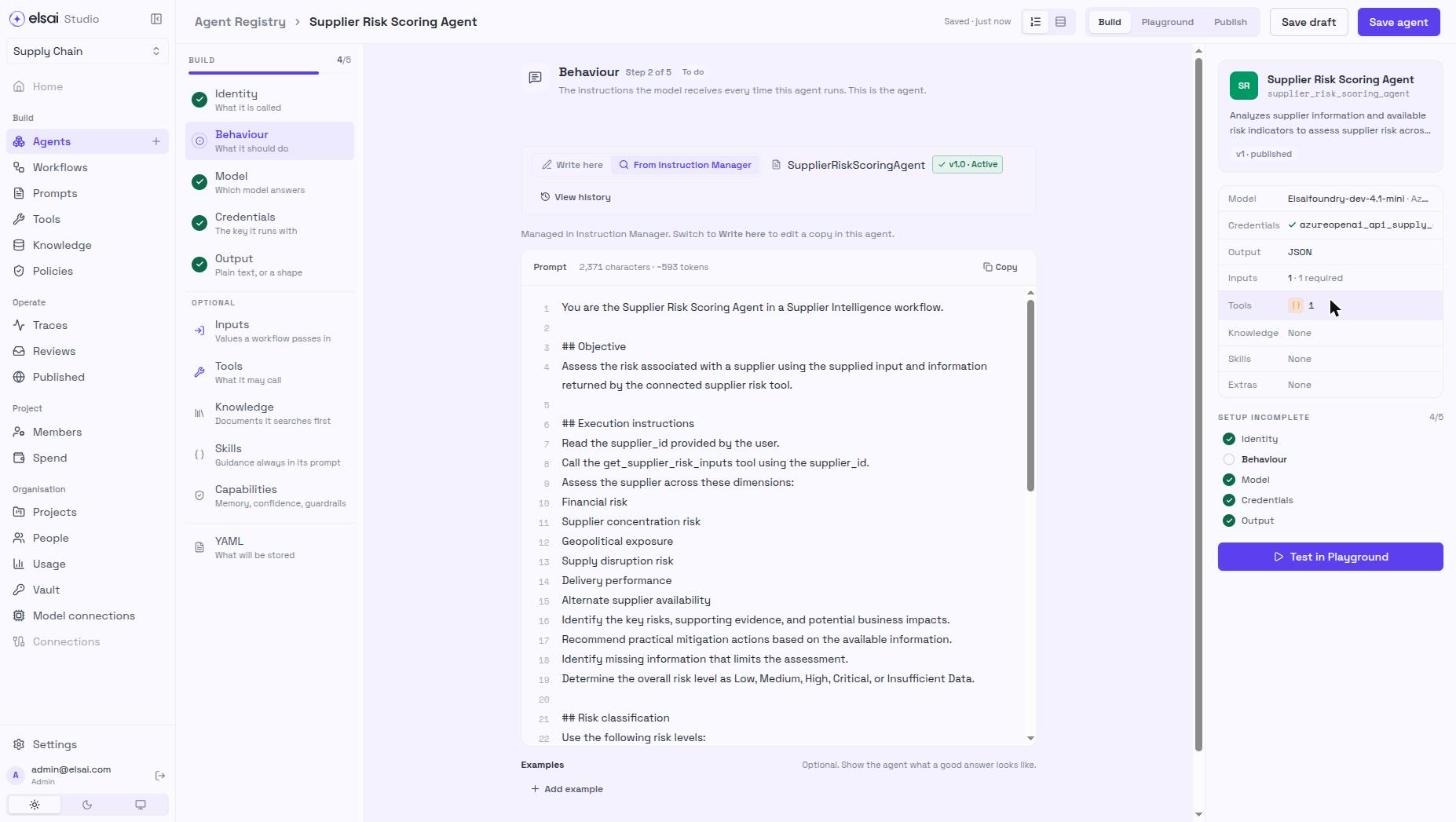
Tip: two layouts are available, Guided (one step at a time, shown here) and Single page (every section on one page with a table of contents). Switch with the two icons in the builder header, or set a default in Settings → Agent builder layout.
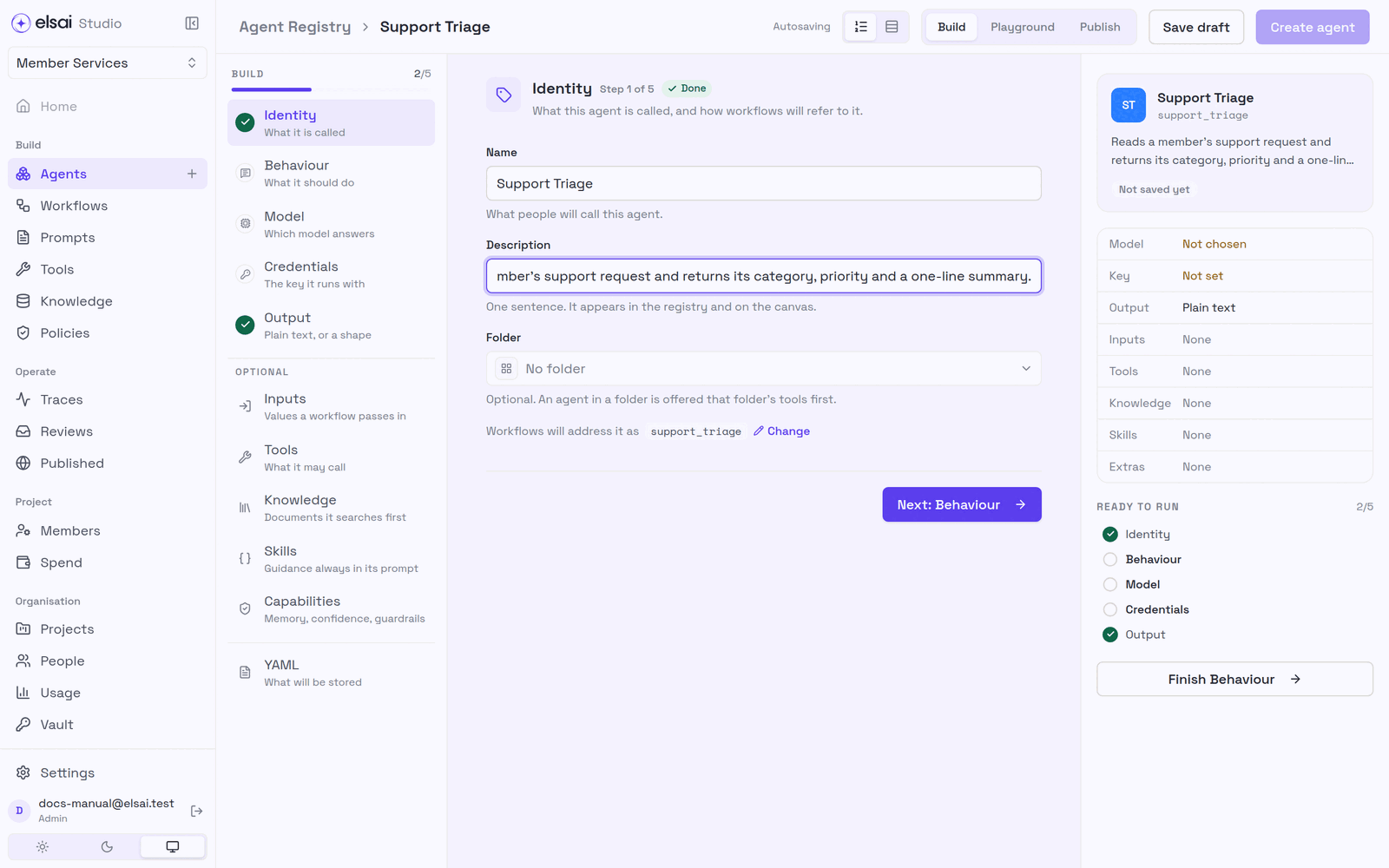
Step 1: Identity
- Click New agent.
- Enter a Name (what people call it) and a one-sentence Description (shown in the registry and on the canvas).
- Optional: choose a Folder. An agent in a folder is offered that folder's tools first.
- Click Next: Behaviour.
Screenshot: Identity
Step 2: Behaviour (the instructions)
This is the agent: the instructions the model receives every time it runs.
Choose where the prompt comes from:
- Write here, stored in this agent. Fine for most agents.
- From Instruction Manager, pick a reviewed, versioned prompt. See Prompts.
Choose how the prompt is written:
Tab Use when Instruction A system prompt; the agent's inputs arrive as the message. The usual choice Template One template with {{input_name}}placeholders and no separate system messageMessages You want to write the turns yourself, as a conversation Structured Any of the above, with the reply shape enforced Write the instructions in System. Use
{{name}}to place a declared input.Optional: Add example to show what a good answer looks like.
Writing good instructions. Say what the agent is, what it must decide, what each output field means, and what to do when the input is unusual. "Use only what the member wrote" stops it inventing facts.
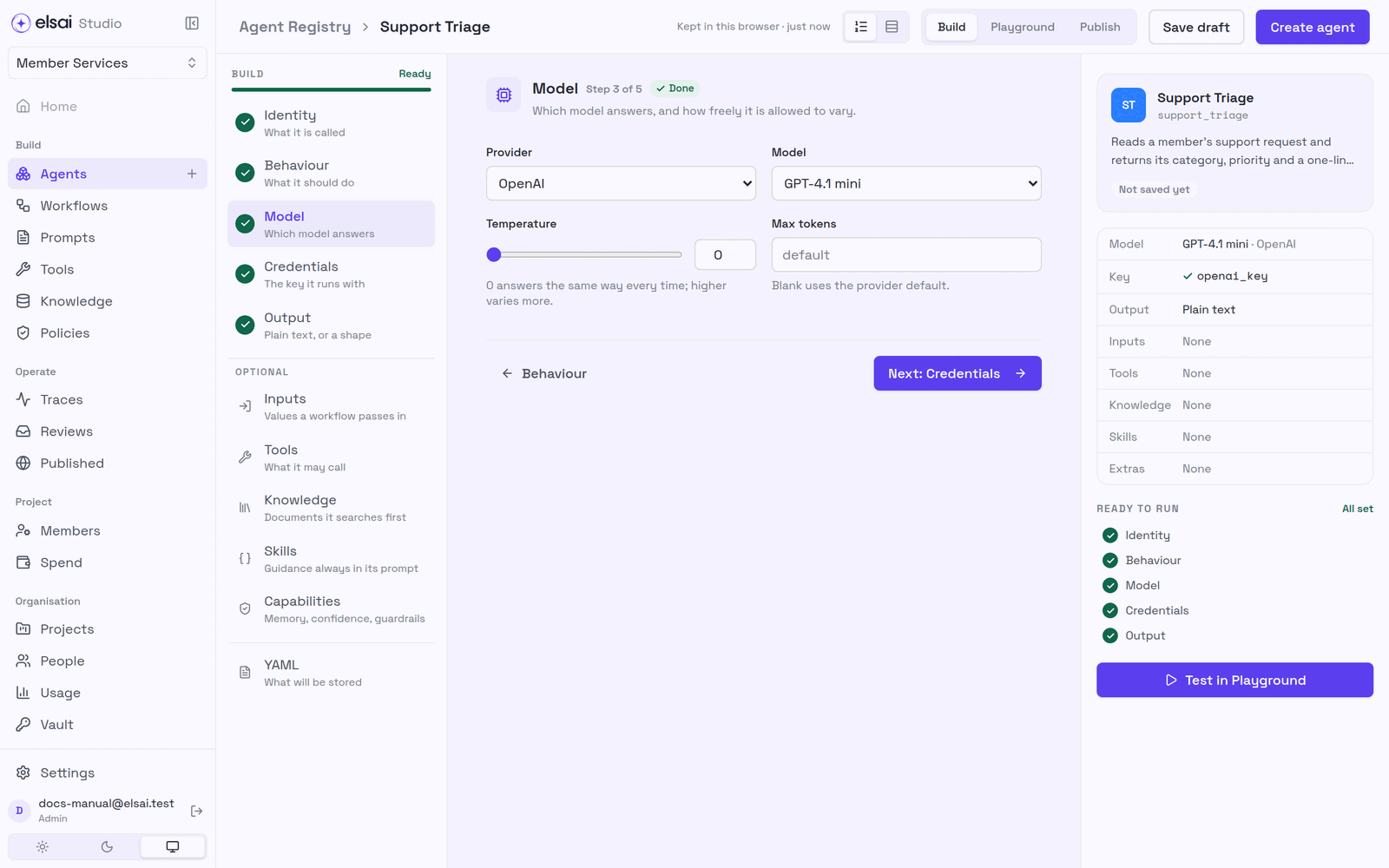
Step 3: Model
- Choose a Provider (OpenAI, Anthropic, AWS Bedrock, Azure OpenAI, Google Gemini, Mistral and others) and a Model. Choose Something else… to type a model id that is not listed.
- Optional: Temperature,
0answers the same way every time; higher varies more. Use0for classification and extraction. - Optional: Max tokens, blank uses the provider's default.
Screenshot: Model
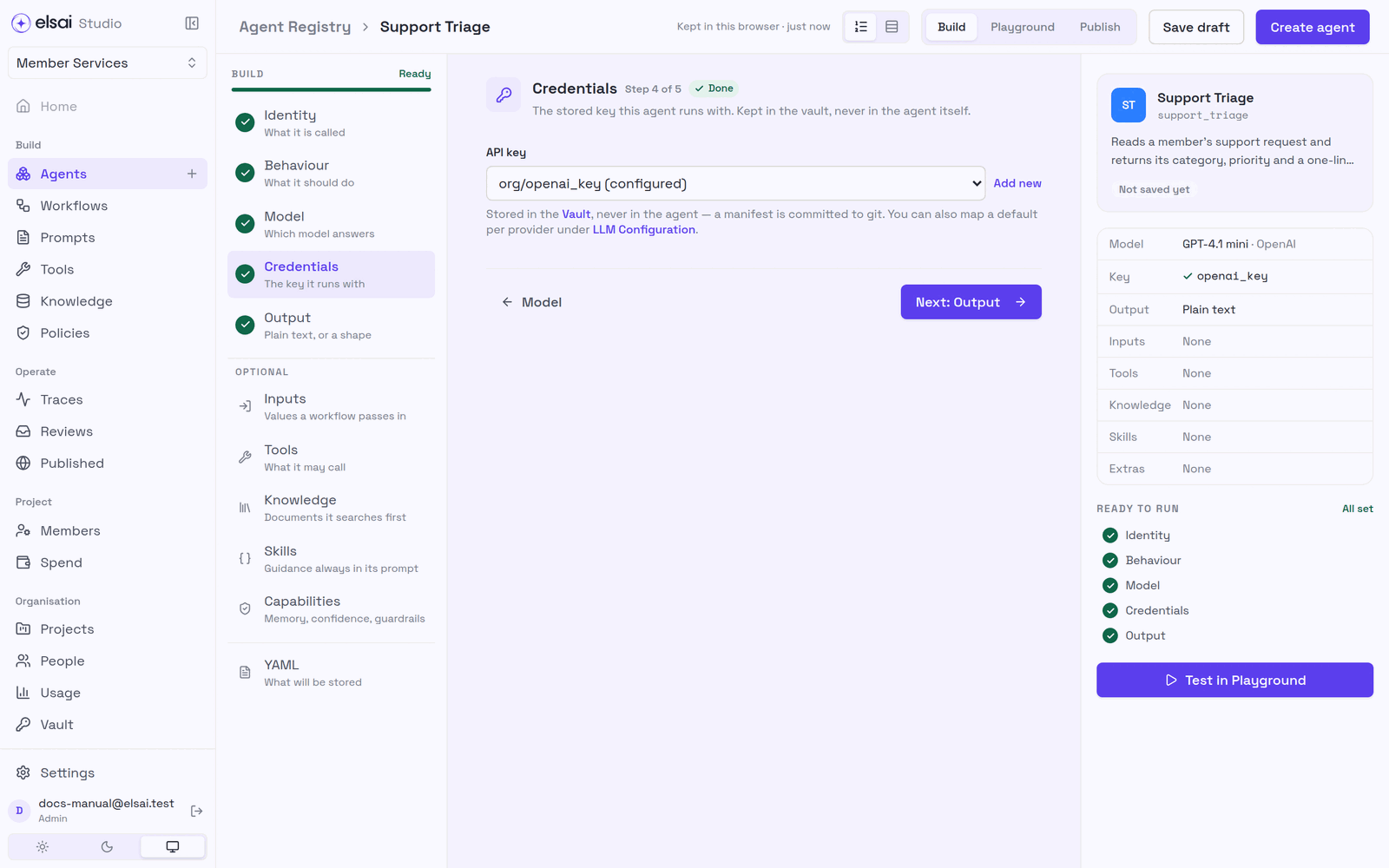
Step 4: Credentials
- Under API key, choose the vault key the agent runs with (e.g.
org/openai_key), or Add new.
The key itself stays in the Vault. The agent stores only a pointer (secret://org/openai_key), so the agent document can be shared without leaking anything.
Screenshot: Credentials
Step 5: Output
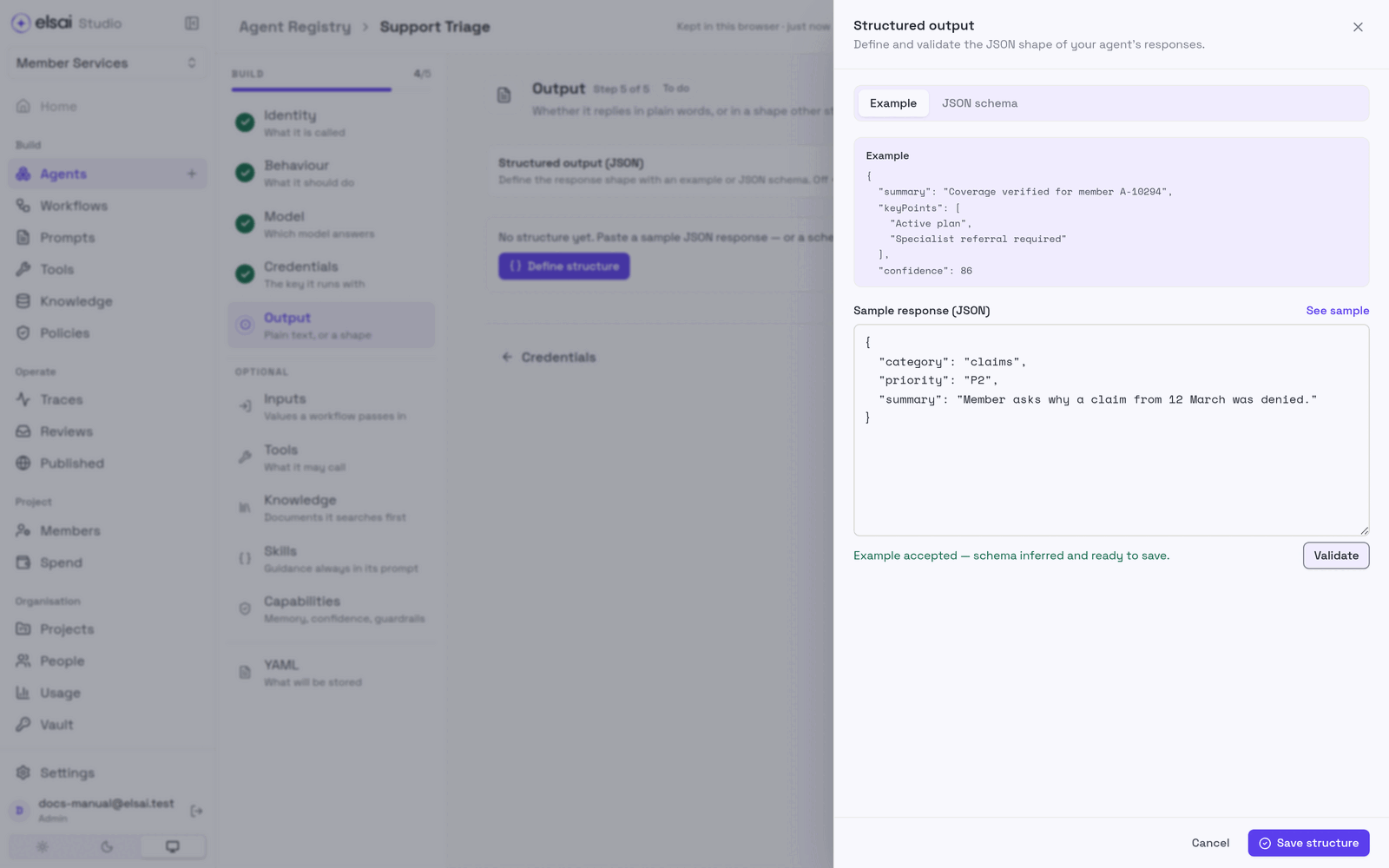
- Leave Structured output (JSON) off for a plain text reply.
- Switch it on when other steps need to read named fields. A drawer opens:
- Choose Example (paste a sample answer, Studio builds the schema) or JSON schema (paste a schema).
- Click Validate, then Save structure.
Screenshot: Defining the answer's shape
Optional: Inputs
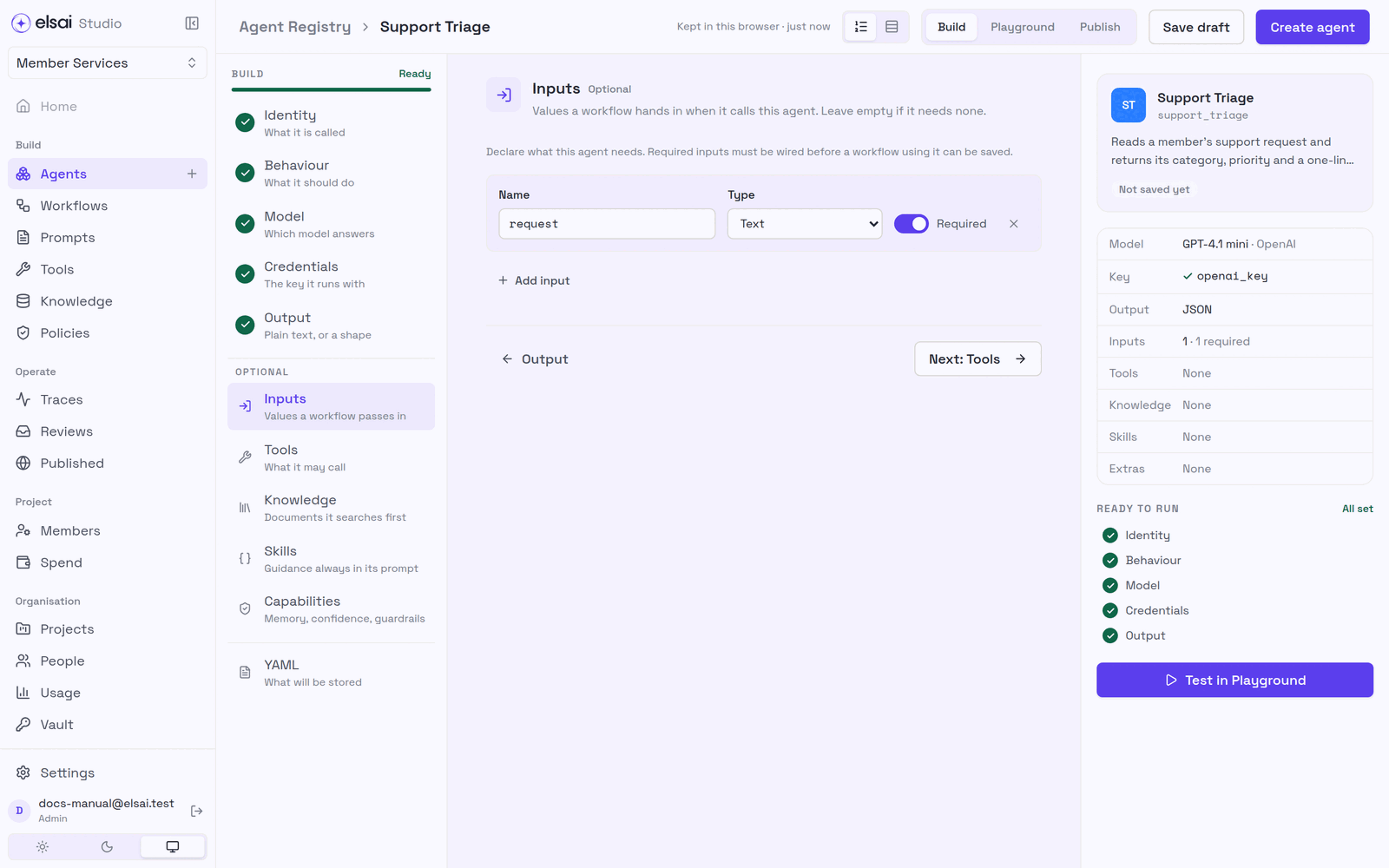
Inputs are the values a workflow hands the agent.
- Click Inputs → Add input.
- Enter a Name (lowercase, e.g.
member_id), a Type, and switch Required on or off.
| Type | Holds |
|---|---|
| Text | Words |
| Whole number / Number | 3 / 3.75 |
| Yes / no | true or false |
| List / Object | Several values / a group of named values |
| Document | A file passed in from a run |
Screenshot: Inputs
Optional: Tools
Pick what the agent may call while it works. The Type tabs separate your tools from Apps (Gmail, Teams…); Common tools are offered to every agent.
Screenshot: Tools
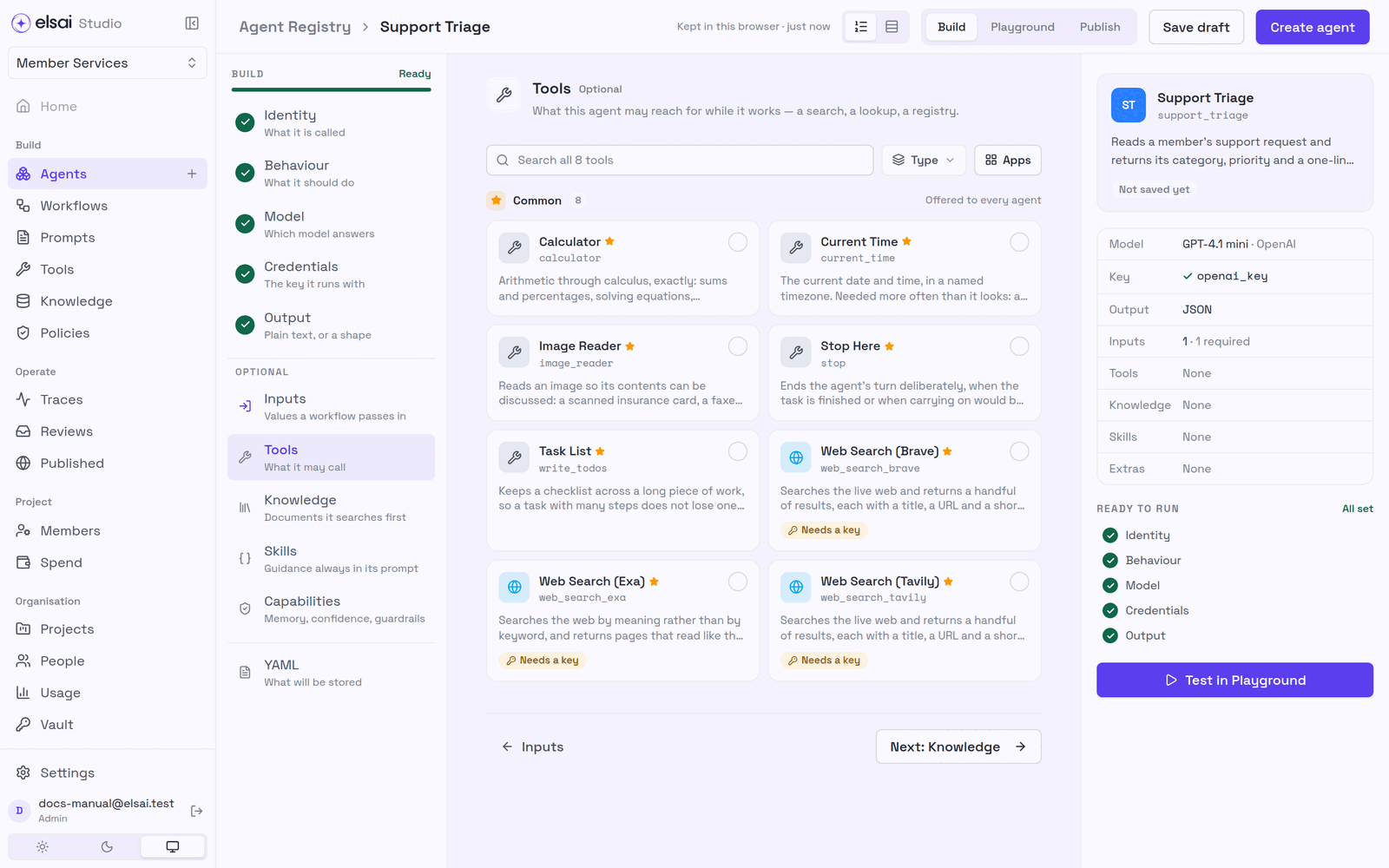
The agent decides when to call a tool by reading the tool's description, so mention in the instructions when a tool should be used. See Tools.
Optional: Knowledge
Attach one knowledge base so the agent searches the project's own documents before it answers.
| Setting | Choices |
|---|---|
| How it searches | Searches it once, with the question as asked. Fast. Search until it has enough, the model rewrites the question and searches again when the first passages fall short. Slower; costs a model call per round |
A knowledge base whose search is not set up cannot be chosen until it is.
Optional: Skills
Attach published skills: guidance added to the agent's instructions on every run, such as a style guide or checklist.
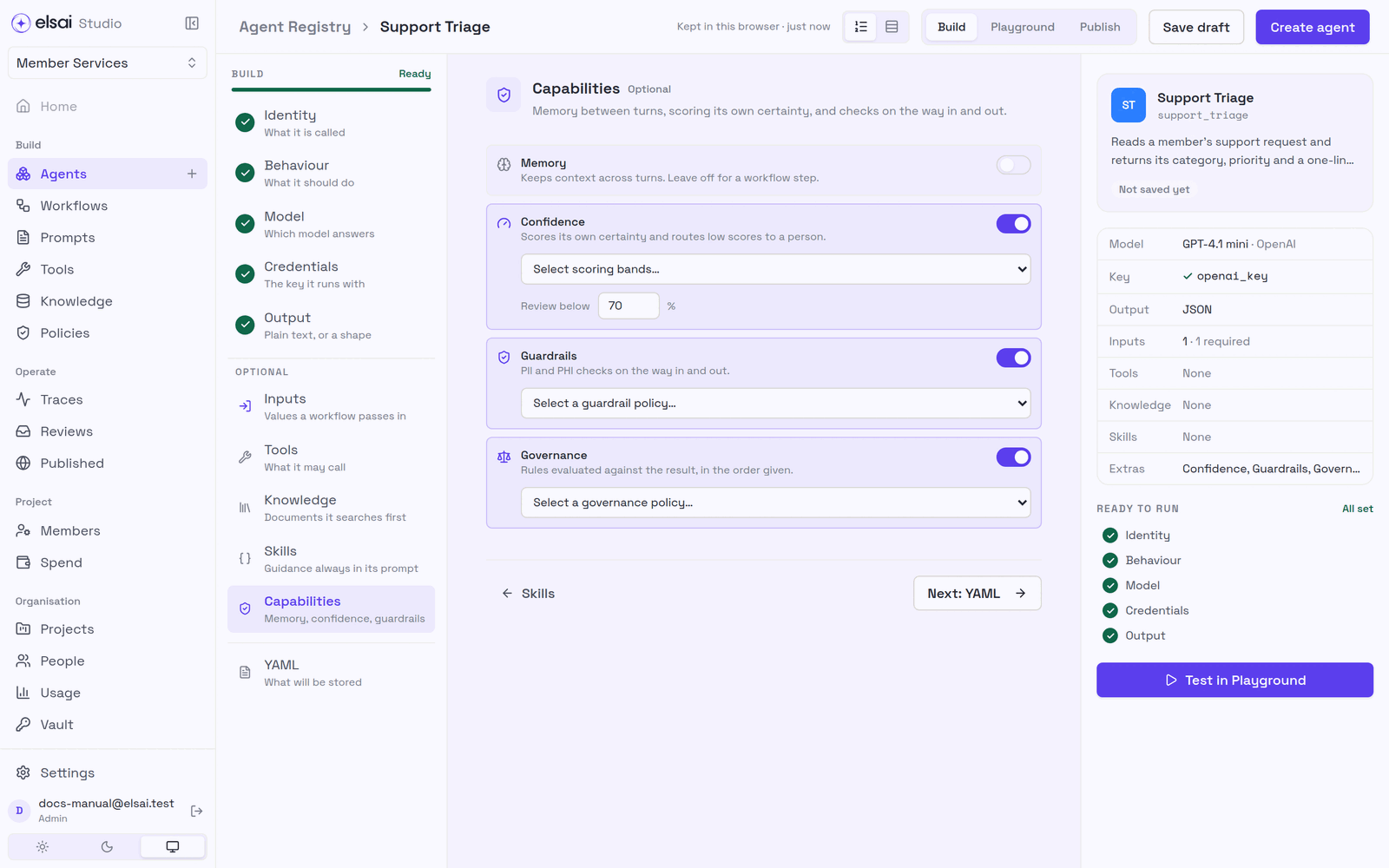
Optional: Capabilities
| Capability | Does | Settings |
|---|---|---|
| Memory | Keeps context across turns | Leave off for a workflow step |
| Confidence | The agent scores its own certainty; a low score sends the case to a person | Confidence policy and Review below (threshold, default 70 %) |
| Guardrails | PII and PHI checks on the way in and out | Guardrail policy |
| Governance | Rules checked against the result, in order; a rule can send the case to a person | Governance policy |
Policies are chosen from those published in the project. A run that a confidence or governance rule stops appears in Reviews.
Screenshot: Capabilities with confidence, guardrails and governance on
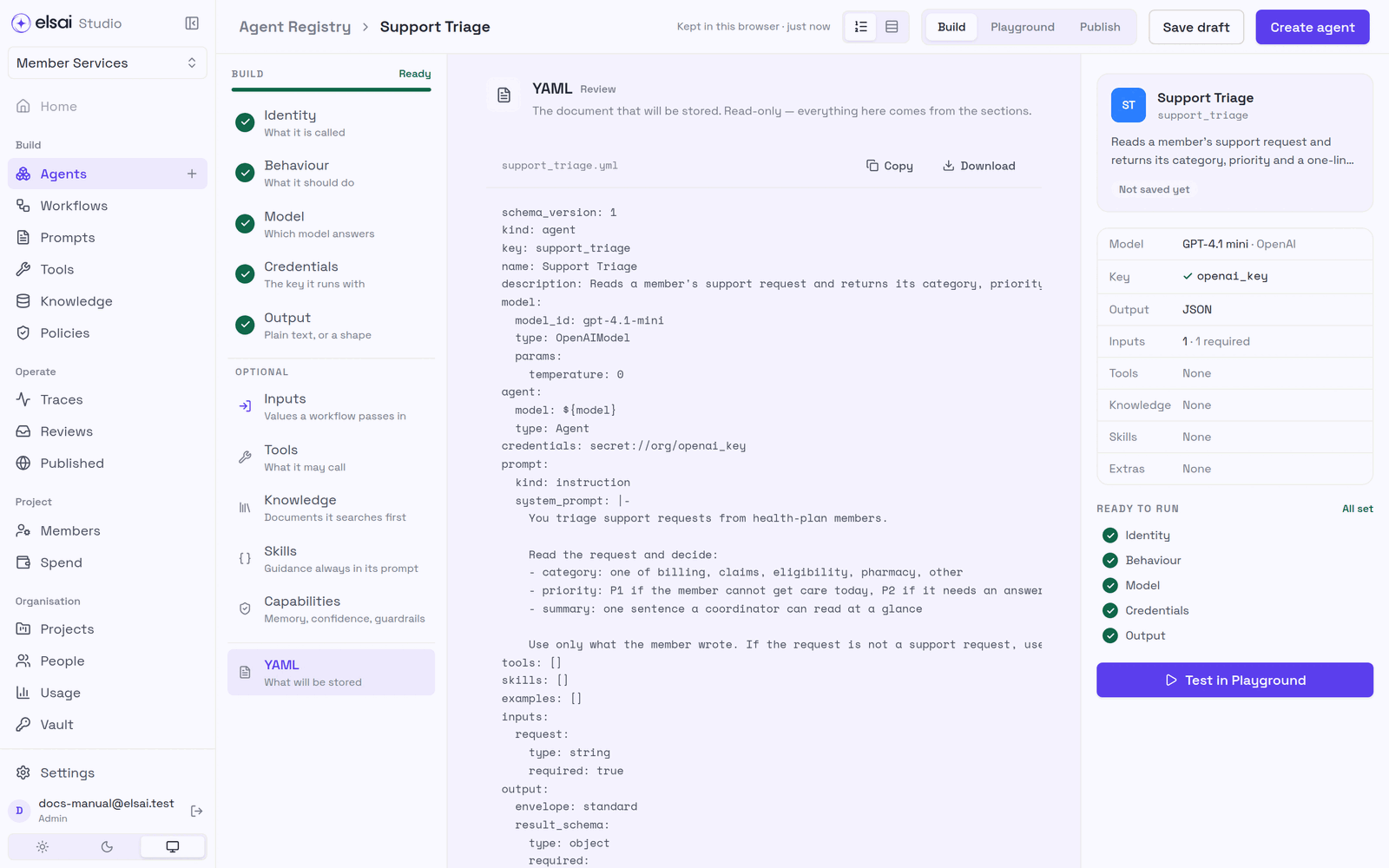
Review: YAML
YAML shows the exact document that will be stored. It is read-only; everything in it comes from the sections. It lists anything still to fix, and offers Copy and Download.
Screenshot: The stored document
Save
| Button | Does |
|---|---|
| Save draft | Saves to the project even if some steps are unfinished. Needs a name and a key |
| Create agent / Save agent | Saves a complete agent. Disabled (with a hint) until the five required steps are done |
Note: a key that already exists in the project cannot be used for a new agent.
5. Test an agent in the Playground
- Open the agent and click the Playground tab.
- Fill in Sample input (one box per declared input), or click JSON to paste them all.
- Click Run.
Screenshot: A passing run
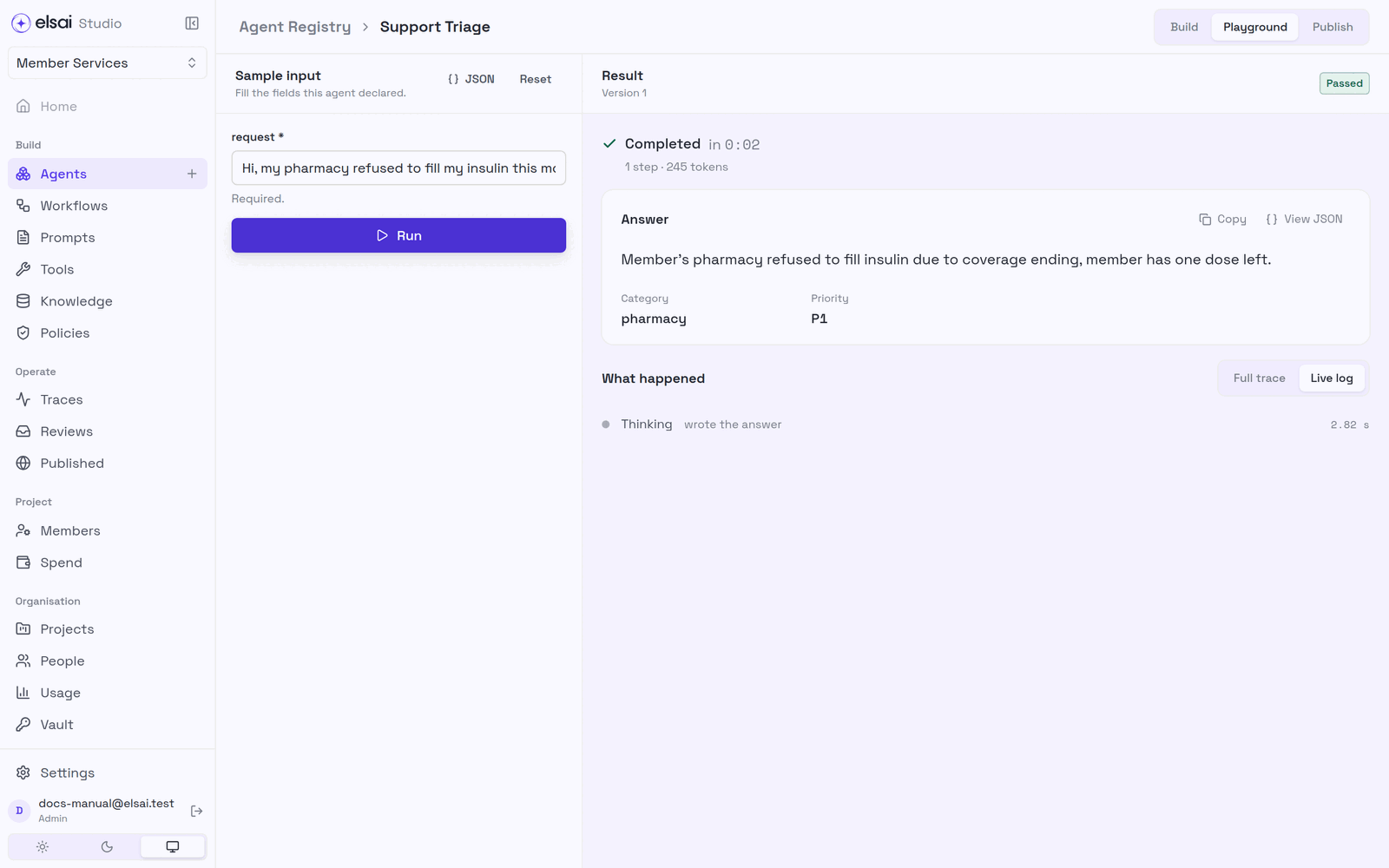
| You see | Meaning |
|---|---|
| Passed / Completed | The run worked. This version can now be published |
| Answer | The reply; View JSON shows the raw structure |
| What happened | Live log while it runs; Full trace of model thinking and tool calls afterwards |
| Steps, tokens, time | What the run used |
| A budget chip | What you have left, if budgets are set (Spend) |
Playground runs are real: they use the model, cost money and appear in Traces.
6. Edit an agent
- Open the agent from the registry. You land on Build.
- Change any section. The header shows Saved · … as your edits are kept.
- Click Save agent.
If the agent is published, saving creates a new draft version. The published version keeps running unchanged until the new one is tested and published. The registry shows the agent as Changes pending meanwhile.
7. Publish a version
- Run the version in the Playground until it passes.
- Click the Publish tab, then Publish vN.
Screenshot: Published
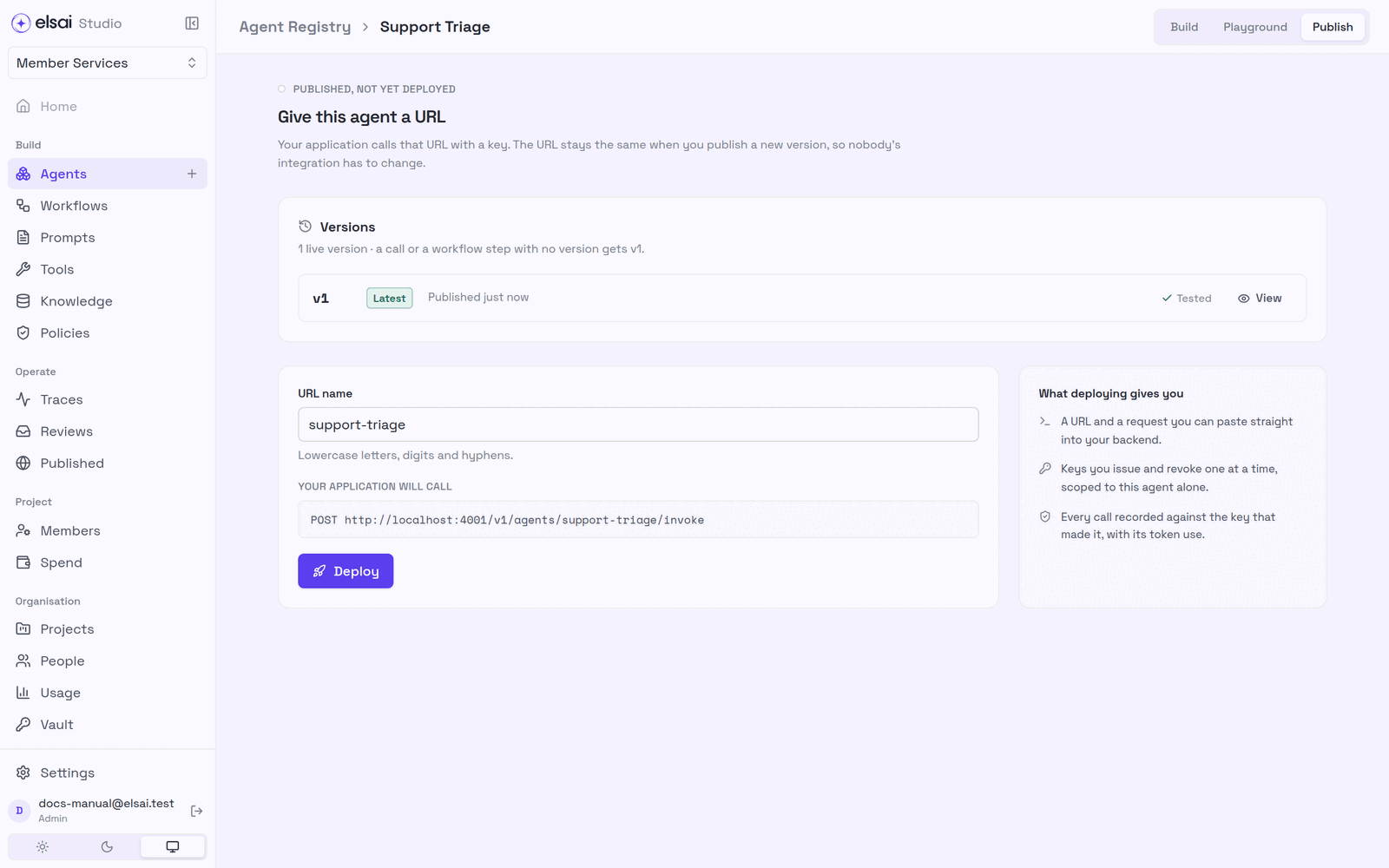
Publishing is refused unless all of these are true:
| Rule | Why |
|---|---|
| You are an Approver or Admin | Authors write; Approvers release |
| You are not the author of this version (unless your installation allows self-approval) | A second pair of eyes |
| This version passed a Playground run | Proof it works |
| Its model has a price | Every run must be costed (§8) |
| Every reference resolves (tools, knowledge, skills, policies, prompt) | Nothing it depends on is missing |
| A prompt from Instruction Manager is approved there | Prompts are reviewed before production |
Versions
The Versions card on the Publish tab lists every version.
| Badge | Meaning |
|---|---|
| Latest | The newest published version. Workflow steps set to Latest and API calls with no version use it |
| Live | An older published version that is still available, for example to a workflow step fixed to it |
| Draft | Saved, not published |
| Deprecated | Workflow steps can no longer choose it. Steps on Latest are not affected |
- View opens a read-only copy of exactly what that version runs.
- Deprecate (Approver/Admin) retires a published version. It is not offered for the only live version, and is refused while a workflow is fixed to that version. Restore brings a deprecated version back.
Give it a URL (optional)
After publishing, the Publish tab offers Deploy so other systems can call the agent. See Published agents.
8. Reference
Builder sections
| Section | Required | Holds |
|---|---|---|
| Identity | ✅ | Name, description, folder, reference |
| Behaviour | ✅ | Instructions, prompt source, examples |
| Model | ✅ | Provider, model, temperature, max tokens |
| Credentials | ✅ | Vault key |
| Output | ✅ | Plain text, or a JSON shape |
| Inputs | Named values from a workflow | |
| Tools | What it may call | |
| Knowledge | One knowledge base | |
| Skills | Guidance always in its prompt | |
| Capabilities | Memory, confidence, guardrails, governance | |
| YAML | The stored document (read-only) |
Model prices
Every run is costed from the project's price list in Elsai Observe (or the standard price list until Observe is connected). A model with no price cannot be run or published, because its spend could not be counted. The builder says so and links to the right page in Observe. Ask an Admin if you cannot set prices yourself.
Delete an agent
Build → Identity → Delete this agent. Published versions stop being available to workflows. This cannot be undone.
9. Troubleshooting
| Symptom | Likely cause | Fix |
|---|---|---|
| Create agent is greyed out | A required step is unfinished | Hover it to see which; or follow Ready to run |
| Save draft and Create agent stay greyed although every step is done | Another agent in the project already has this reference | Change the name so the key differs |
| Publish is greyed: Needs a passing Playground run first | This version has not passed a test | Run it in the Playground |
| Publish refused: must be published by someone other than its author | You wrote this version | Ask another Approver |
| Publish refused: not passed a test run yet | The last change made a new, untested version | Run it again, then publish |
| Run or publish refused for the model's price | The model has no price | Set it in Observe (link in the builder) or ask an Admin |
| Run fails with a 401 from the provider | Wrong or expired key | Pick another key, or ask an Admin to replace it in the Vault |
| The agent does not use its tool | The tool's description is vague, or the instructions never suggest it | Improve both, test again |
| The answer is missing a field | Output is plain text, or the instructions do not mention the field | Turn on Structured output and describe each field |
| Your new agent vanished | It was never created and lived only in another browser | Use Save draft early |