
Appearance
Apps
Apps are ready-made connections to more than 1,500 tools across hundreds of services, Gmail, Outlook, Microsoft Teams, Google Drive, Slack, SharePoint and many more, so an agent or workflow can read an inbox, post a message or create a calendar event without anyone writing an integration.
At a glance
| Where | Sidebar → Build → Tools → Apps tab |
| Who | Everyone in the project can browse. Authors can connect accounts and add apps as draft tools. Approvers/Admins publish them. Only Admins share an account with the whole organisation, and only Admins switch apps on |
| Before you begin | An Admin has switched apps on (Settings → Apps) with a Composio key in the Vault. If not, the Apps tab says Apps are turned off or Apps need a Composio key |
1. What it is and why it matters
Studio uses Composio to sign people in to apps and to run app actions. You choose an app, connect an account, pick which of its actions agents may use, and Studio turns that choice into an ordinary tool, versioned, published and attached to agents like any other.
Where the data goes. When an agent uses an app, the request and the answer pass through Composio's cloud on the way to the app. An email an agent reads is read by Composio on its behalf. Composio holds the sign-ins; Studio holds only which account belongs to whom, never a password or token. For patient data, check your agreement with Composio covers it before using apps.
2. Key ideas
| Idea | Meaning |
|---|---|
| Account | A signed-in connection to the app, e.g. the Claims inbox mailbox |
| Who can use it | Each account is Only me, Everyone in this project, or The whole organisation (Admins only) |
| Actions | What the app can do, grouped as Reads (look, change nothing), Writes (send, create, update) and Deletes (cannot be undone) |
| App tool | Your chosen app + account + actions, saved as a tool |
3. Browse the catalogue
Screenshot: The Apps tab
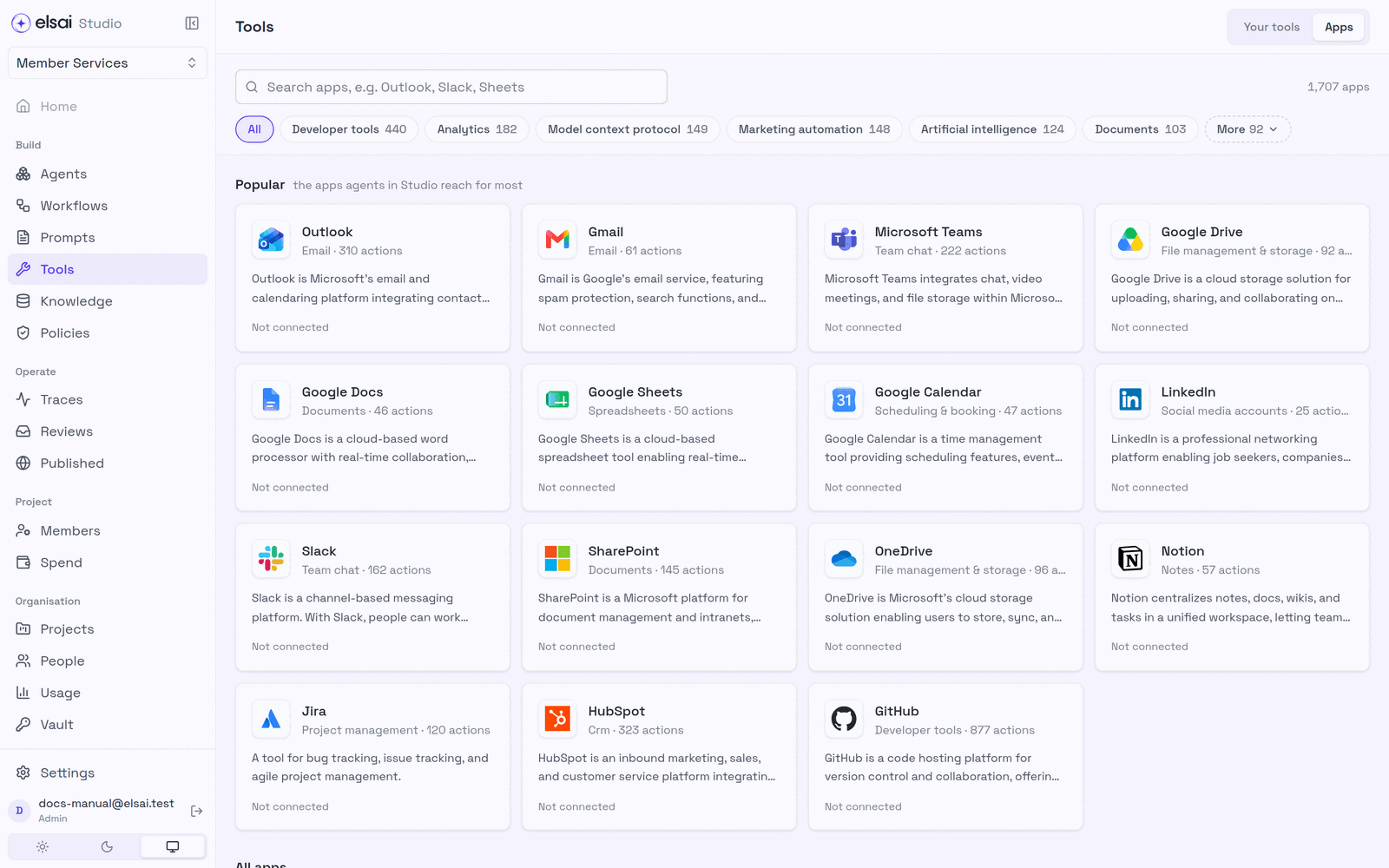
- Search with Search apps, or pick a category (Developer tools, Analytics, Documents…).
- Popular shows the apps teams reach for most.
- Each card shows the number of actions and whether you have an account connected.
4. Connect an account
Click an app to open its drawer.
Under accounts, click Add account.
Give it an Account name that says what it is for, e.g. Claims inbox. Agents and workflows show this name.
Choose Who can use it:
Choice Who acts through it Who may choose it Only me (default) Only you, in every project you are in. Others who run the agent use their own Anyone who can build Everyone in this project Everyone in this project Anyone who can build The whole organisation Every project Admins only Sign in to the app in the window that opens. Studio shows Waiting for sign-in… and then the account as connected. Some apps need no sign-in; a few need your organisation's own OAuth app (the drawer says so).
Who is "me" when a run uses a personal account?
| The run was started by | It acts as |
|---|---|
| A person, Playground, workflow Run, Try it, answering a review | That person, through their own account of the app |
| A published agent called with an API key | The person who created the API key |
| Nobody | Personal accounts are refused; use a shared account |
If someone runs an agent whose tool uses a personal account and they have not connected the app, the run stops and offers Connect your App account.
5. Turn an app into a tool
- In the app's drawer, review the actions. Try an action to see what it does (needs a connected account).
- Click Add to Studio at the foot of the drawer.
- Choose the account and tick the actions agents may use. Read-only actions start ticked; nothing that changes or deletes is ticked until you choose it.
- Name the tool, then:
- Save as draft, or
- Add and publish (Approver/Admin).
The result appears under Your tools. Give it to an agent in the agent's Tools → Apps section, or use one action directly in a workflow's App step.
Choose actions deliberately. An agent with send email will send email when it thinks it should. Start with Reads, test, and add Writes only when needed.
6. Use an app in a workflow without AI
When an action must happen the same way every time, "create the calendar event", "post to the team channel", use an App step instead of an agent. See Workflow steps → App step.
7. Troubleshooting
| Symptom | Likely cause | Fix |
|---|---|---|
| Apps are turned off / Apps need a Composio key | Not set up for the organisation | Ask an Admin: Settings → Apps |
| Composio refused the key | The key is wrong or expired | Admin: check the key in Settings |
| Add to Studio is greyed | No account connected | Connect an account first |
| The sign-in did not finish | The sign-in window was closed or failed | Try connecting again |
| A run stops with Connect your … account | The tool uses a personal account and you have none | Click Connect and sign in; or ask for a shared account |
| Some of the chosen actions are no longer offered | The app changed its actions | Reopen the app and choose again |
| You cannot pick The whole organisation | Only Admins share with the organisation | Ask an Admin |
| An API caller's run is refused for an app | The API key's creator has no account of that app | Use a shared account, or have the key's creator connect one |