
Appearance
Signing in and finding your way
How to get an account, sign in, reset your password, and move around Studio.
At a glance
| Where | The Studio address your team gave you |
| Who | Everyone |
| Before you begin | An email address your organisation allows. Some installations accept only company domains |
1. Create an account
- Open Studio and choose the Create account tab.
- Enter Your name, Email and a Password of at least 12 characters.
- Click Create account.
Screenshot: Create account
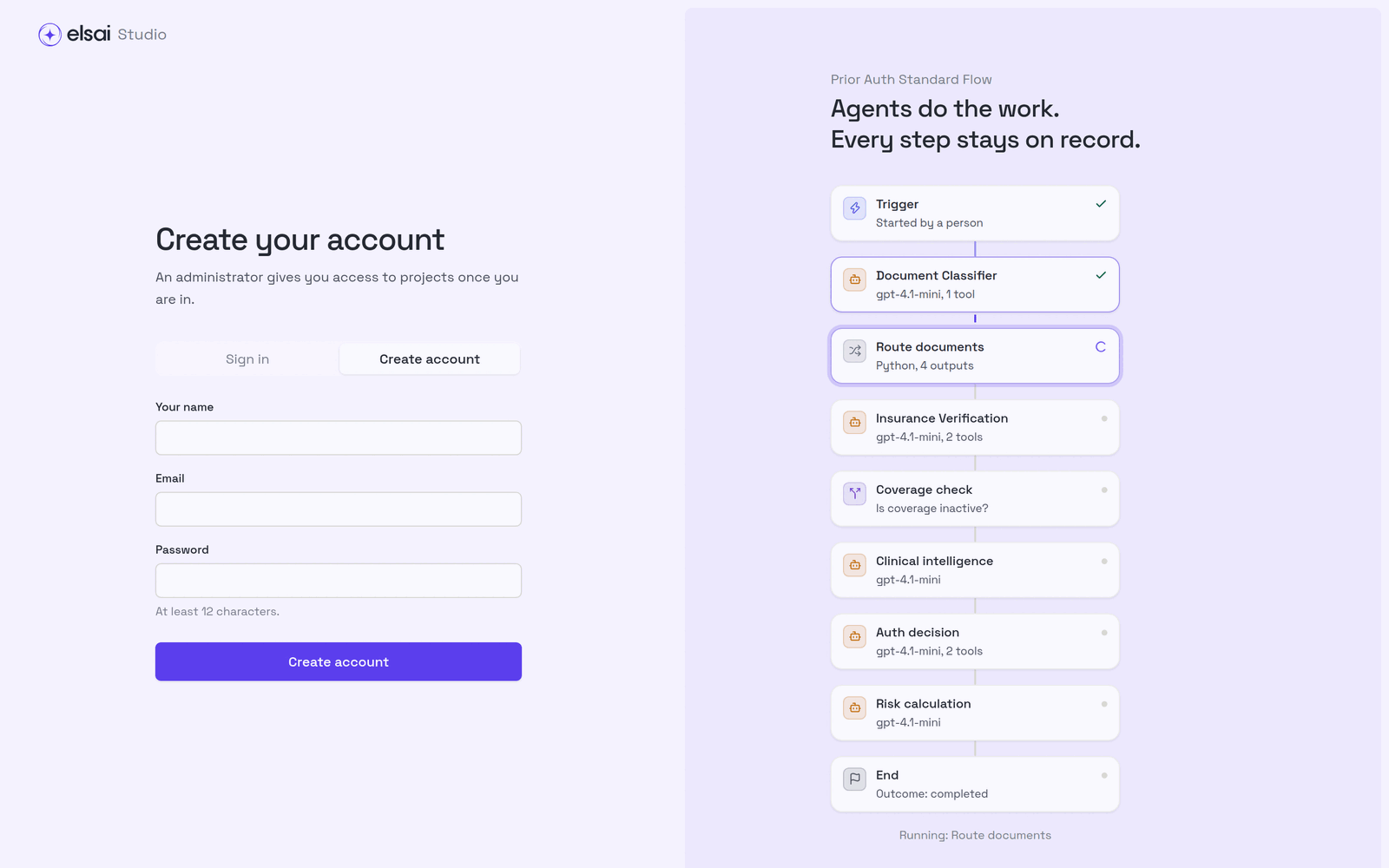
What happens next. A new account is a Viewer in no project. You will see "You are not in any project yet", "Ask an administrator to add you to one." This is expected. An Admin must add you to a project and, if you need to build, raise your role. See People and roles.
2. Sign in
- On the Sign in tab, enter your Email and Password.
- Click Sign in.
Screenshot: Sign in
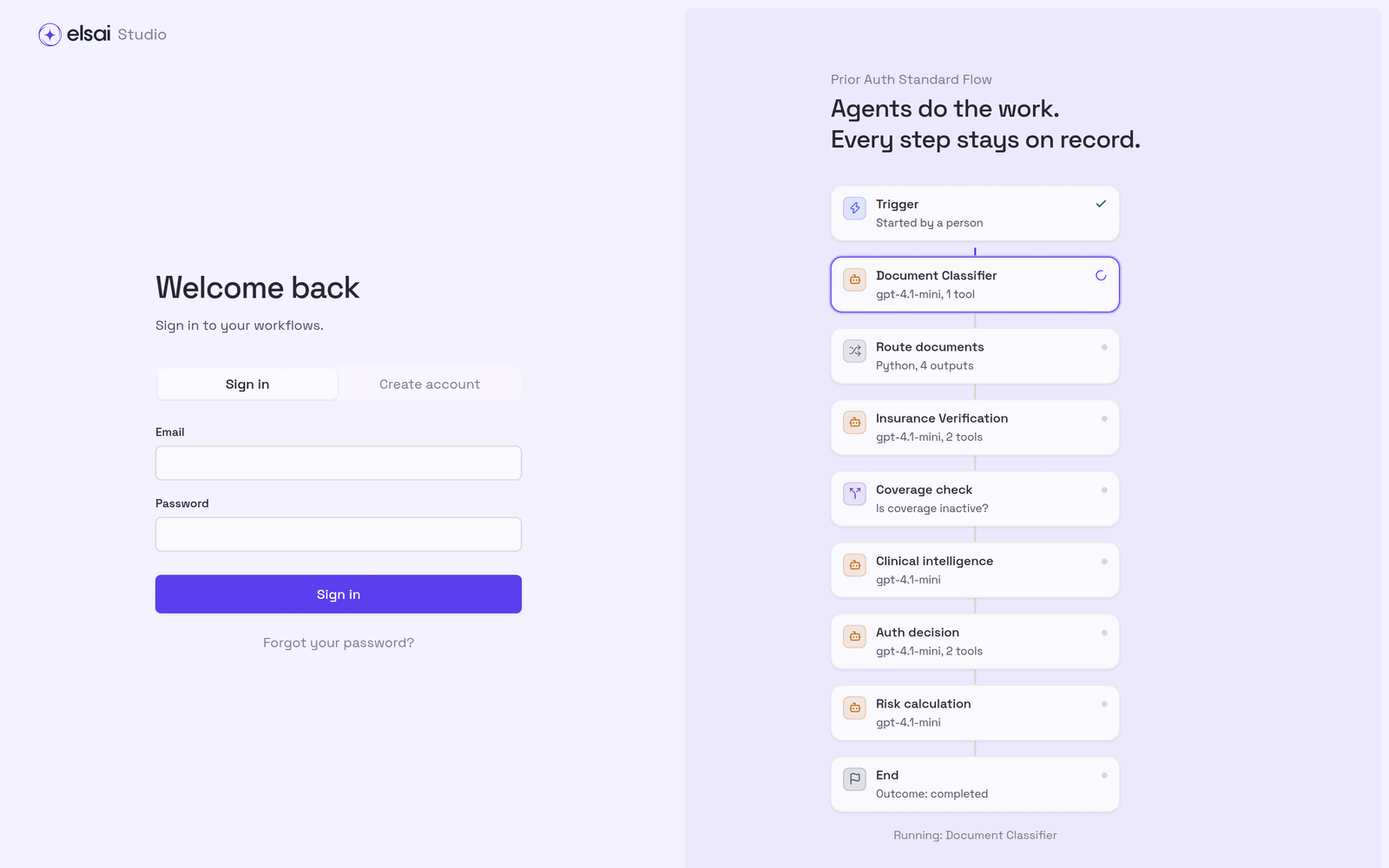
The same sign-in works in Instruction Manager and Elsai Observe. You never create accounts there.
3. Reset a forgotten password
- On the sign-in screen, click Forgot your password?.
- Enter your Email and click Send reset link.
- Open the email and follow the link to choose a new password.
Screenshot: Reset your password
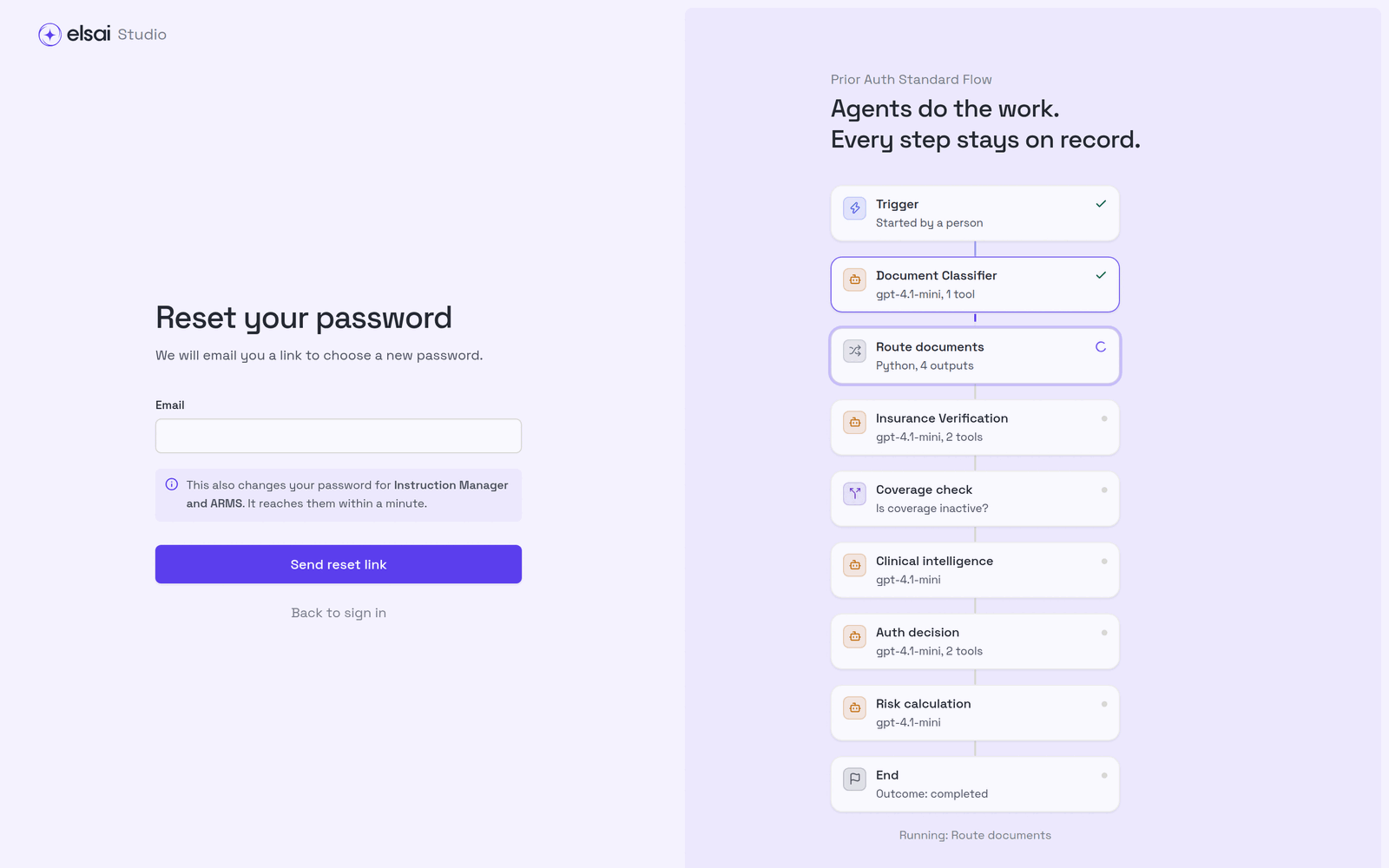
The new password also applies to Instruction Manager and ARMS; it reaches them within a minute. To change a password you still know, use Settings → Password (Settings).
4. Know the screen
Screenshot: Studio after signing in (the Agent Registry)
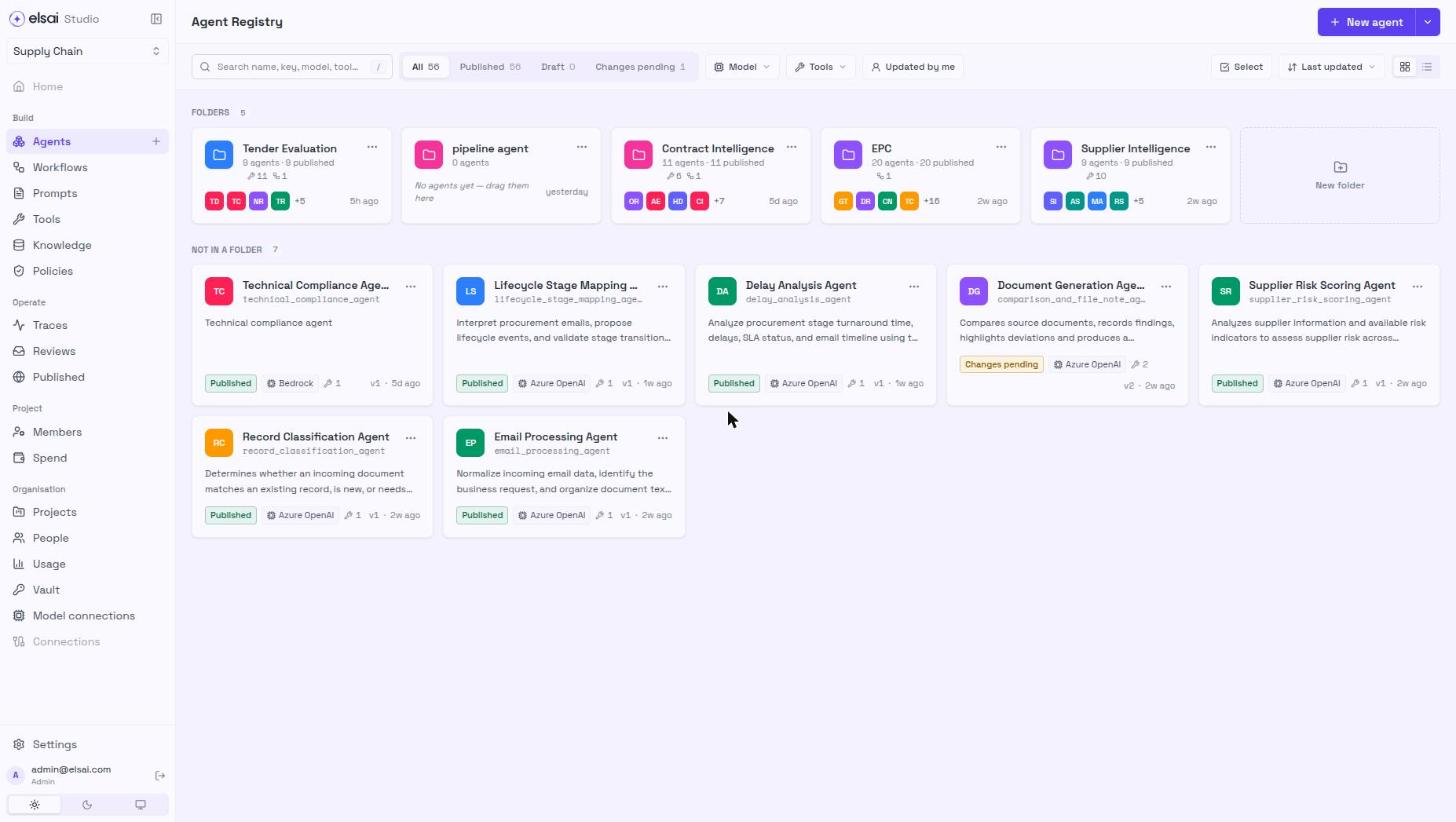
The sidebar groups
| Group | What it is for | Items |
|---|---|---|
| Build | Making things | Agents, Workflows, Prompts, Tools, Knowledge |
| Operate | Watching and answering runs | Traces, Reviews, Published |
| Project | The current project's people and money | Members, Spend |
| Organisation | Things shared by every project | Projects, People, Usage, Vault, LLM Config |
- Items marked admin above appear only for Administrators.
- Reviews shows a live count of cases waiting for a person.
- Agents has a + beside it: a shortcut to New agent.
The bottom of the sidebar
| Control | Does |
|---|---|
| Settings | Your preferences, and organisation settings for admins |
| Your name and role | Who you are signed in as. The arrow signs you out |
| ☀ / ☾ / 🖥 | Light theme, dark theme, or follow your computer |
| ◧ (top) | Collapse the sidebar to icons, for more room |
5. Switch project
Most of Studio belongs to one project at a time. The project you are in is shown at the top of the sidebar and in the page address (/p/<project>/…).
- Click the project name at the top of the sidebar.
- Choose another project from the list.
- You see only the projects you have been added to. Administrators can open every project.
- Pages under Organisation and Settings are not tied to a project; there the picker says No project.
- The address includes the project, so a link you paste to a colleague opens the same project, and two browser tabs can show two projects.
6. Troubleshooting
| Symptom | Likely cause | Fix |
|---|---|---|
| "You are not in any project yet" | New accounts start in no project | Ask an Admin to add you to a project |
| You can see things but there is no Run or New button | You are a Viewer | Ask an Admin for the Author role |
| Registration refuses your email | Your installation accepts only some email domains | Use your company email, or ask an Admin |
| A link you were sent says No such project | The project does not exist, or you have not been given access to it | Ask an Admin for access |
| Your new role has not appeared | Role changes apply when your session refreshes (up to 30 minutes) | Sign out and in again |