
Appearance
Settings
Your own preferences, model keys, password, builder layout, and, for Administrators, the organisation's MCP allowlist and Apps.
At a glance
| Where | Bottom of the sidebar → Settings |
| Who | Everyone for Your preferences. Admins for MCP servers and Apps |
| Before you begin | Nothing |
Screenshot: Settings
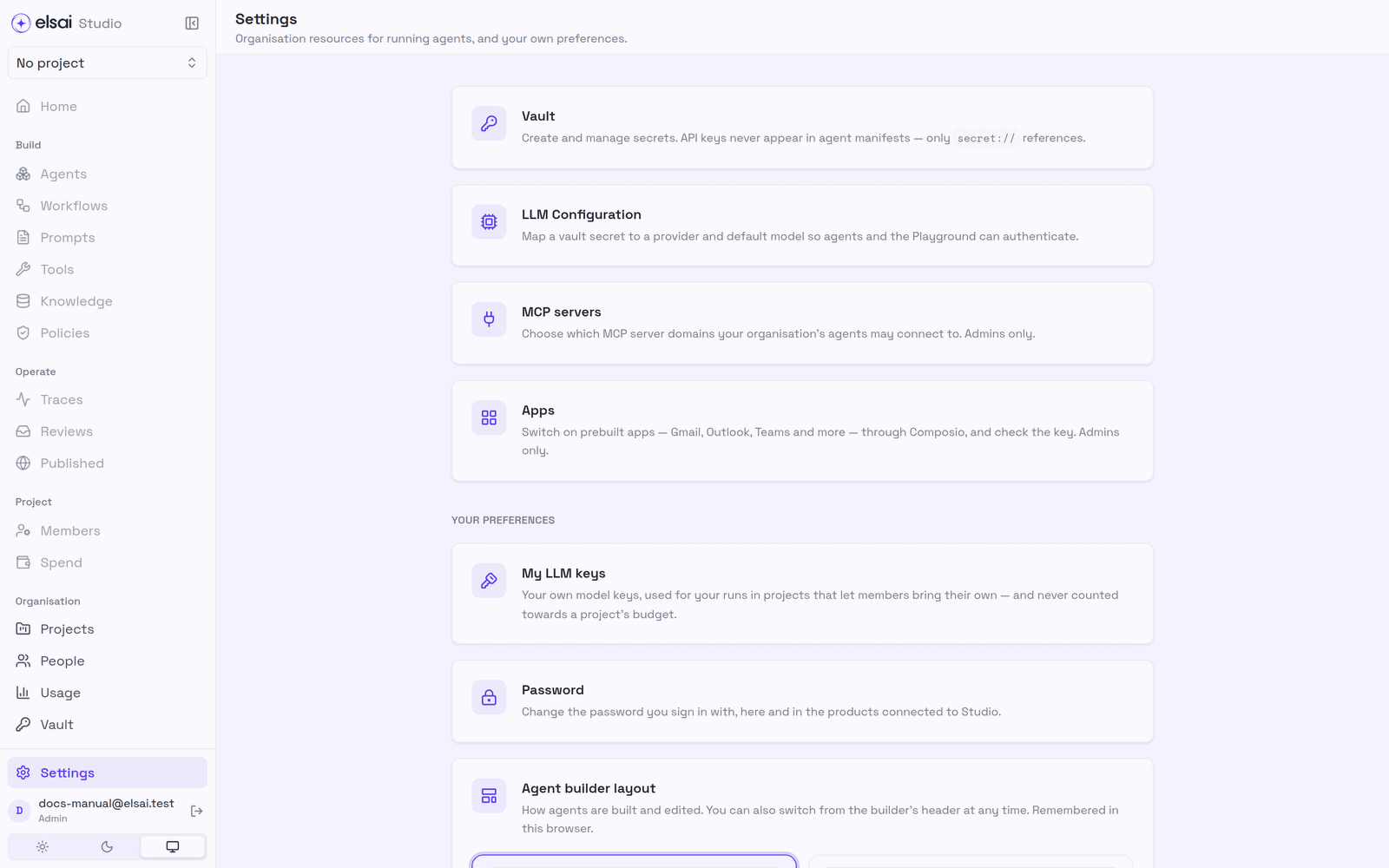
| Section | For | Page |
|---|---|---|
| Vault | Admins: secrets | Vault |
| LLM Configuration | Provider → model → key | LLM configuration |
| MCP servers | Admins: which MCP domains agents may use | §6 |
| Apps | Admins: switch on Composio apps | §7 |
| My LLM keys | Your own model keys | §2 |
| Password | Change your password | §3 |
| Agent builder layout | Guided or single page | §4 |
| Runtime | Information for engineers about the Playground runtime | None |
1. Theme
At the bottom of the sidebar: ☀ light, ☾ dark, or 🖥 follow your computer.
2. Add your own model keys
Settings → My LLM keys. Your own keys, used for your runs in projects whose Admin allows members to bring their own. Your spend on them is shown to you and to Admins, and never counts toward a project's budgets.
- Find the provider card (OpenAI, Azure OpenAI, Anthropic, Google Gemini, AWS Bedrock).
- Add key, paste it, Save key.
Nobody, you included, can read the key back, and nobody else can use it. Details: Spend and budgets → Members' own keys.
3. Change your password
Settings → Password.
- Enter your Current password.
- Enter and confirm a New password (at least 12 characters).
- Click Change password.
Screenshot: Password
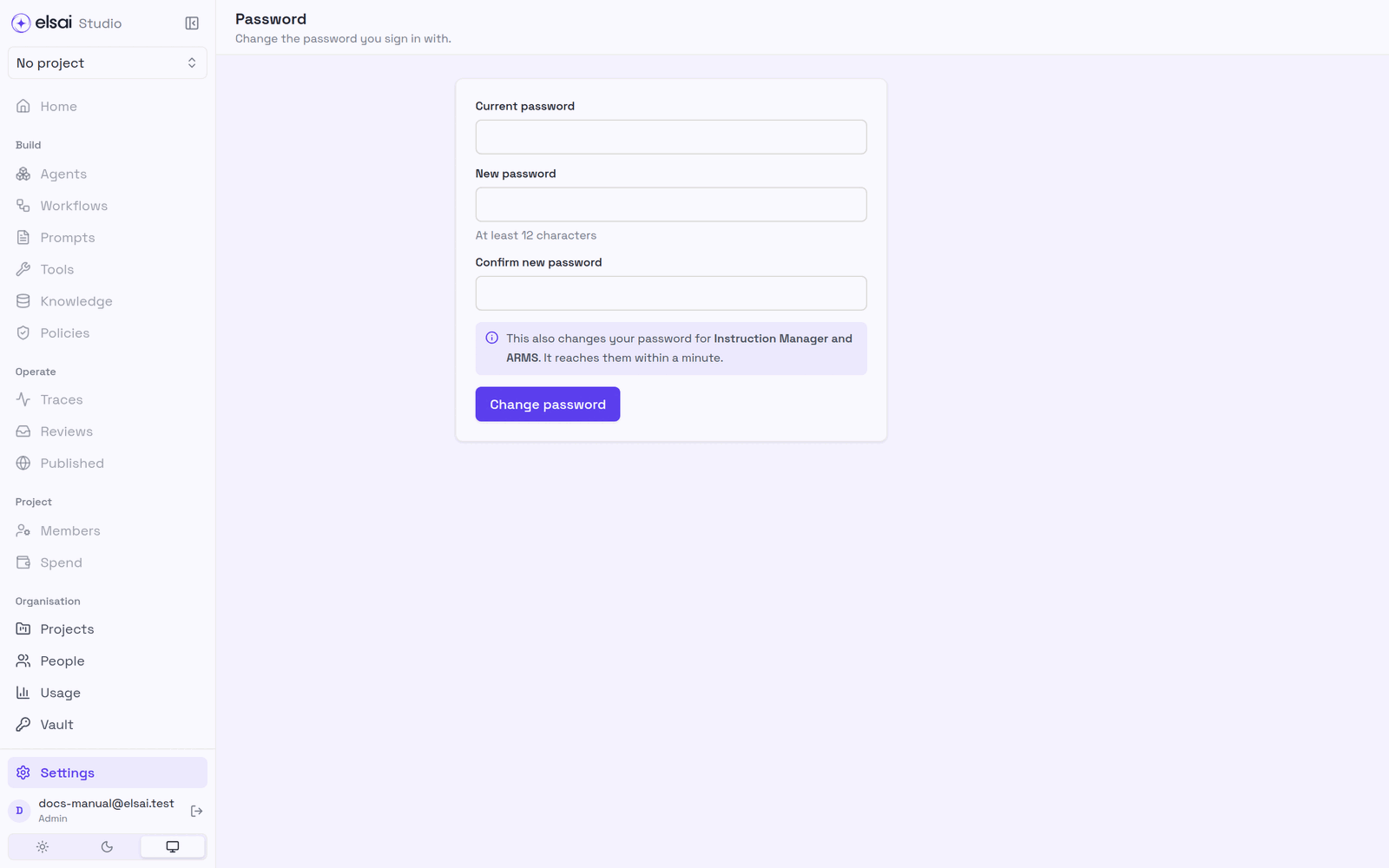
This also changes your password for Instruction Manager and ARMS; it reaches them within a minute. Forgot it? Use Forgot your password? on the sign-in screen.
4. Choose the agent builder layout
| Layout | Best for |
|---|---|
| Guided | One step at a time, in order, with progress. A first agent, or being walked through |
| Single page | Every section on one page with a table of contents. When you know what an agent is made of |
Remembered in this browser. You can also switch from the builder's header at any time.
5. Sign out
Click the arrow beside your name at the bottom of the sidebar.
6. Control which MCP servers agents may use (Admin)
Connecting an agent to an outside MCP server means agent inputs can be sent to that server. Admins decide which servers are permitted.
Settings → MCP servers.
Screenshot: MCP servers
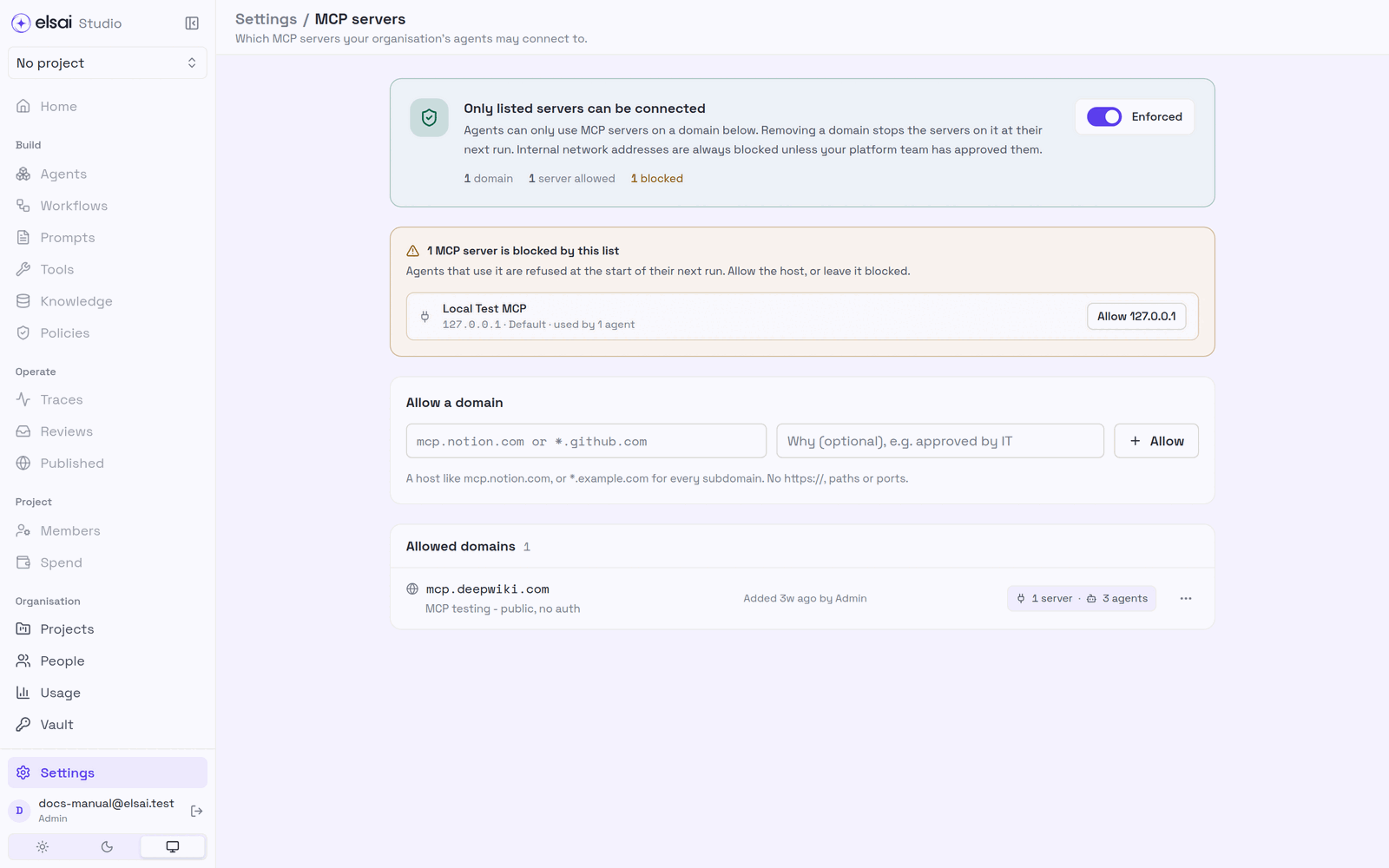
Enforcement
| Setting | Meaning |
|---|---|
| Only listed servers can be connected (enforced) | Only domains on the list work. An empty list means nobody can connect anything |
| Any public server can be connected (not enforced) | Any public https:// server works; the list is kept for later |
The check runs three times: when someone types the URL or tests the connection, when the tool is saved, and at the start of every run. Removing a domain therefore stops its servers at their next run, not just at the next edit.
Allow a domain
- Under Allow a domain, enter a host such as
mcp.notion.com, or*.example.comfor every subdomain. Nohttps://, paths or ports. - Optional: a note for whoever reviews the list next (e.g. Approved by IT, ticket SEC-142).
- Click Allow.
See what is blocked
If tools already point at servers that are not allowed, a banner says so, e.g. "1 MCP server is blocked by this list", listing each server and how many agents use it, with Allow host. Agents that use a blocked server are refused at the start of their next run.
Remove a domain
Open the domain's row. Removing first shows what depends on it, "Nothing uses this domain yet…" or the servers that will stop working.
Always refused, whatever the list says
| Refused | Message |
|---|---|
Not https:// | MCP servers must use https://. |
| A raw IP, an internal name, or a name resolving to a private address | …is an internal address. Studio only connects to internal MCP servers your platform team has approved. |
| A server answering with a redirect | …answered with a redirect, which Studio does not follow. Use the final URL. |
Only the platform team can open specific internal hosts, through deployment settings.
7. Set up Apps (Admin)
Settings → Apps switches on Composio's prebuilt apps (Gmail, Outlook, Teams and more) for every project.
Screenshot: Apps settings
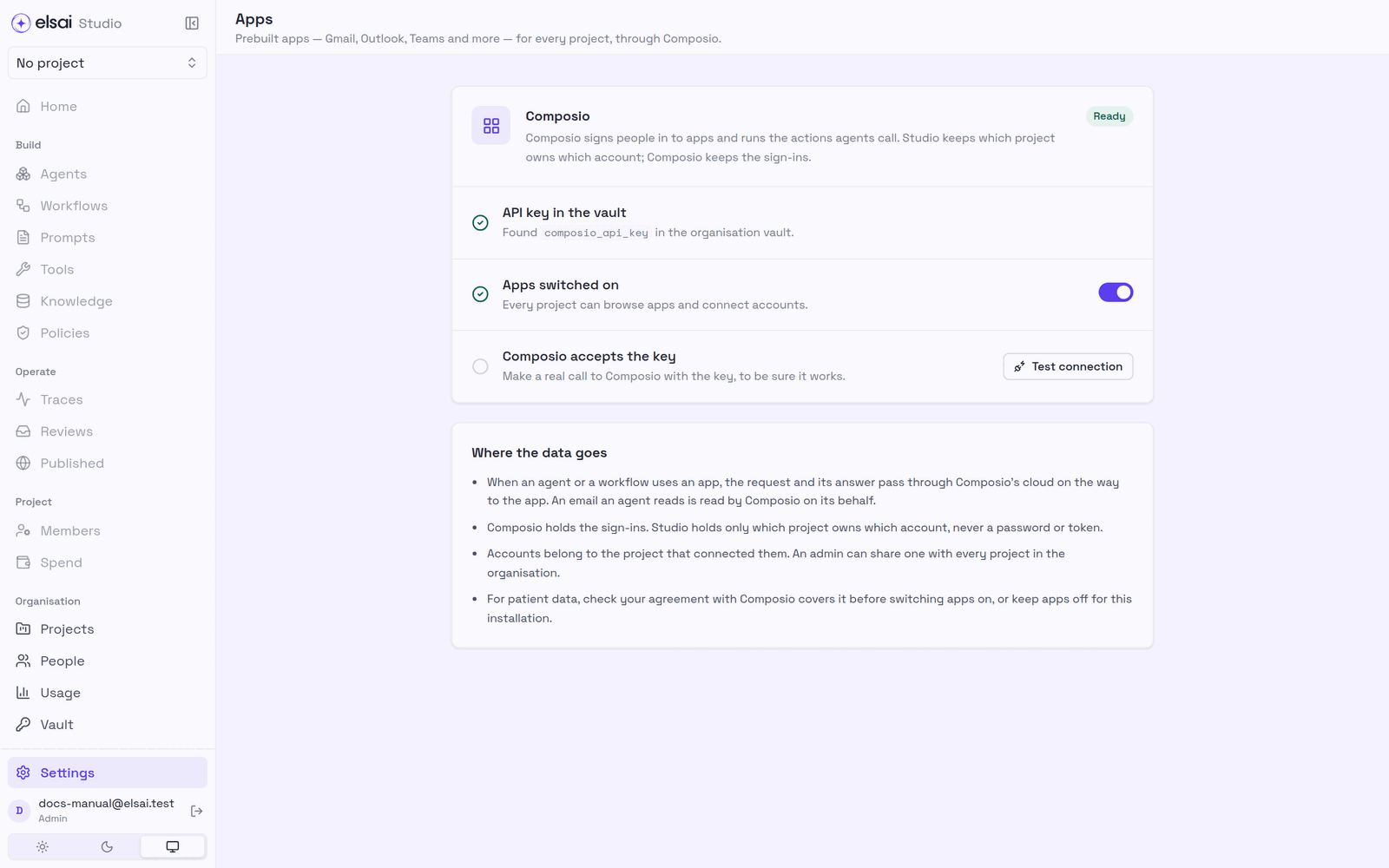
- Add a secret called
composio_api_keyto the organisation Vault. - Open Settings → Apps. The checklist should show:
- API key in the vault, Found composio_api_key in the organisation vault.
- Apps switched on, Every project can browse apps and connect accounts.
- Click Test connection to make a real call to Composio with the key.
Read Where the data goes on the same page before switching apps on: requests and answers pass through Composio's cloud. For patient data, check your agreement with Composio covers it, or keep apps off for this installation.
8. Troubleshooting
| Symptom | Likely cause | Fix |
|---|---|---|
| No MCP servers / Apps settings | You are not an Admin | Ask an Admin |
| Composio refused the key | Wrong or expired key | Replace composio_api_key in the Vault |
| An MCP tool stopped working overnight | Its domain was removed from the allowlist | Allow it again, if appropriate |
| Password change refused | Current password wrong, or new one under 12 characters | Try again |
Related
- Vault · Tools → MCP · Apps