
Appearance
Workflow steps
Every kind of step you can put on the workflow canvas: what it does, when to use it, and every setting. Read Workflows first for the canvas, input mapping and running.
At a glance
| Step | Group | In one line |
|---|---|---|
| Trigger | Start | How a run starts. Exactly one per workflow |
| Agent | AI | Run one of your published agents |
| Read documents | AI | Turn uploaded PDFs, Word, Excel and CSV files into text |
| Condition | Logic | Send the run down one of several paths |
| Python step | Logic | Run a small Python function on earlier results, no AI |
| App step | Actions | Run one fixed action in a connected app, no AI |
| End | Finish | Finish the path, or the whole run, with an outcome |
Choosing between an Agent, a Python step and an App step
---|---| | Judgement, reading, writing, deciding | Agent | | The same exact logic every time: filter, combine, reshape, calculate | Python step | | The same exact action in an app every time: create the event, send the message | App step | | A choice between paths based on earlier results | Condition |
1. Trigger
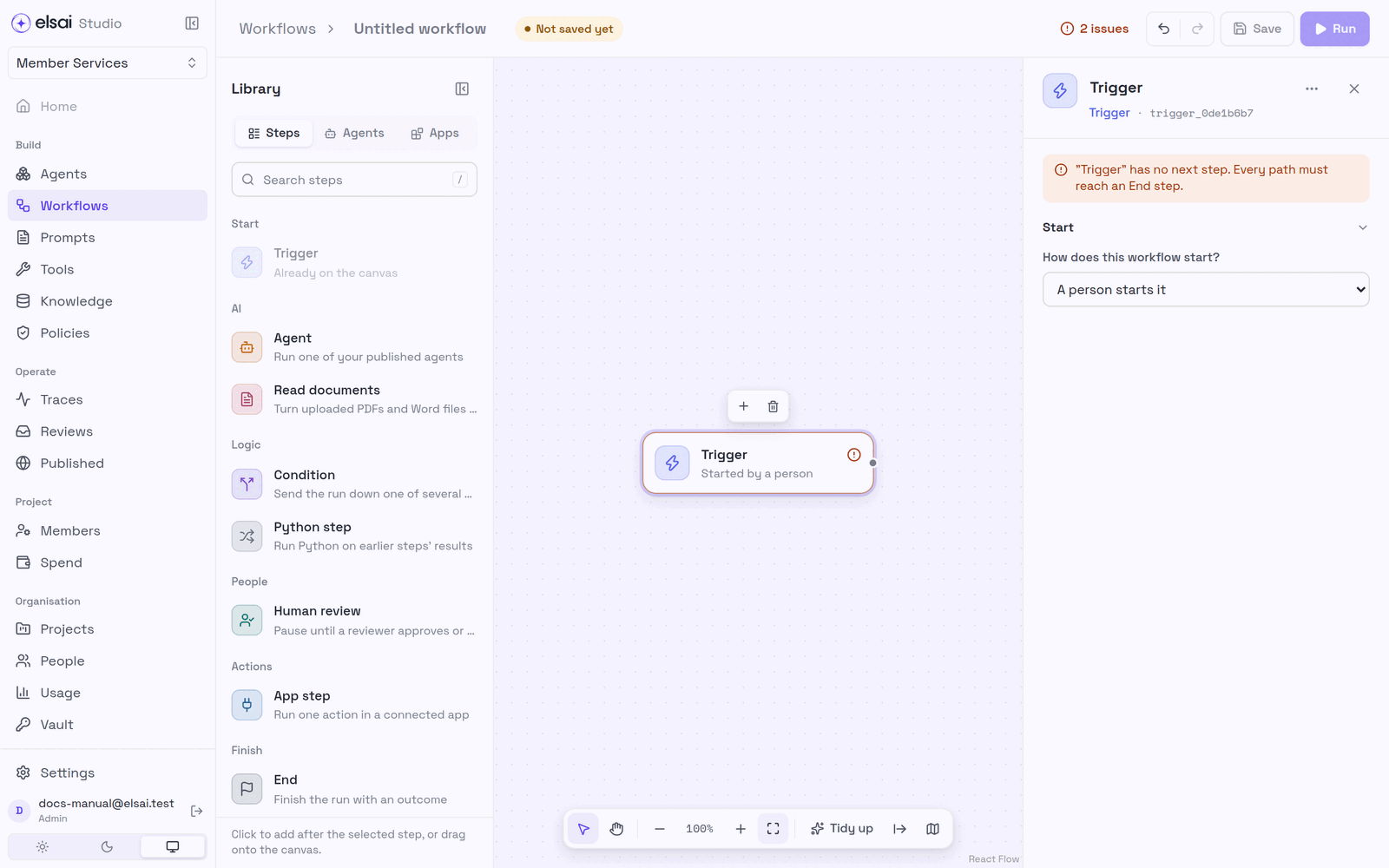
The start of every workflow. There is exactly one.
How does this workflow start?
| Choice | How |
|---|---|
| A person starts it | The Run button in the editor |
Every workflow run is started by a person from the editor (or through Studio's own API by a signed-in user). To let other systems call something, publish an agent and give it a URL - see Published agents.
Screenshot: Trigger settings
2. Agent
Runs one published agent, with the tools, knowledge and capabilities it already has.
| Setting | Meaning |
|---|---|
| Agent | Choose from published agents. Only published agents can run in a workflow |
| Version | Latest follows each new publish. A fixed version (e.g. v1) never changes under you. A deprecated or missing version is flagged |
| Tools | What the agent can call. Read-only here: change tools in the agent |
| Sub-agents | Give this agent a team (below) |
| Behavior → If the step fails | Retry (default), Skip (carry on without it), Escalate (hand to a person), Halt (stop the run) |
| Behavior → knobs | Settings the agent exposes, such as its confidence threshold (0–100) |
| Inputs | Where each declared input comes from (input mapping) |
Screenshot: Agent step settings
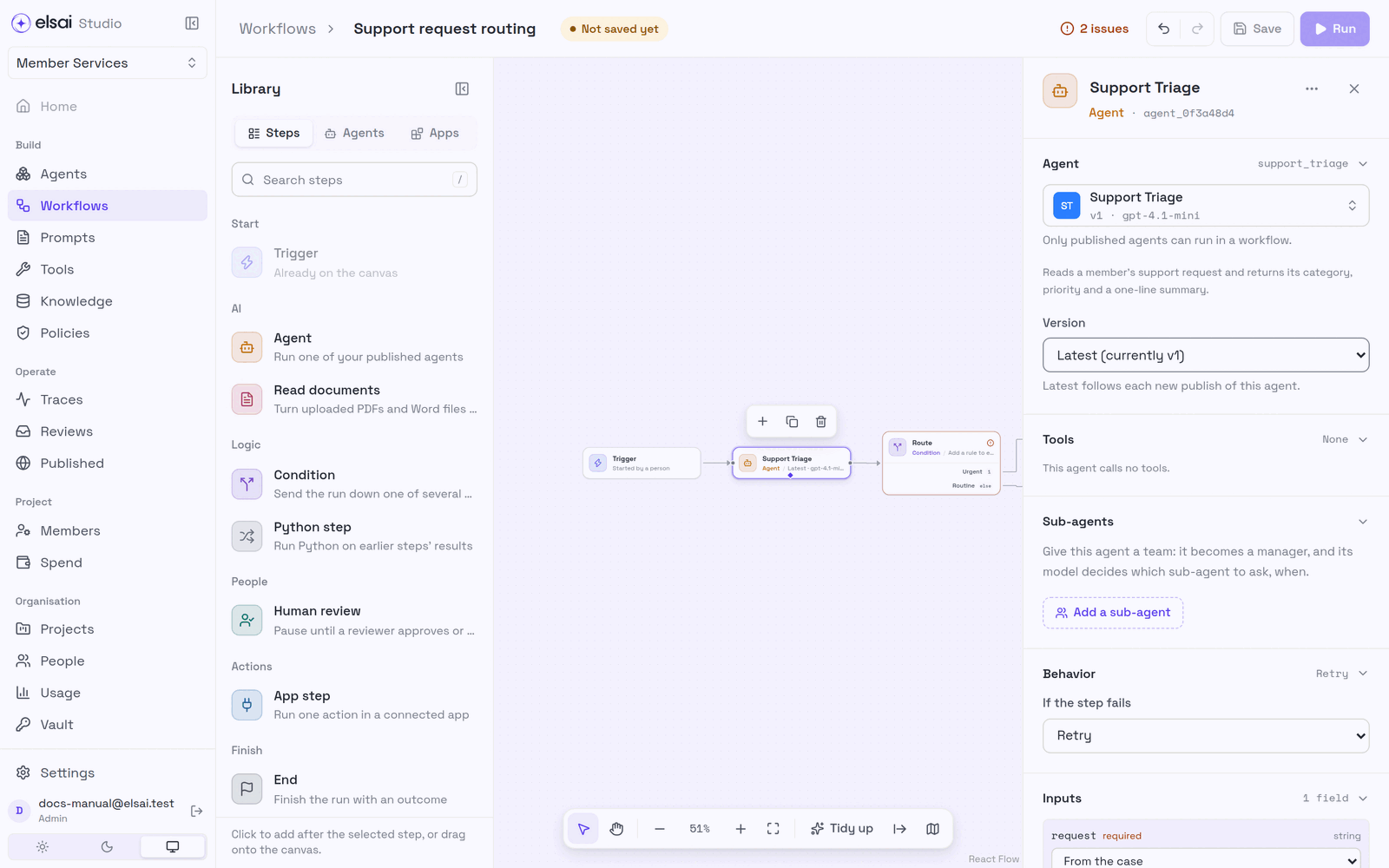
What later steps can read from an agent step: every field of its answer (e.g. priority), plus confidence (its score, 0–100) and governance_flag (the flag its governance rules set, empty when none fired).
Sub-agents (teams)
Add a sub-agent turns the agent into a manager: its model decides which helper agent to ask, and when. On the canvas this is a special link, not a normal arrow.
| Setting on the link | Choices |
|---|---|
| When to call it | A description the manager reads |
| If it is busy | Wait its turn (default), Refuse, or Run a fresh copy |
| Remember earlier calls | Keep context from earlier calls in the same run (not with Run a fresh copy) |
Rules: only an agent can manage or join a team; a helper cannot also be a normal step; an agent can be on only one team; teams nest only a few levels deep; no loops. A sub-agent receives its manager's request as plain text, so its declared inputs are not filled. Its own tools work as they do when it runs alone.
3. Read documents
Turns files the person uploads when starting the run into text the agents after it can read. PDFs are read by Docloom (scanned pages too); Word, Excel and CSV files are read inside Studio and never leave it.
| Setting | Meaning |
|---|---|
| Case field | The field the files are dropped into when the run starts (default documents) |
| Most files per run | Up to 15 |
| Reading PDFs → Docloom key | A vault key. Without one, the step reads Word, Excel and CSV only |
| Engine / Model | The OCR engine Docloom uses (default Azure Document Intelligence, prebuilt-layout) |
| If a file can't be read | Stop the run (default): no agent sees a case with a file missing. Carry on without it: later steps get the files that were read, and unread lists the others and why |
| What later steps get | The fields you can map from (below) |
Screenshot: Read documents settings
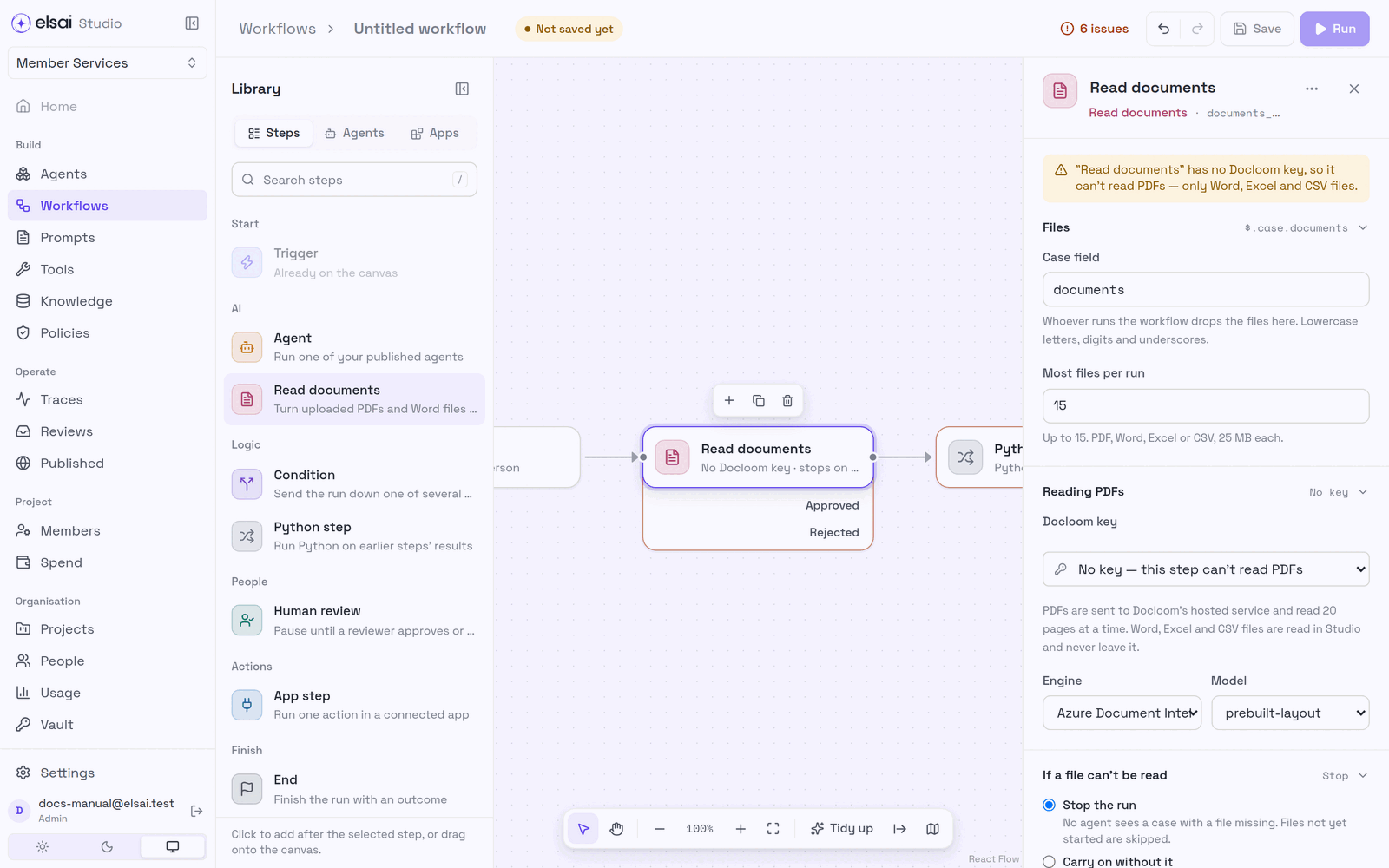
What later steps can map from: markdown (all the text), documents (each file's text), unread (files that failed and why), and reading statistics.
| Limit | Value |
|---|---|
| Files per run | 15 (or fewer, if the step says so) |
| File size | 25 MB |
| Types | PDF, DOCX, XLSX, CSV, no images |
| PDF pages | Read 20 at a time; a longer PDF is read in parts and joined |
A file is refused at upload if it is the wrong type, empty, too large, password-protected or not a readable PDF. A file read before (in another case, or on Re-run) is not read again; the run marks it read before. Uploaded files that no run used are removed after a day.
4. Condition
Sends the run down one path, chosen from what earlier steps produced.
- Under Paths, give each path a name.
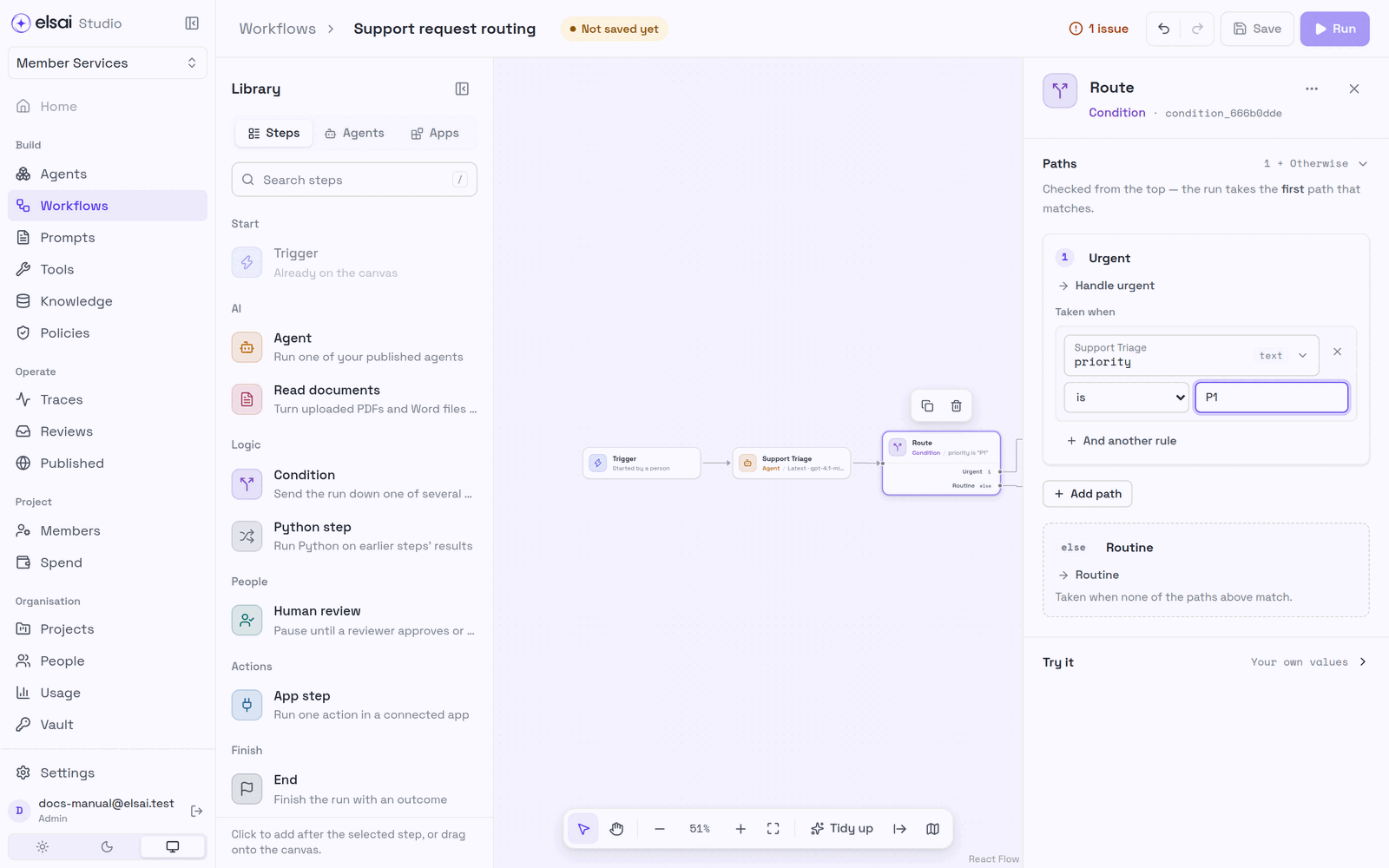
- Click Add a rule to say when this path is taken. A rule is field · operator · value:
- Field, pick from any earlier step (an agent also offers confidence and governance_flag) or A field on the case….
- Operator, offered to suit the field's type (below).
- Value, what to compare with.
- Add more rules with And another rule. The word between rules (and / or) is a switch: click it to choose whether every rule must hold, or any one is enough.
- Add path for more paths. Reorder with ↑ ↓.
- Connect each path, including Otherwise, to a next step.
Screenshot: A rule: Support Triage → priority is "P1"
| Field type | Operators |
|---|---|
| Text | is, is not, contains, does not contain, starts with, ends with, is empty, is not empty |
| Number | is, is not, is more than, is at least, is less than, is at most |
| Yes/no | is yes, is no |
| List | contains, does not contain, has exactly … items, has more than … items, has fewer than … items, is empty, is not empty |
| Any field | is filled in, is missing |
How a path is chosen:
- Paths are checked top to bottom; the first that matches is taken.
- Otherwise is always last, and is taken when nothing matched.
- Steps on paths not taken are shown as Skipped, with why. Where paths meet again, the step runs once.
- If a rule cannot be checked (its field is missing, or the wrong kind of value), the run stops at the Condition and says which rule. It never guesses another path. Add an is filled in rule first if a field may be missing.
Try it (bottom of the settings) checks sample values there and then and shows which path would be taken, rule by rule.
Tip: if the rule needs more than a few conditions, compute a yes/no in a Python step just before the Condition (e.g.
ready_to_submit) and route on that.
5. Python step
Runs a small Python function between steps, the same way every time, with no AI. Use it to give an agent only what it needs, or to combine what several agents found.
python
def run(steps, case):
    documents = case.get("documents", [])
    insurance = [doc for doc in documents if doc.get("type") == "insurance"]
    print(f"{len(insurance)} of {len(documents)} documents are insurance")
return {"insurance_doc": insurance}| Part | Meaning |
|---|---|
steps | The result of every step before this one, keyed by step id. A step on a parallel path is not included |
case | The run's input |
| Return value | A dict. Its fields are what later steps can map from |
print | Shown under Printed in the run panel, even when the step fails |
| Setting | Meaning |
|---|---|
| Code | The steps it reads are listed above the editor with their fields; click a field to insert steps["<id>"]["<field>"]. Problems are shown with their line as you type. Open larger editor for room |
| Outputs | Declare each field run returns (name and type). Later steps map from these. A declared field the code does not return fails the run, saying which |
| Try it | Runs the step once on sample input, exactly as a run would. Records nothing |
| Limits | How long it may run: 30 seconds by default, up to 120 |
Screenshot: Python step settings
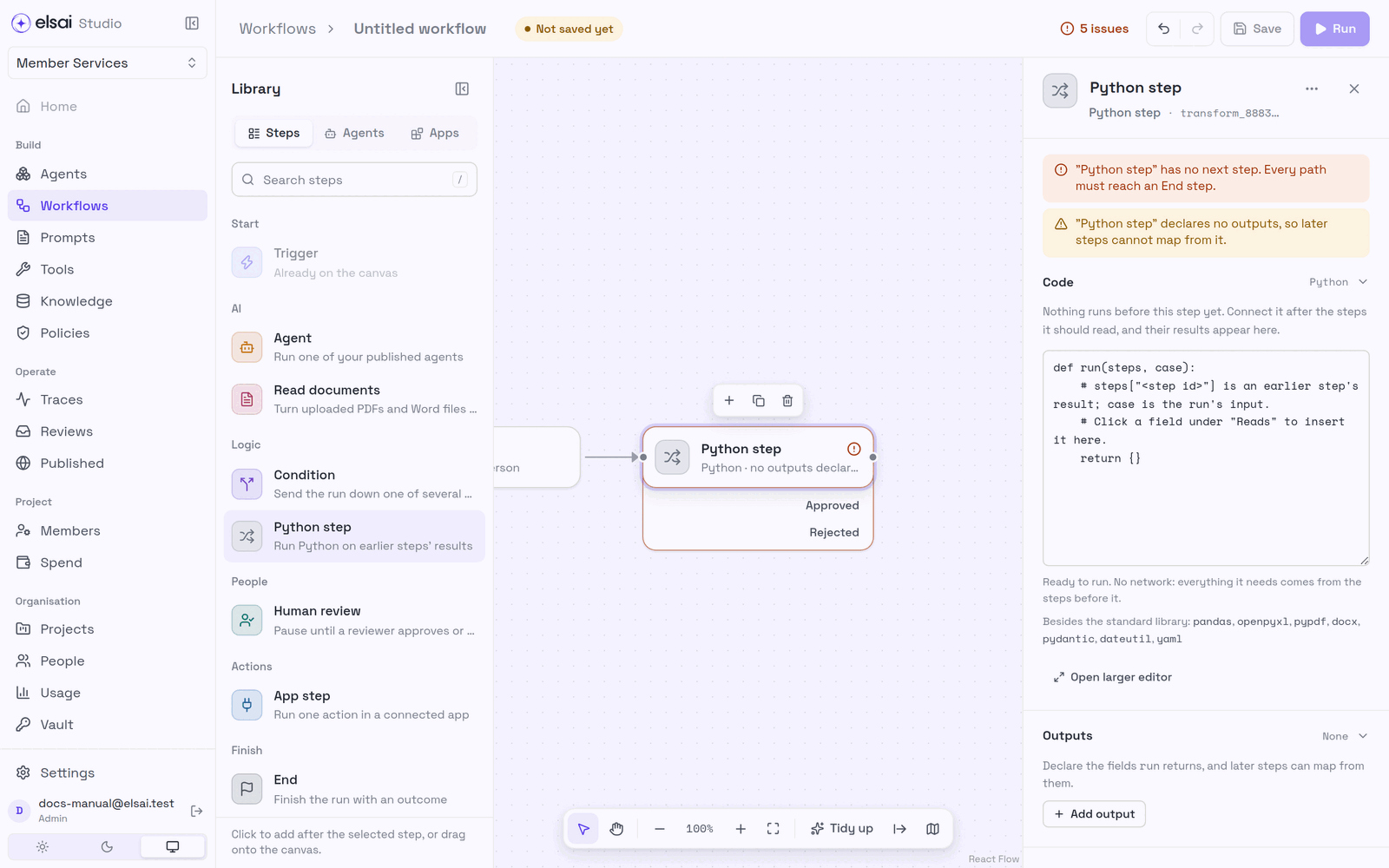
What the code may use: the Python standard library, plus pandas, openpyxl, pypdf, docx, pydantic, dateutil, yaml. It has no network access: everything it needs must come from earlier steps or the case. Any other import is refused as you type, and again at run time.
6. App step
Runs one fixed action in a connected app, with no AI, for something that must happen the same way every time, such as "create the calendar event".
- Choose the App tool (an app action added to this project).
- Map its inputs, exactly as for an agent.
Screenshot: App step settings
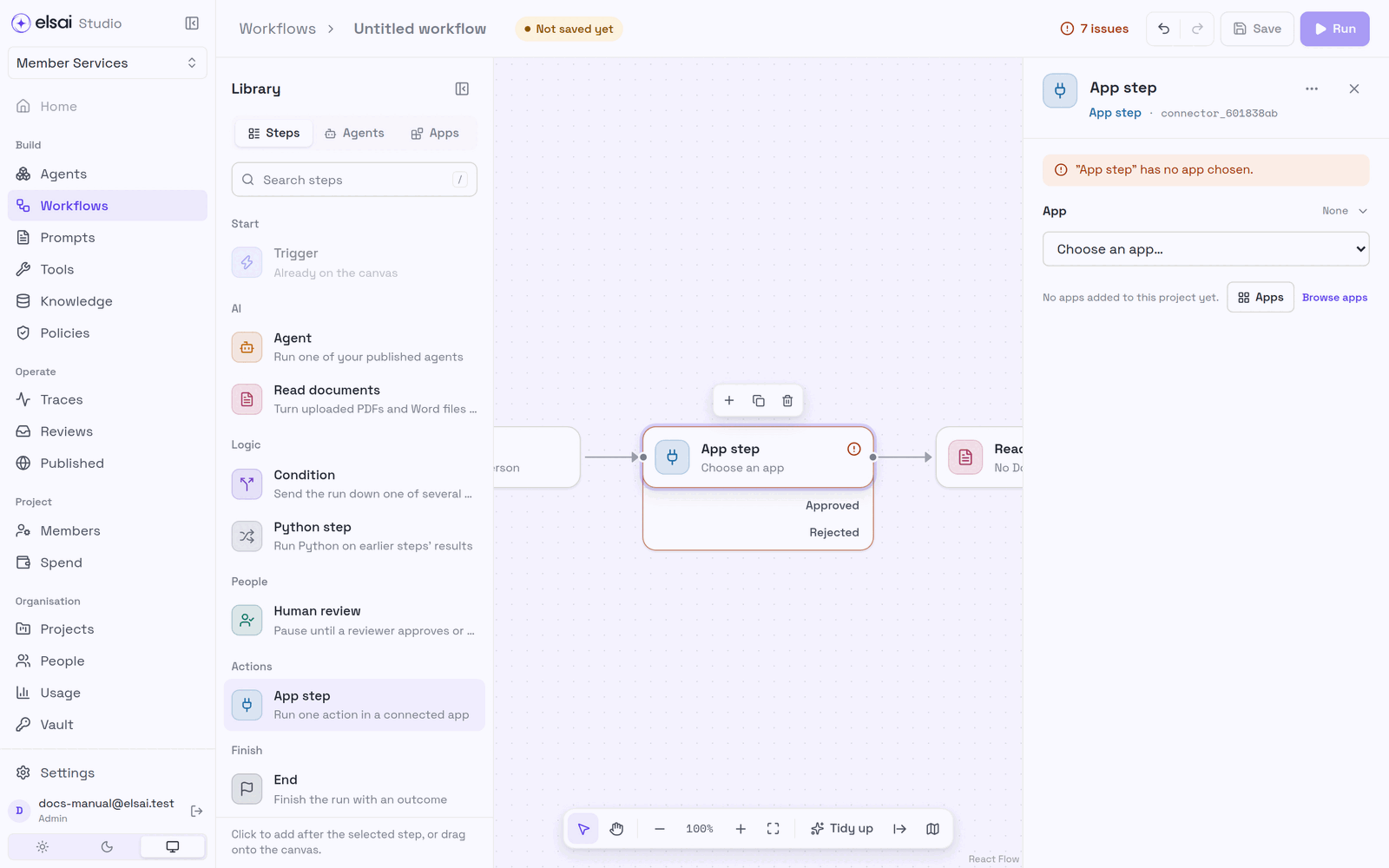
If the list says No apps added to this project yet, click Browse apps and add one first. See Apps. The run acts through an app account according to the account's sharing rules, a personal account acts as the person who started the run.
7. End
Finishes a path with an outcome.
| Setting | Meaning |
|---|---|
| Outcome | Recorded on the run as where it ended up, e.g. completed, submitted, declined |
| When a run gets here → Finish this path | Default. Work still going on other paths carries on |
| When a run gets here → Stop the whole run | Nothing else starts. Steps already working finish and are recorded. Give a reason |
Screenshot: End settings
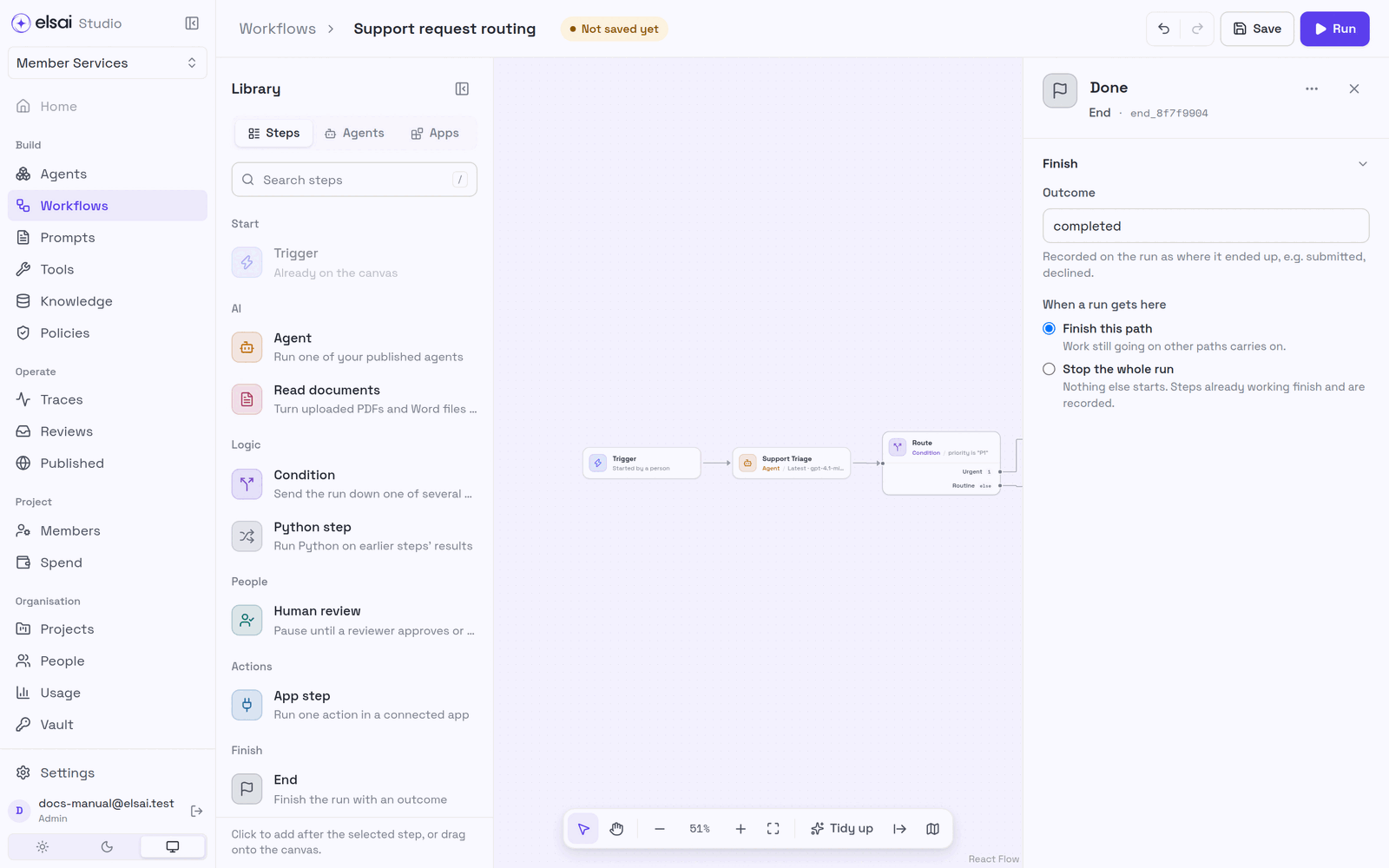
The run bar then reads, for example, Ended at Done · completed, or Stopped · Not a support request.